 WConvert
Add an inline campaign with a block or shortcode
Publish an inline campaign, place it inside a WordPress page and test a submission.
On this page
Before you start
Manual inline placement is included in Free. You need an Inline form campaign and permission to edit the page where it belongs.
To create one, choose Create campaign → Grow my email list and an inline setup such as Newsletter signup after an article. Review its content and destinations before publishing.
Watch the walkthrough
Add The Friday Letter’s signup form after an article in 2 minutes 40 seconds, using Free manual placement and the WordPress block. Start with prepared article content and supporting form copy, publish the campaign and article separately, then verify a real saved signup. This example keeps leads in WConvert only; email delivery needs a separate test.
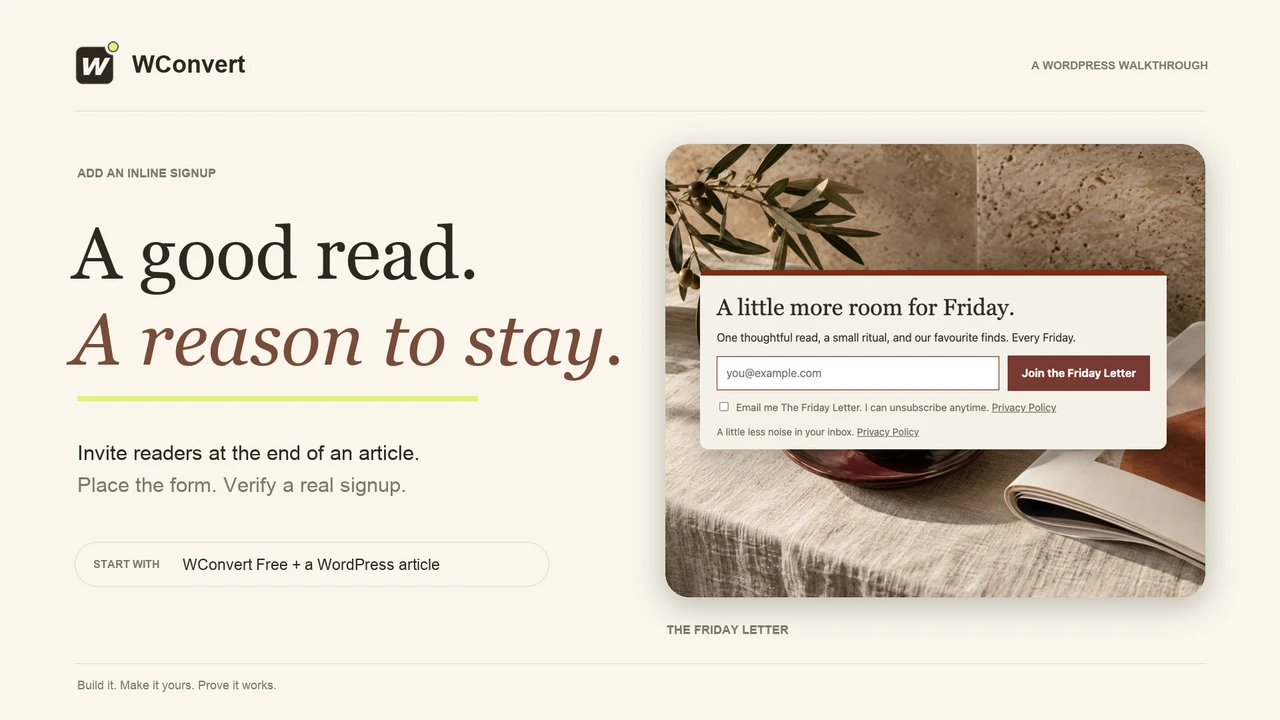
Read the transcript
Recorded October 2026. The Friday Letter is a fictional editorial site; the article and signup use sample content. This example saves leads locally without sending email.
0:00 Add an inline signup
A good article can be the start of a longer conversation. Let’s add The Friday Letter’s signup form below a post, then check that a real signup is saved.
0:10 Choose an inline setup
In Create campaign, choose Grow my email list, then Newsletter signup after an article. This Free setup stays within the page. Use it to create a draft, ready for your own copy.
0:22 Make the invitation fit the article
I’ve prepared The Friday Letter’s supporting copy and consent wording. Change the headline to A little more room for Friday. The invitation should feel like a natural next step after the article. Check the mobile view too, especially the email field and button.
0:38 Check manual placement
In Display rules, Blog posts only matches our article. Keep Placement set to Manual. This allows the form on eligible posts; it does not insert it everywhere. We’ll choose its position with a WordPress block.
0:52 Publish the campaign first
For this test, keep the signup in WConvert only. It saves a lead without sending email. With the draft saved, review the page rules, manual placement and privacy information. Publish the campaign first, so the WordPress block can find it.
1:08 Place the block after your article
Open your article in WordPress and place the cursor after its final paragraph. Open the block inserter and search for WConvert. Choose WConvert campaign. This is the inline signup block; the content lock blocks serve a different purpose.
1:24 Choose the published campaign
If the campaign was just published, refresh the list. Search for The Friday Letter and select the matching campaign. Typing the name alone does not select it. Save the article draft once the right campaign is chosen.
1:39 Publish the article too
The campaign and the article are published separately. Review the post, then publish it too. In another editor, use the campaign’s copied shortcode in a shortcode element. Either way, the real page is where we check the result.
1:53 Test the real article
Open the published article as a visitor. The form sits after the last paragraph, right where we placed it. Use a test email address, read the consent message, and submit. This confirmation means the request was received. Next, we’ll check the saved lead.
2:10 Verify the saved signup
In Leads, filter to this campaign and search for the test email. Open the submission. The campaign and the consent wording match our form. That proves the signup was saved locally. It does not prove an email was delivered or that a mailing service has subscribed this reader.
2:27 A useful invitation
Your form is part of the article, and the signup is saved. Before welcoming readers, connect your email service and test delivery. Start with one useful article, and make the invitation feel at home.
Set manual placement and check the rules
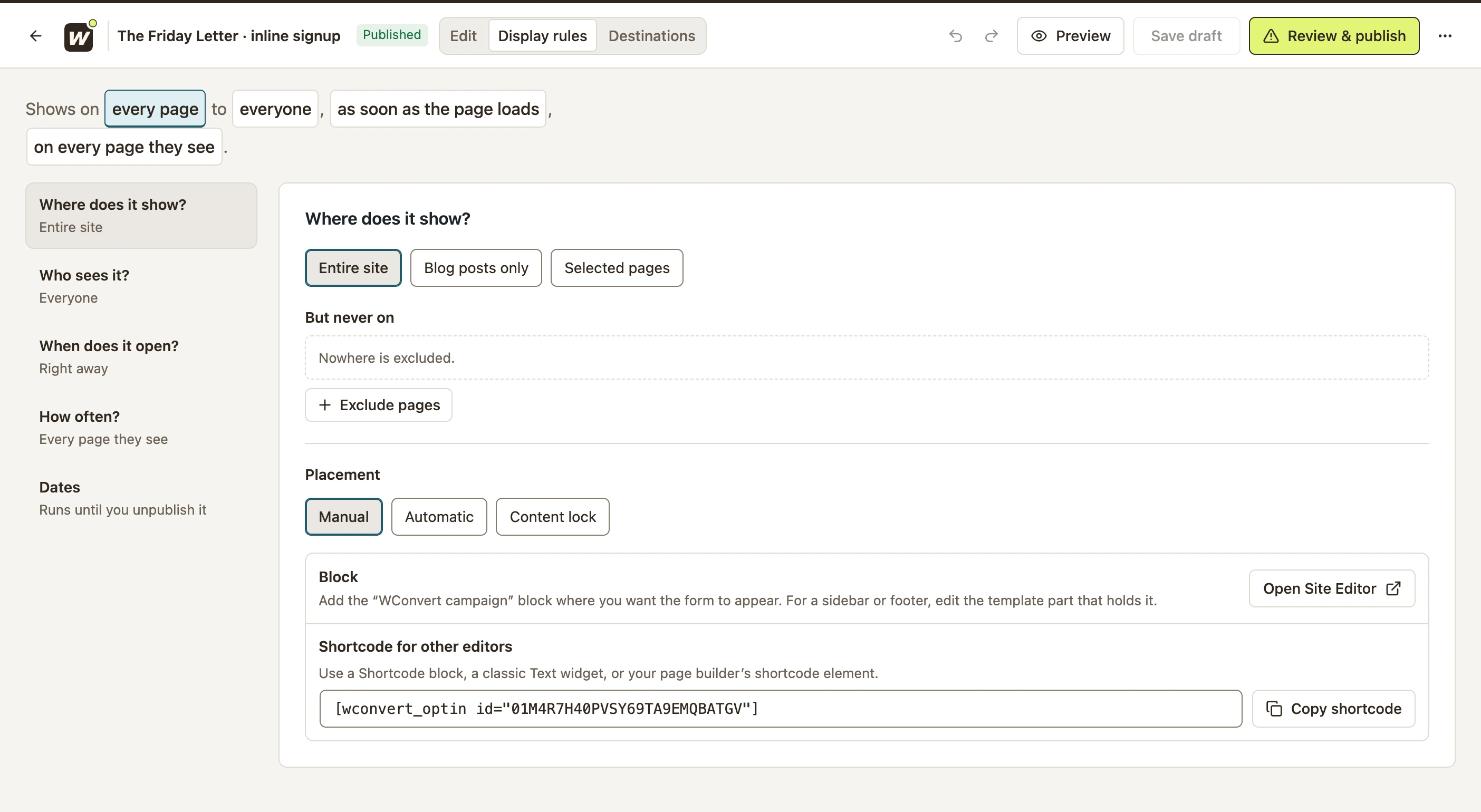
- Open Display rules → Where does it show?.
- Check that the rules allow the page you are about to edit. A setup limited to blog posts will not automatically qualify on a WordPress page.
- Under Placement, select Manual.
- Review the other display rules and publish the campaign.
 Enlarge screenshot
Choosing Entire site here allows eligibility across the site; a manual inline form still needs to be placed with a block or shortcode.
Place the WConvert campaign block
- Edit your WordPress page or post.
- Open the block inserter and search for WConvert.
- Add the WConvert campaign block where the form should appear.
- Search for your campaign in the block’s Campaign field and select it.
- Publish or update the page, then view its frontend. Saving a new page as a draft is not enough.
If you just published the campaign and it is missing from the picker, select Refresh campaigns. Confirm that it is an inline campaign and that publication completed.
Placing it in a sidebar or footer
With a block theme, edit the template part that contains the sidebar or footer in the Site Editor. With a classic widget area, use a suitable Text widget and the shortcode. Check the actual frontend because the theme controls the available space.
Use a shortcode in another editor
- Return to the campaign’s manual placement instructions.
- Select Copy shortcode.
- Paste it into a WordPress Shortcode block, a classic Text widget or your page builder’s shortcode element.
- Save the page.
[wconvert_optin id="YOUR_CAMPAIGN_ID"]Use the value copied from your campaign. The placeholder above is not a working campaign ID. Do not put the shortcode in a Code block, which displays it as text.
Test the published form
- View the published page, not only the WordPress editor.
- Find the form at the position where you placed it.
- Submit a test email address and check the acknowledgement.
- Open Leads and find the submission.
If the form is absent, check campaign publication, the selected campaign ID, page rules, visitor limits and cached page content. If the shortcode appears as plain text, check the type of block or page-builder element you used.
For insertion across several articles, see automatic inline placement with Pro. If a form or lock is missing, use placement troubleshooting.
Include your WConvert version, the page you tested and any error message.