 WConvert
My popup does not appear
Use the preview and live display checks to identify the rule or setting that prevents a popup from appearing.
On this page
Start with the page you are testing
This guide applies to Free and Pro popups. Open the exact page where you expect the popup. Note the campaign name and whether you are signed in; role and login rules can change the result.
- In Campaigns, confirm the campaign is Published. A saved draft is not live.
- If it has unpublished changes, publish the intended version.
- Check that this is a popup campaign. An inline form needs a block or shortcode.
- Wait for the configured delay or perform its opening action, such as scrolling.
Watch the walkthrough
Find why a published popup stays hidden on a computer, correct its device rule, and test the live result in 2 minutes 16 seconds. The example also shows when a once-per-visit limit is working as intended. Everything shown uses Free features; start with an existing popup.
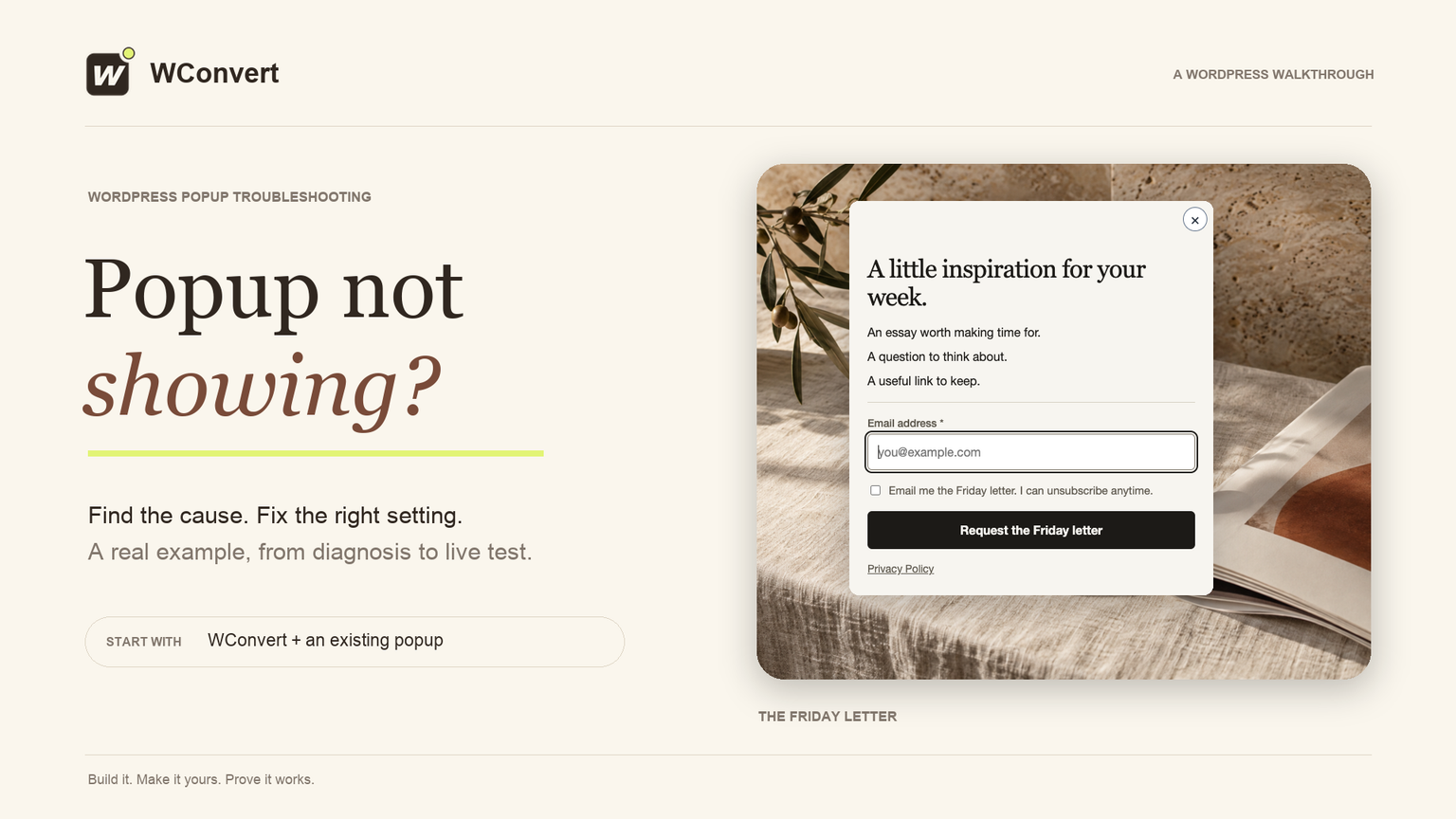
Read the transcript
Recorded October 2026. The Friday Letter is a fictional editorial site; the pages and popup use sample content.
0:00 Find the cause, then test the fix
Your popup is published, but nothing appears. Let’s find the reason in WConvert, fix one mistaken rule, and prove the popup works on the real page.
0:10 Start with the actual page
Start on the exact page where you expect the popup. Our invitation should appear after five seconds, but this computer gets nothing. Waiting longer will not solve the audience rule we are about to find.
0:23 Check the campaign and its status
Find the right campaign and confirm it is published. A saved draft is not live. Open the campaign to check its rules. We will use the preview to describe the visit that is failing.
0:35 Read what stops the visit
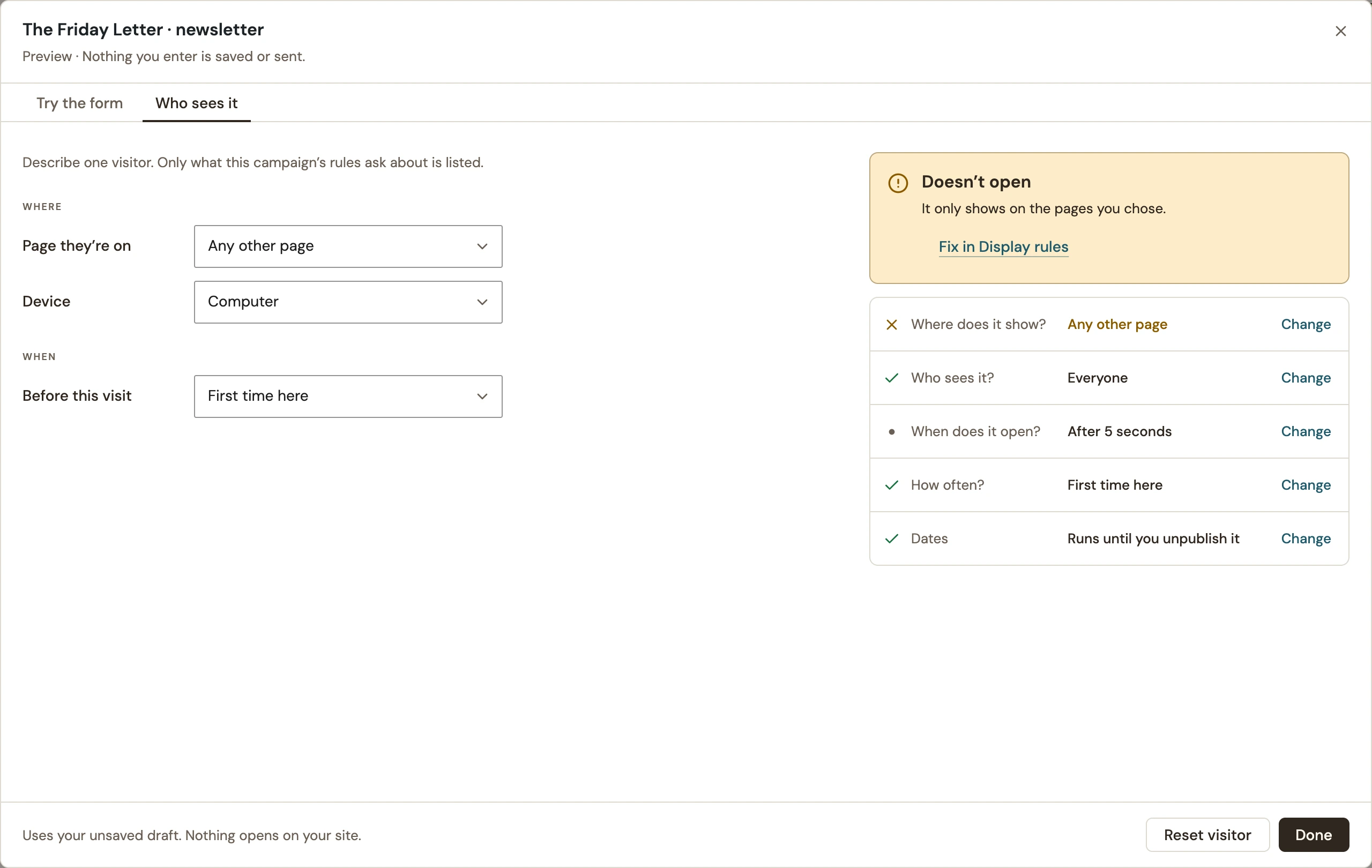
Open Preview, then Who sees it. The selected article, a computer, and a first-time visitor match our test. Read the explanation: this campaign is for phones only. The audience rule is stopping it.
0:50 Correct the mistaken audience
Choose Fix in Display rules. Our newsletter is intended for readers on every device, so change Phones only to Everyone. Keep an intentional restriction if your campaign really is for a smaller audience.
1:03 Check the draft again
Return to Preview and Who sees it. The same computer visit now passes, and the popup is set to open after five seconds. This checks the draft. The live page still uses the published version until we update it.
1:18 Understand a repeat visit
There is another common reason. Set Before this visit to Saw it earlier this visit. Our once-per-visit limit now stops the popup. That is expected. Reset the visitor for a clean test instead of removing a useful limit.
1:34 Publish the correction
Close Preview, save, then review and publish the update. Confirm everyone can qualify on our selected page, with the five-second delay and once-per-visit limit. Publishing makes the corrected rule available to real visitors.
1:49 Verify a fresh visitor sees it
Open the article in a fresh visitor session. Wait for the five-second delay. Now the popup appears on the computer, just as intended. A fresh session keeps earlier views or submissions from confusing the result.
2:02 Keep a repeatable troubleshooting order
Check the published version, describe the visitor, and read what stops the popup. Fix the cause, publish, and test again. If it still stays hidden, use the written guide for live-page checks and caching.
Ask the preview what blocks it
- Open the campaign and select Preview → Who sees it.
- Describe the visitor using the available page, device and history controls.
- Read the result and the condition marked Stops it.
- Use the relevant Change link or Fix in Display rules, then retest.
 Enlarge screenshot
The preview uses the draft. A passing preview does not prove that the same version is published or that the actual page is loading it.
Check the published page
- While signed in with permission to manage WConvert, open the actual frontend page.
- Select Why no popup? in the WordPress toolbar. You can also use Check your site after publishing, then navigate to the intended page.
- Find your campaign in the display checks and read the reason it did or did not appear.
These checks describe the published campaign in your signed-in session. Test a signed-out or private session too if that is the audience you intend.
Work through the common causes
| Reason | Next check |
|---|---|
| Wrong page or an exclusion | Review Where does it show? and But never on. |
| You already saw, closed or submitted it | Review campaign and site-wide limits. Use a fresh private session for a clean test. |
| Audience does not match | Check device, login, role and any additional audience conditions. |
| It is not scheduled now | Review Dates and time conditions, including the site’s timezone. |
| Trigger has not happened | Wait for the delay or perform the configured action. Check that the trigger is appropriate for the device. |
| Older content is still loaded | After publishing, clear relevant page/CDN caches and reload. If script optimization is involved, reproduce on staging before changing the live site. |
Confirm the fix
After a change, publish it and repeat the same test. The popup should appear for an eligible visitor and remain absent on an excluded page. Submit once and confirm the saved lead.
If you still need help, send support the campaign name, plugin version, page URL, expected trigger and the display-check explanation. Include whether you were signed in and whether a fresh private session behaved differently.
Include your WConvert version, the page you tested and any error message.