 WConvert
Find a submission and check what was saved
Locate a real test signup, inspect its campaign and consent details, and understand what the record proves.
On this page
Before you start
Leads are included in Free. First submit a form on a published page and note the email address or phone number you used. Preview → Try the form does not create a lead, and a destination’s Send a test does not create one either.
Find the record in Leads
- Open WConvert → Leads.
- Use All submissions while troubleshooting so a type filter does not hide the record.
- Enter the test email or phone in Search submissions and select Search.
- If needed, choose the campaign and adjust Period. Use Any time when the date is uncertain.
- Open the matching submission using its row’s action.
Group by email or phone changes how matching records are grouped in the list. Do not assume that one displayed group equals one submission.
Read the submitted details
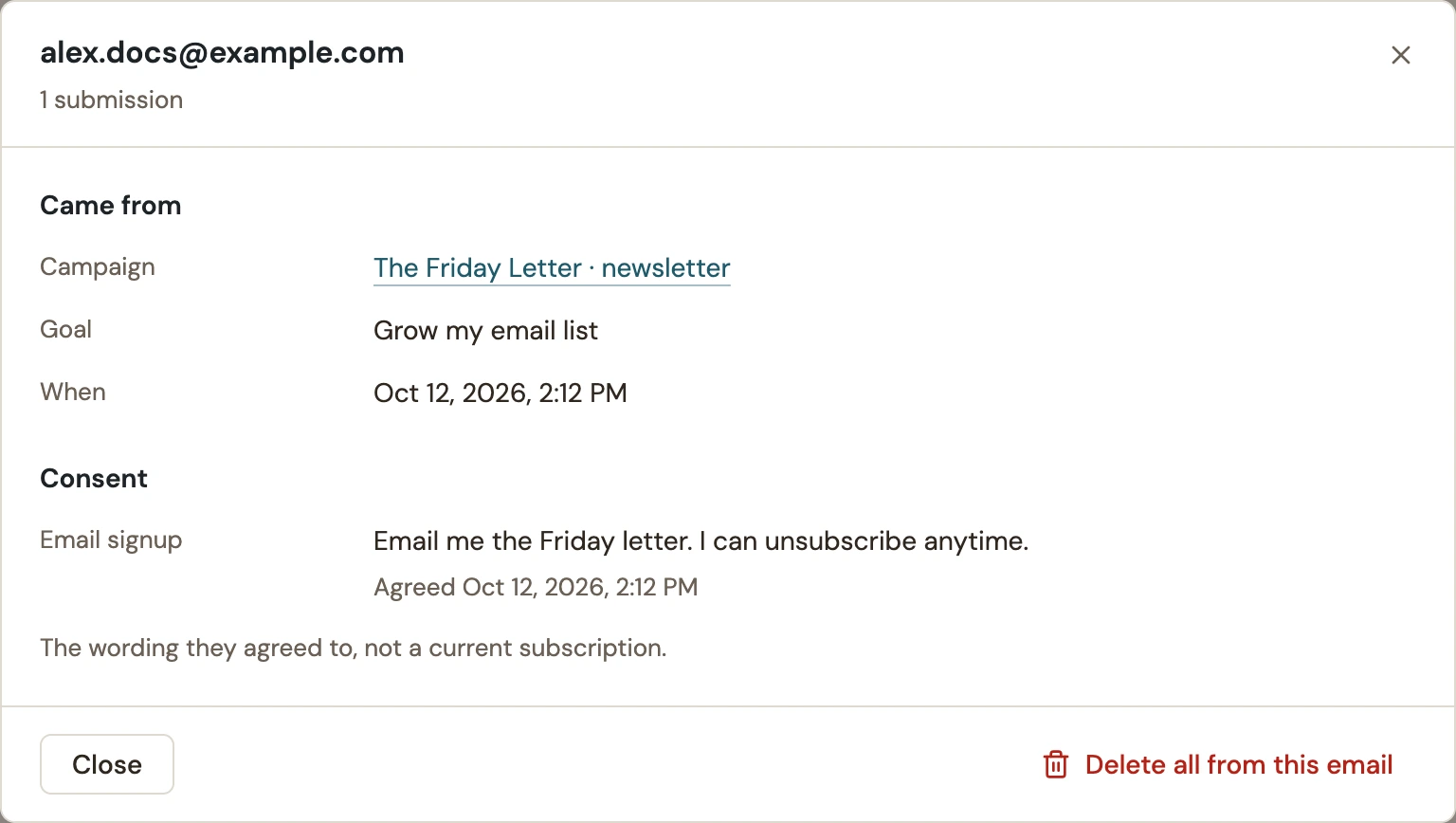 Enlarge screenshot
| Detail | Why it matters |
|---|---|
| Email or phone | Confirms you found the test you submitted. |
| Campaign and goal | Identifies the form that collected it. |
| When | Helps distinguish a new test from an earlier submission. |
| Answers and source details | Show what this form captured, when available. Different forms can collect different information. |
| Consent | Shows the recorded wording and agreement, or that consent was not asked. It is not a live subscription status. |
Verify the result or narrow the problem
If no record appears, clear the search and campaign filters, check the time period and confirm that you submitted on the actual frontend. A failed form request or an editor preview is not a saved submission.
Independent repeat submissions can create separate records. Optional later signup screens can add details to a capture journey. Treat the displayed records as submissions, not a count of unique people.
Next: choose where submissions go, or check a missing email or service update.
Next, export the records you need or review how long submissions are kept.
If a record is still missing or the totals differ, follow the missing submissions and counts checks.
Include your WConvert version, the page you tested and any error message.