 WConvert
Insert inline campaigns automatically
Place an inline form before, after or partway through matching page content without adding a block to every article.
On this page
Before you start
Automatic insertion requires Pro and an Inline form campaign. Use a test page with several ordinary paragraphs. The page must match the campaign’s display rules and use a supported content area.
For a page builder, custom layout or an exact hand-placed position, manual block or shortcode placement is often easier to control.
Watch the walkthrough
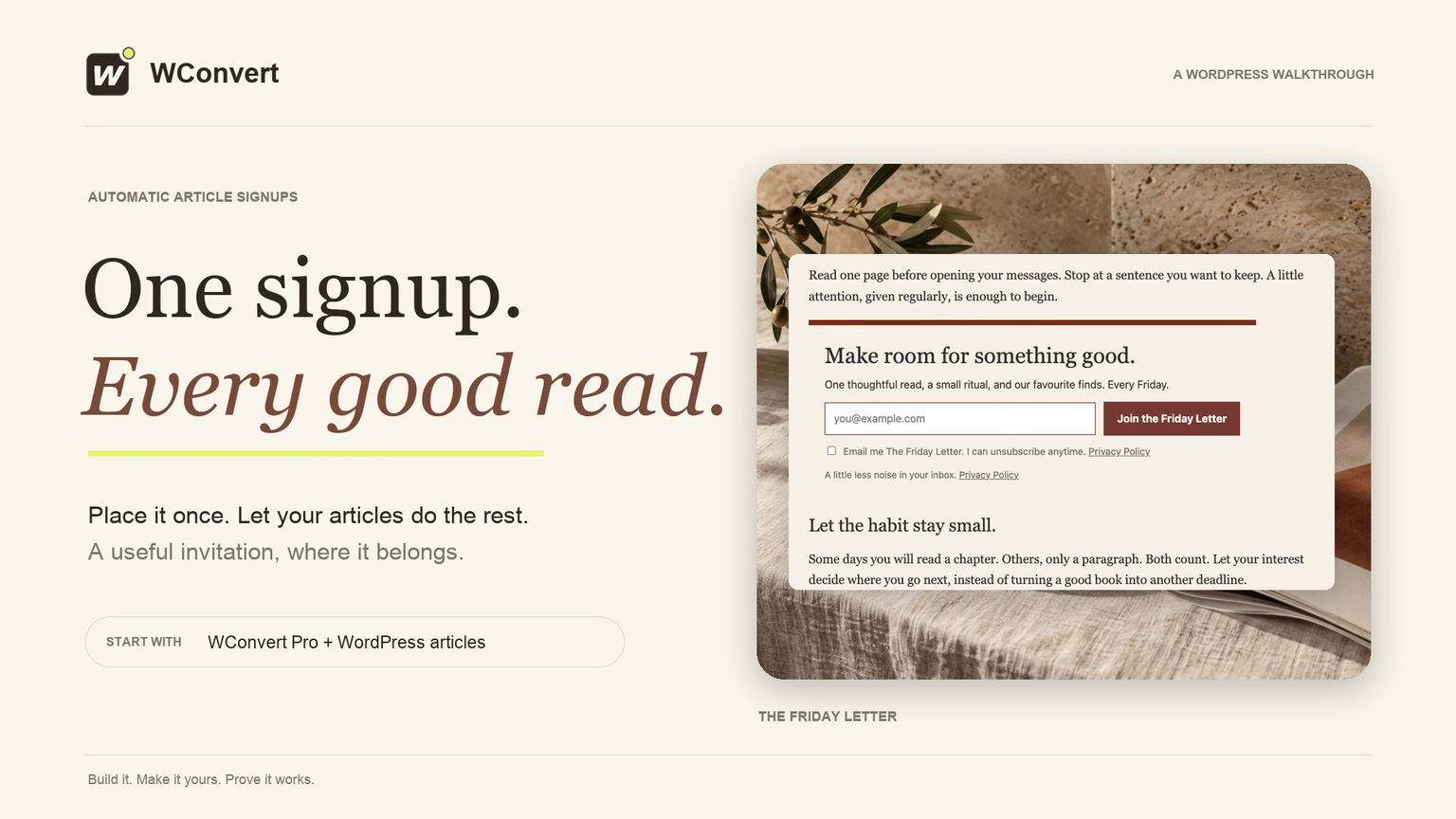
In 2 minutes 46 seconds, place The Friday Letter’s signup automatically across WordPress articles. Choose a paragraph position, keep an end-of-content fallback for shorter posts, and verify a saved signup. Requires Pro and a prepared inline form.
Read the transcript
Recorded October 2026. Starting with a prepared inline signup, use WConvert Pro to place The Friday Letter’s form across articles. Check the paragraph position, shorter-article fallback and saved lead. Email subscription and delivery require a separate test.
0:00 One signup, across your articles
Give readers a useful next step, without placing a form in every post. With WConvert Pro, we’ll add The Friday Letter’s signup automatically, and check a long article and a short note.
0:12 Start with a working inline form
Start with an inline signup and clear consent wording. Our Friday Letter form is ready. In Destinations, we’re keeping signups in WConvert only. Connect your email service separately when you’re ready to send the newsletter.
0:26 Choose the articles
Open Display rules. Blog posts only keeps this invitation on articles. Selected pages gives you a narrower starting point. These rules decide which pages qualify; automatic placement will decide where the form sits inside their content.
0:42 Turn on automatic placement
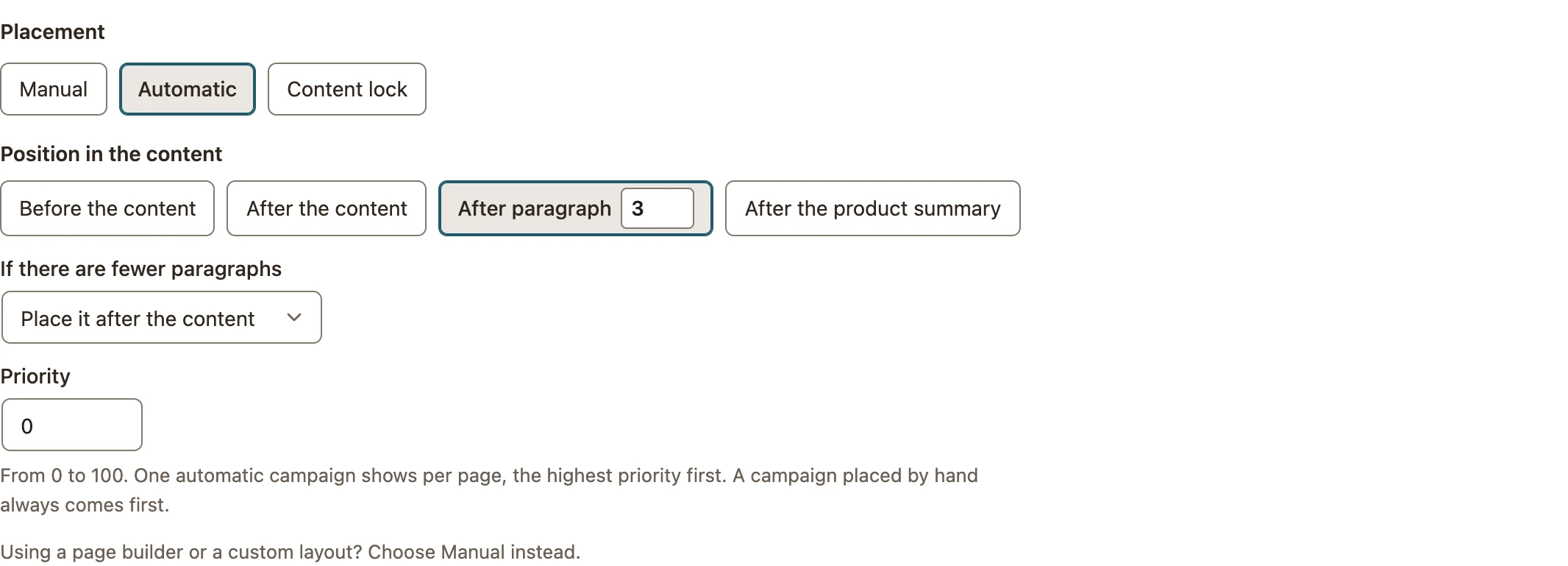
Under Placement, choose Automatic. After the content is a simple choice for an article-end invitation. Before the content is available too. Automatic placement uses Right away, so the form becomes part of the page as it loads.
0:57 Choose a paragraph and fallback
For this example, choose After a paragraph and keep paragraph three. If an article is shorter, keep Place it after the content. That gives a short note a useful ending too. Leave priority unchanged for this single automatic campaign.
1:14 Review and publish
Save the draft, then review and publish. Check Blog posts only, automatic placement after paragraph three, and Right away. Our articles are already published. We haven’t added a campaign block to either one; the plugin inserts the form into the rendered page.
1:32 Check the longer article
Open the published article as a visitor. Here are the first three paragraphs, followed by the signup. The rest of the article continues below it. Headings and complex layouts can affect placement, so check the actual content on your own theme.
1:47 Check the shorter article
Now open our two-paragraph note. There’s no third paragraph, so the fallback puts the same form at the end. One campaign serves both articles. This works in supported WordPress content; use manual placement for a custom page-builder layout.
2:03 Test a real signup
Finally, test the form itself. Enter a test email, read the consent wording, and join. Check the confirmation, and repeat the test on a phone-sized screen. A form appearing in the right place is only half the job.
2:18 Verify the saved signup
In Leads, filter to this campaign and find the test email. Open the submission to check its campaign and consent wording. That confirms a saved signup. Test subscription and inbox delivery separately with your connected email service.
2:33 One campaign, useful placement
One campaign, placed across your articles, with a fallback for shorter reads. Start with a useful invitation. Check a long post, a short post, and a real signup before rolling it out.
Choose the insertion position
- Open Display rules → Where does it show? and select the intended pages.
- Under Placement, select Automatic.
- If a confirmation appears, read its changes before choosing Switch to automatic placement. Automatic insertion uses Right away opening.
- Choose Before the content, After the content or After a paragraph.
- For a paragraph position, enter a whole number from 1 to 100 and choose the fallback for shorter content.
- Review the remaining rules and publish.
 Enlarge screenshot
Understand fallback and priority
| Setting | What it means |
|---|---|
| Place it after the content | If the chosen paragraph does not exist, place the form at the end instead. |
| Don’t show it on that page | Do not insert the form when the chosen paragraph is missing. |
| Priority | When several automatic campaigns match, the higher priority wins. One automatic campaign is inserted per page; a manually placed campaign takes precedence. |
| After the product summary | A WooCommerce-specific position for classic product templates. For block product templates, use manual placement in the template instead. |
Count actual content paragraphs, not visual lines on the screen. Headings, buttons and complex page-builder structures are not interchangeable with paragraphs.
Verify long and short pages
- Open a matching published page in a fresh private window. Confirm the form appears at the selected position.
- Test a shorter matching page. Confirm your chosen fallback.
- Open an excluded or non-matching page and confirm the form is absent.
- Check the mobile layout and submit one test if the form captures details. Find its saved record separately.
If the form is missing, inspect the campaign’s publication, rules and page placement before changing styles. See inline and content-lock troubleshooting.
Include your WConvert version, the page you tested and any error message.