 WConvert
Unlock article content after signup
Place a signup form over an article section and test the visitor’s access after submission.
On this page
Before you start
You need Pro, an inline submission form and a WordPress post or page. Choose a useful public article section and explain what the visitor signs up for.
Watch the walkthrough
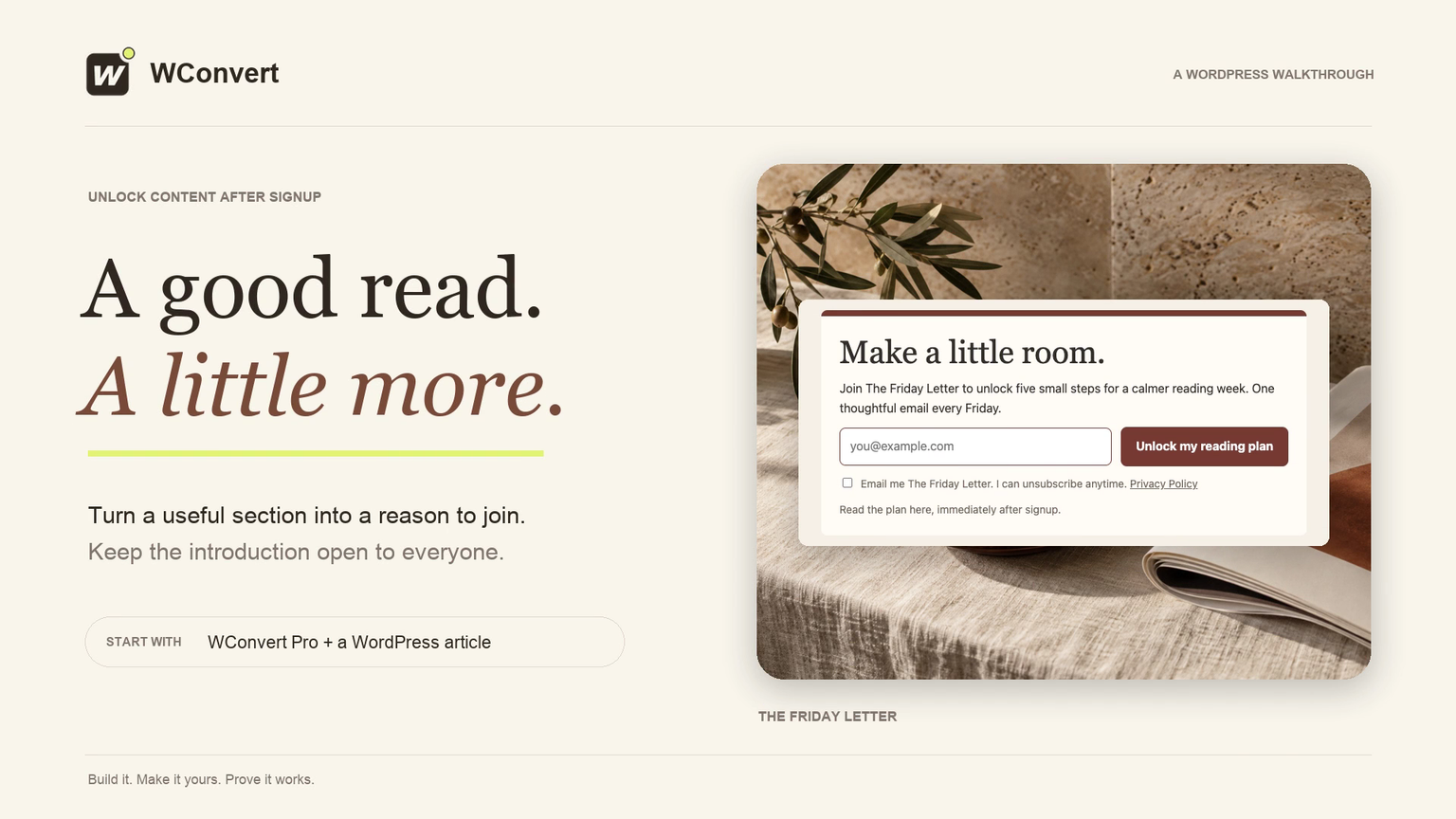
In 3 minutes 6 seconds, unlock The Friday Letter’s five-day reading plan after signup. Keep the introduction open, wrap the checklist with the native WordPress block, and test the published result and saved lead. The video also shows the WConvert lock from here alternative for covering the rest of an article. Requires Pro.
Read the transcript
Recorded October 2026. Use WConvert Pro to unlock The Friday Letter’s reading plan after signup. Follow the section wrapper workflow, or use the divider to cover the rest of an article. This is a signup gate for public content, not a secure paywall.
0:00 Turn a useful article into a signup opportunity
Give readers a useful introduction, then a reason to join. With WConvert Pro, we’ll unlock The Friday Letter’s five-day reading plan after signup.
0:10 Start with a clear offer
Start with an inline form that accepts a signup. Our offer names the reading plan and promises one email every Friday. Keep the email field, clear consent, and a privacy link. Under Destinations, this form saves in WConvert only. Connect your email service separately to deliver the newsletter.
0:30 Enable content lock
Open Display rules. Leave page eligibility on Entire site; the block controls where this form appears. Under Placement, choose Content lock. We’ll wrap just the reading plan, with one lock on the page. The introduction and closing paragraph stay readable.
0:47 Publish the campaign first
Review the campaign and publish it first. The WordPress block can only select published content-lock campaigns. This makes the form available; it does not publish or change your article.
0:59 Wrap the existing checklist
In WordPress, open List View and select the checklist. Open its List menu and choose WConvert content lock. This wraps the existing list, keeping its text intact. The introduction and closing paragraph remain outside the lock.
1:16 Choose the matching campaign
In the block settings, search for the reading-plan campaign and select the result. If it was just published, refresh the list. Check the start and end of the locked region. Only the checklist belongs inside it.
1:29 Publish the article separately
Now publish the article itself. Draft previews stay unlocked, so they cannot prove the gate works. Open the published page in a fresh, signed-out browser for the real test.
1:40 Check what a new reader sees
The introduction is readable. At the reading plan, the signup form replaces the checklist, while the closing paragraph stays visible. Offer something useful here, such as a checklist or a practical template, rather than hiding the whole article.
1:56 Sign up and reveal the plan
Enter an email address, agree to the stated newsletter signup, and unlock the plan. Choose Continue to content to read the five actions. Before launch, check that missing required information does not unlock it. We’ve tested that, along with the phone-sized layout.
2:13 Check return access
Reload: the plan stays open for thirty days in this browser. This is a signup gate for public content, not a secure paywall.
2:22 Verify the saved signup
Finally, open Leads and find the email you just used. The submission shows the reading-plan campaign and the consent wording. That confirms a saved signup. Test your connected email service separately before inviting readers.
2:36 Alternative: lock the rest of the article
Want to unlock the rest of an article instead? After the introduction, add WConvert lock from here. Search for your published campaign and select it. Everything below this divider is covered, including content you add later. Use it instead of the section wrapper, then publish the article.
2:54 Give readers a worthwhile next step
Your article now leads to a useful next step: sign up, unlock the plan, and put it to work. Start with one valuable section, and test the complete reader journey.
Prepare the inline form
- Create or open an Inline form that accepts a submission.
- Edit the offer, fields, consent and success wording. Choose the appropriate Destinations.
- Open Display rules → Where does it show?.
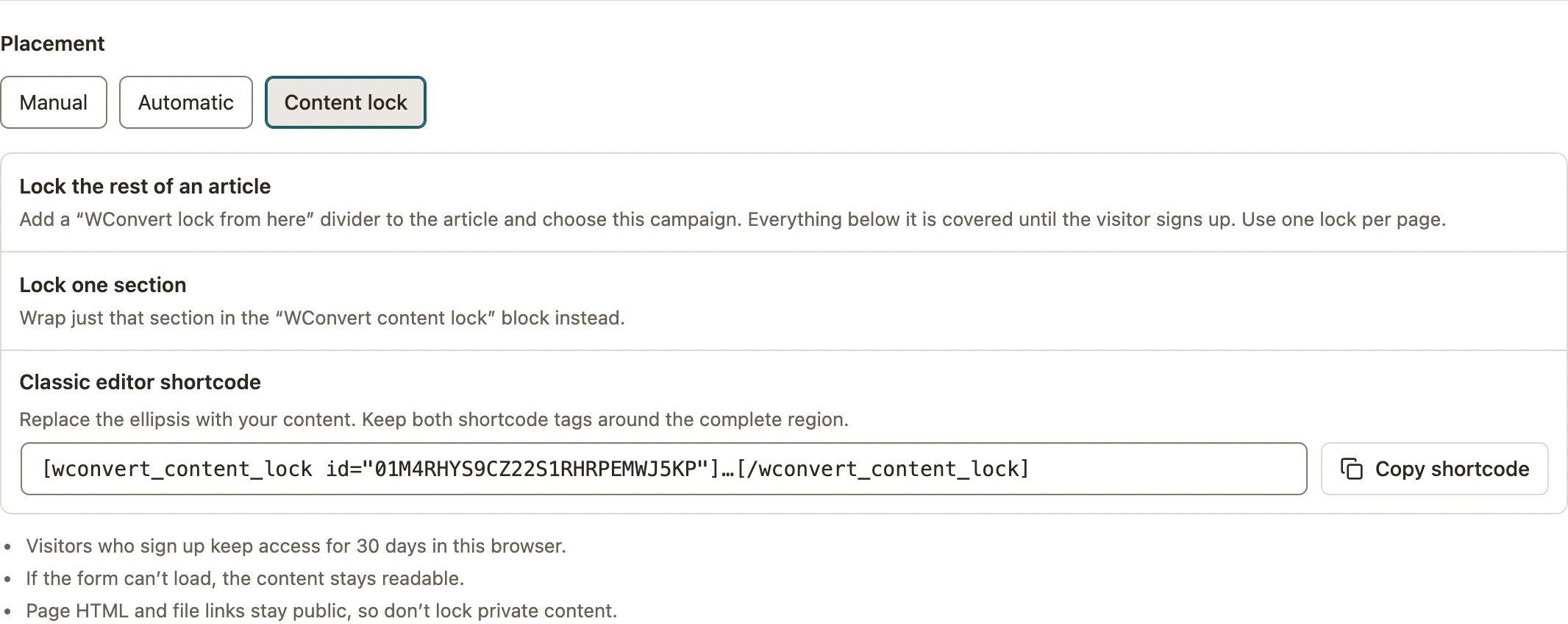
- Under Placement, choose Content lock. Check that the page rules include the article.
- Review and publish the campaign. A content lock opens right away; it does not wait for an overlay trigger.
 Enlarge screenshot
Place one lock on the page
Choose one method and use one lock per page:
- To cover the rest of an article, add the WConvert lock from here divider and select the campaign.
- To cover one section, put that section inside the WConvert content lock block and select the campaign.
- For a shortcode-compatible editor, copy Classic editor shortcode from Placement. Replace the ellipsis with the full section and keep both tags.
[wconvert_content_lock id="YOUR_CAMPAIGN_ID"]Your article section goes here.[/wconvert_content_lock]Replace YOUR_CAMPAIGN_ID with the ID from your published campaign. Update the WordPress page after placing the lock. A normal WConvert campaign block displays an inline form; use the lock block or enclosing shortcode to cover content.
Test rejection, success and return visits
- Open the published page in a fresh signed-out session. Confirm that the chosen section is covered and the introduction remains readable.
- Try submitting without a required field or consent. The section should remain locked.
- Submit valid test details. Confirm that the section becomes readable and check the saved submission in Leads.
- Reload in the same browser. The unlock should remain. Test a separate fresh browser to confirm it starts locked.
The unlock is remembered for 30 days in that browser. When browser storage is blocked, it lasts for that page only. Receiving an email is a separate check from unlocking the article.
If the section is already readable
Check whether this browser already unlocked it, then check publication, the selected campaign and the page rules. If the form cannot load, the content stays readable by design.
Use inline and content-lock troubleshooting for placement problems.
Include your WConvert version, the page you tested and any error message.