 WConvert
Preview, publish and test a campaign
Check your draft, review its display and delivery settings, then verify a real submission on your site.
On this page
Before you start
Have a campaign draft, a page you can test safely, and a test email address you control. If the campaign sends to a service, use its test destination or a dedicated test list so that your check does not enroll real customers.
There are three separate checks: the editor preview, the published form and any external delivery.
Watch the first-campaign walkthrough to see a preview, a live submission and the saved lead. The live test begins at 2:08.
Try the draft in Preview
- Open the campaign and select Preview.
- Under Try the form, check both Desktop and Mobile.
- Try submitting with required fields empty. Then enter valid sample details and complete the form.
- Check the acknowledgement and the What happened panel. Use Start over to try again.
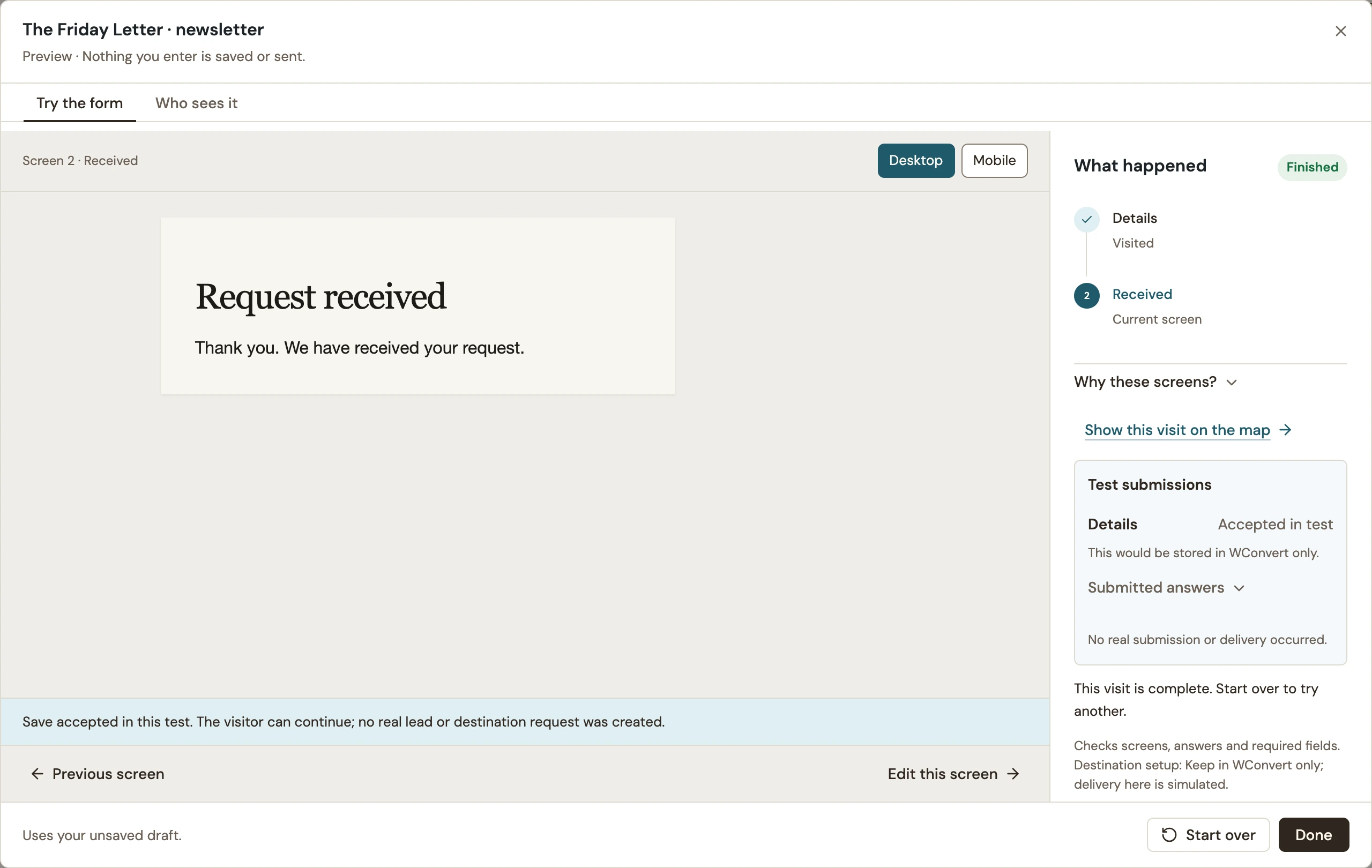 Enlarge screenshot
Open Who sees it to test a matching page, another page and different visitor history. This checks your draft’s rules; it does not open a campaign on your website.
Review and publish
- Close the preview and select Review & publish.
- Review the goal and what counts as success, who sees the campaign, where it appears, its opening trigger and frequency.
- Check Leads go to, the collected fields and consent. Resolve blocking problems and review any privacy or delivery notices.
- Select Publish campaign. If the draft has unsaved edits, the button can say Save & publish. For an already published campaign, use Publish changes.
- Wait for the publication confirmation.
Submit on the actual page
- Open a page included in the campaign’s rules. For a popup, perform its opening action or wait for its delay.
- If you already saw or submitted the campaign, use a fresh private browsing session so earlier visitor limits do not confuse the test.
- Enter your test details and submit. Check the acknowledgement.
- Open WConvert → Leads and find the matching submission.
- Check a page that should be excluded. The campaign should not appear there.
If the popup is missing, follow My popup does not appear. For an inline form, also check that you placed its block or shortcode on the page.
Verify delivery separately
| Result | What it means |
|---|---|
| Accepted in preview | The simulated form path worked. Nothing was saved or sent. |
| Submission in Leads | WConvert stored the live submission. |
| Accepted in Recent sends | The destination accepted the request. This does not prove inbox arrival or a confirmed subscription. |
| Message or contact verified in the service | The intended downstream result happened. Check any provider confirmation or automation separately. |
If sending is enabled, check the actual destination and your test inbox. For a download, open the received link. Use the delivery troubleshooting guide if the result is missing.
If publication is blocked or the live form rejects a request, follow the form troubleshooting guide.
Include your WConvert version, the page you tested and any error message.