 WConvert
Open a popup after a delay, scrolling or inactivity
Choose what opens a popup and test the trigger alongside page, audience and repeat-display rules.
On this page
Before you start
Delay, scroll-depth and inactivity triggers are included in Free. Begin with a popup and a specific test page. These instructions describe opening a popup; a manually embedded inline form follows its placement rules.
Page, audience, schedule and visitor limits must also allow the campaign. An opening trigger alone cannot override them.
Choose when it opens
- Open the campaign’s Display rules tab.
- Select When does it open?
- Choose a delay, Scrolled …% down, or When they pause for … s.
- Enter the number for your chosen option. Treat the value as a testable choice, not a universal best setting.
- Save the draft.
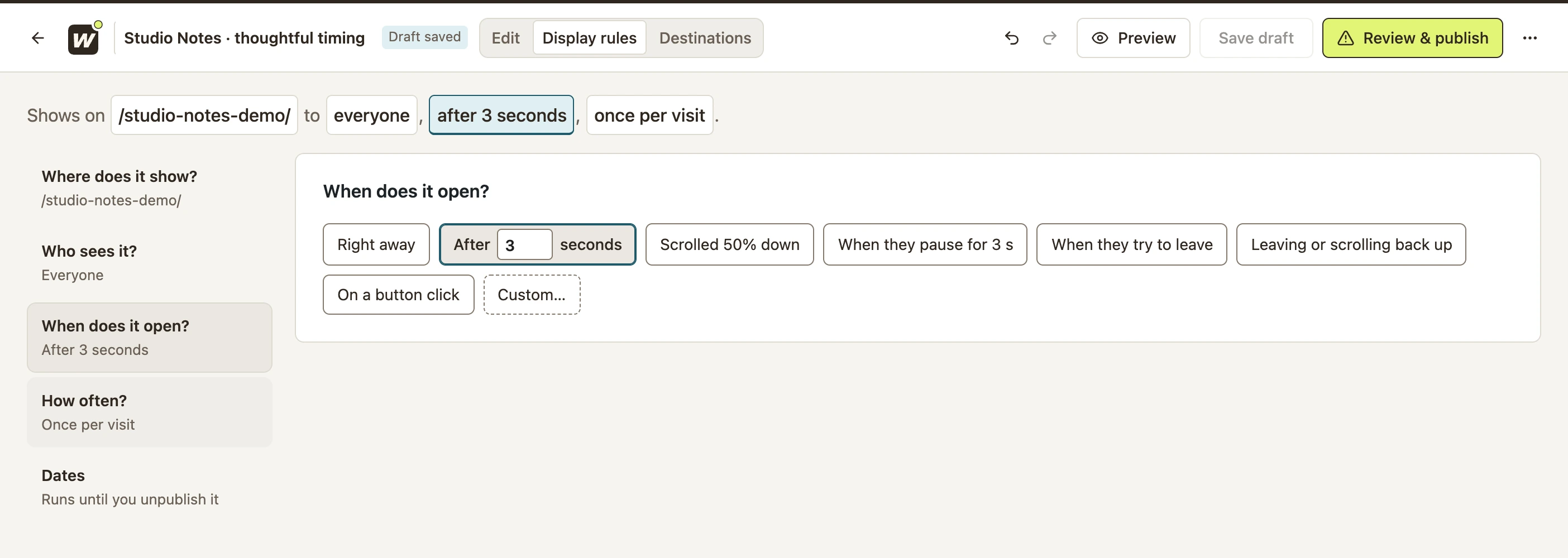 Enlarge screenshot
| Trigger | What to test |
|---|---|
| After … seconds | Wait on the eligible page for the configured delay. |
| Scrolled …% down | Scroll through the page’s available scroll distance. A page too short to scroll already counts as fully scrolled. |
| When they pause for … s | Keep the page visible without pointer, keyboard, touch or scroll activity. New activity resets the inactivity timer. |
Combine triggers only when needed
For a more specific rule, choose Custom… → After something they do. Add the opening rules you need and choose whether any or all must happen.
For example, “any” can open after a delay or sufficient scrolling. “All” requires both. Review Minimum time on the page if the popup must never open before a minimum wait.
Publish and test the trigger
- Use Preview → Who sees it to check that the page, device, dates and visitor history allow the campaign.
- Review and publish the draft.
- Open the test page in a fresh private browser session. For a delay, wait; for scrolling, start at the top of a long page; for inactivity, stop interacting with the visible page.
- Close the popup and check repeat visits against the intended frequency rule.
- If it does not open, follow the display troubleshooting guide.
For isolated trigger tests, you can temporarily use a less restrictive frequency on a test-page-only campaign. Restore the intended visitor limits before wider publication.
Pro also supports opening a popup from a page button. For how opening interacts with audience groups and limits, see the display-rules reference.
Include your WConvert version, the page you tested and any error message.