 WConvert
Schedule when a campaign can appear
Set a campaign’s start and end in the site’s timezone, then check dates before, inside and after its window.
On this page
Before you start
Campaign scheduling is included in Free. Have a campaign ready to publish and decide the intended start and end. The date controls show the WordPress site’s timezone; use that timezone when entering the times.
A date window controls when a published campaign is allowed to appear. It does not publish a draft for you or bypass the other display rules.
Set the campaign dates
- Open Display rules → Dates.
- Select Between two dates.
- Read the timezone shown beside the controls.
- Enter Start showing it on and Stop showing it on. Choose an end after the start.
- Save the draft and check the summary sentence.
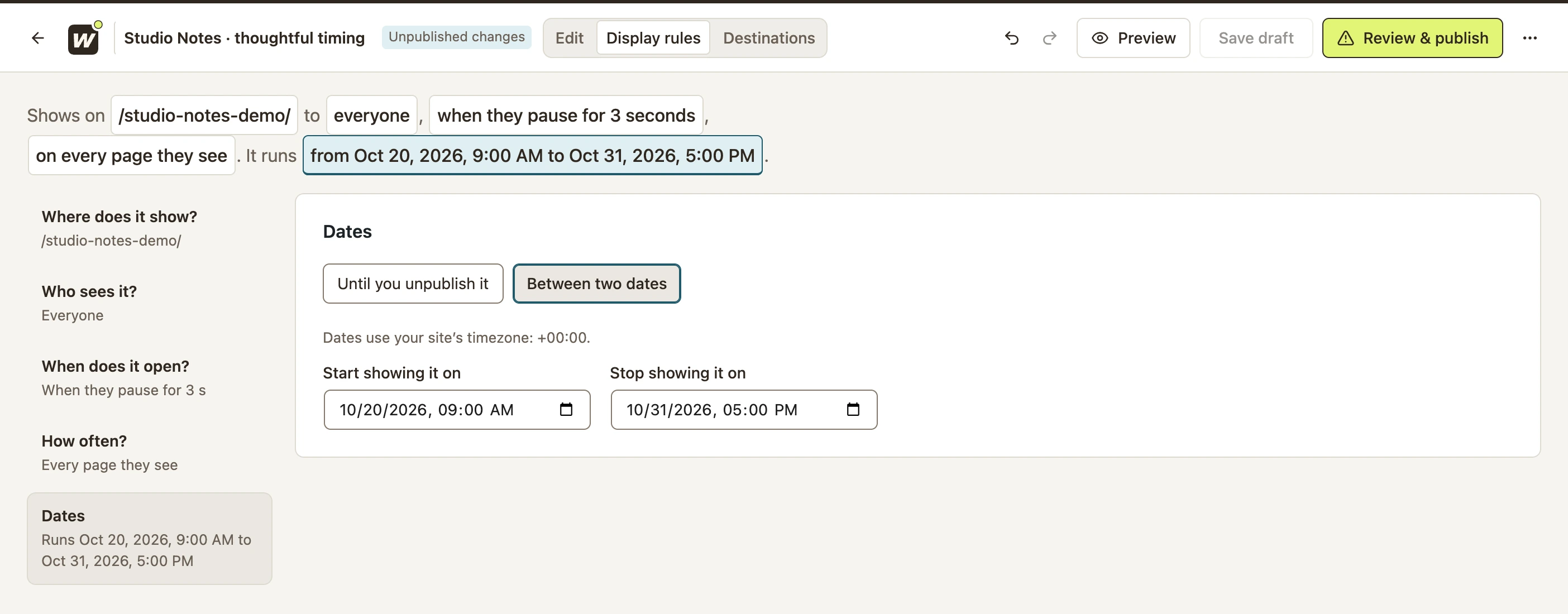 Enlarge screenshot
To remove the date window, select Until you unpublish it, then save and publish the change. Leaving one boundary empty allows an open-ended start or end; check the resulting summary carefully.
Test before, during and after
- Open Preview → Who sees it.
- Select the matching page and an otherwise eligible visitor.
- Under Visit date, choose Pick a date and time.
- Try a time before the start, one inside the window and one after the end.
- Read the Dates result. The outside times should be blocked; inside the window, the opening trigger and other rules still decide whether and when it opens.
Publish and check the scheduled campaign
- Open Review & publish and check the date window with the rest of the setup.
- Publish the reviewed draft, even if the start is in the future.
- Before the start, check that the campaign stays closed on the live test page.
- During the window, test with a visitor who matches the rules and wait for the opening trigger.
- If timing differs, review the site timezone, saved dates, published version and any cache before changing the schedule.
A start/end window is different from a repeating time-of-day condition. For daily hours, the custom audience rule picker also offers Time of day options; those restrict eligible hours within the campaign’s date window.
After the window ends, the campaign no longer qualifies to open. Its saved content and historical results remain available.
Include your WConvert version, the page you tested and any error message.