 WConvert
Create your first campaign
Build a simple email popup, publish it on a test page, and find your first signup in WordPress. No external marketing account needed.
On this page
A working popup with an email field, a clear confirmation and a lead saved in WConvert. You can connect an email service afterwards.
Before you start
- A WordPress site running WordPress 6.8+ and PHP 8.1+.
- WConvert Free installed and activated, with access to its WordPress admin screens.
- A page you can use for testing, ideally on a staging site.
Follow Install and activate WConvert if you are starting with the plugin ZIP. For current download or release availability, visit Get WConvert.
Watch the walkthrough
Follow a real newsletter popup from its first draft to a saved test signup in 2 minutes 50 seconds. Watch first, or follow the written steps below at your own pace. Everything shown uses Free features.
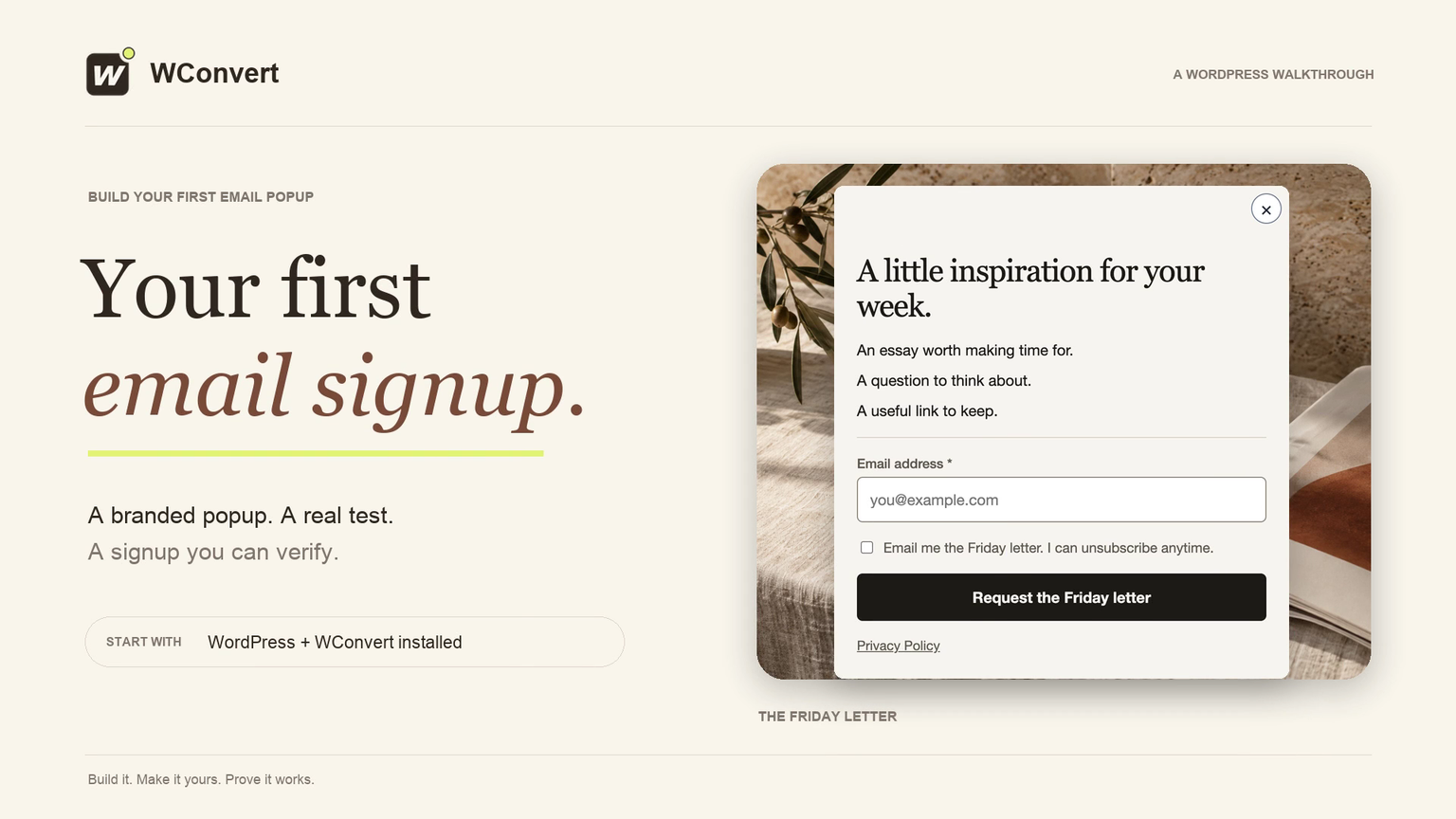
Read the transcript
Recorded October 2026. The Friday Letter is a fictional newsletter; all contact details are sample data.
0:00 Your first email signup
Build a newsletter popup with WConvert, then verify your first signup in WordPress. We will use The Friday Letter, a fictional editorial newsletter.
0:10 Choose a newsletter setup
With WConvert installed, open Create campaign. Choose Grow my email list. Search for weekly editorial. Open the setup details to see the form and its confirmation screen. Choose Use this setup to create your draft.
0:26 Make it your newsletter
Give the campaign a recognizable name. Click the headline on the canvas and replace its text. The setup already includes supporting copy, a clear request button, and permission to send the newsletter.
0:39 Add your privacy link
Select the fine print to add a privacy link. Enter Privacy Policy. Select those words, then choose Link. Leave the address empty to use the privacy page selected in WordPress, and apply the link. Use your own published policy on a real site.
0:56 Check the confirmation
Open the Received screen to check what happens after submission. This message confirms that the request was received. It does not promise an email has been sent.
1:06 Keep the first test local
In Destinations, keep this first test in WConvert only. It saves the lead in WordPress. No newsletter or confirmation email is sent.
1:16 Choose where and when it appears
Open Display rules and choose Selected pages. Add a specific page or post. Search for your prepared test page, select it, and choose Done. Now open When does it open and set a five-second delay. Under How often, keep once per visit and stop showing it after submission.
1:37 Preview the visitor journey
Open Preview to try the form. Check the mobile layout. Return to desktop. Enter a sample email address, accept the permission, and submit. Check the Received screen. Preview does not save a lead or send a message, so we still need a live test.
1:55 Review and publish
Save the draft. Open Review and publish to check the page, delay, lead storage, and privacy information. Resolve any issues first. When everything is ready, publish the campaign.
2:08 Test on the published page
Open the test page as a visitor in a fresh browser session. After five seconds, the popup appears. Enter a test email address and accept the newsletter permission. Send the request and check for the acknowledgement. This is a live submission, ready to verify in WordPress.
2:26 Verify the saved signup
In Leads, filter by your campaign and search for the test address. Open its submission to check the email, campaign, and consent wording. This confirms capture in WordPress. Email delivery is a separate test.
2:40 Your first signup, confirmed
Your first signup is saved. Before inviting real readers, connect your email service and test delivery. Follow the written guide whenever you need the steps.
Choose a goal and setup
- Open WConvert in WordPress and go to Campaigns.
- Select Create campaign (or Create your first campaign if your list is empty).
- Choose Grow my email list.
- Browse the campaign setups. Choose an available Popup setup with an email field. Open Preview & details to review its screens and suggested settings.
- Select Use this setup to create the draft.
For this walkthrough, we used Offer a weekly editorial letter, a Popup setup with two screens. Give the campaign a recognizable name, such as The Friday Letter · newsletter.
Make the campaign yours
Open Edit to work on the campaign’s screens and content. Select an element in the editor preview to change its words or settings. Review the form and its acknowledgement screen before publishing.
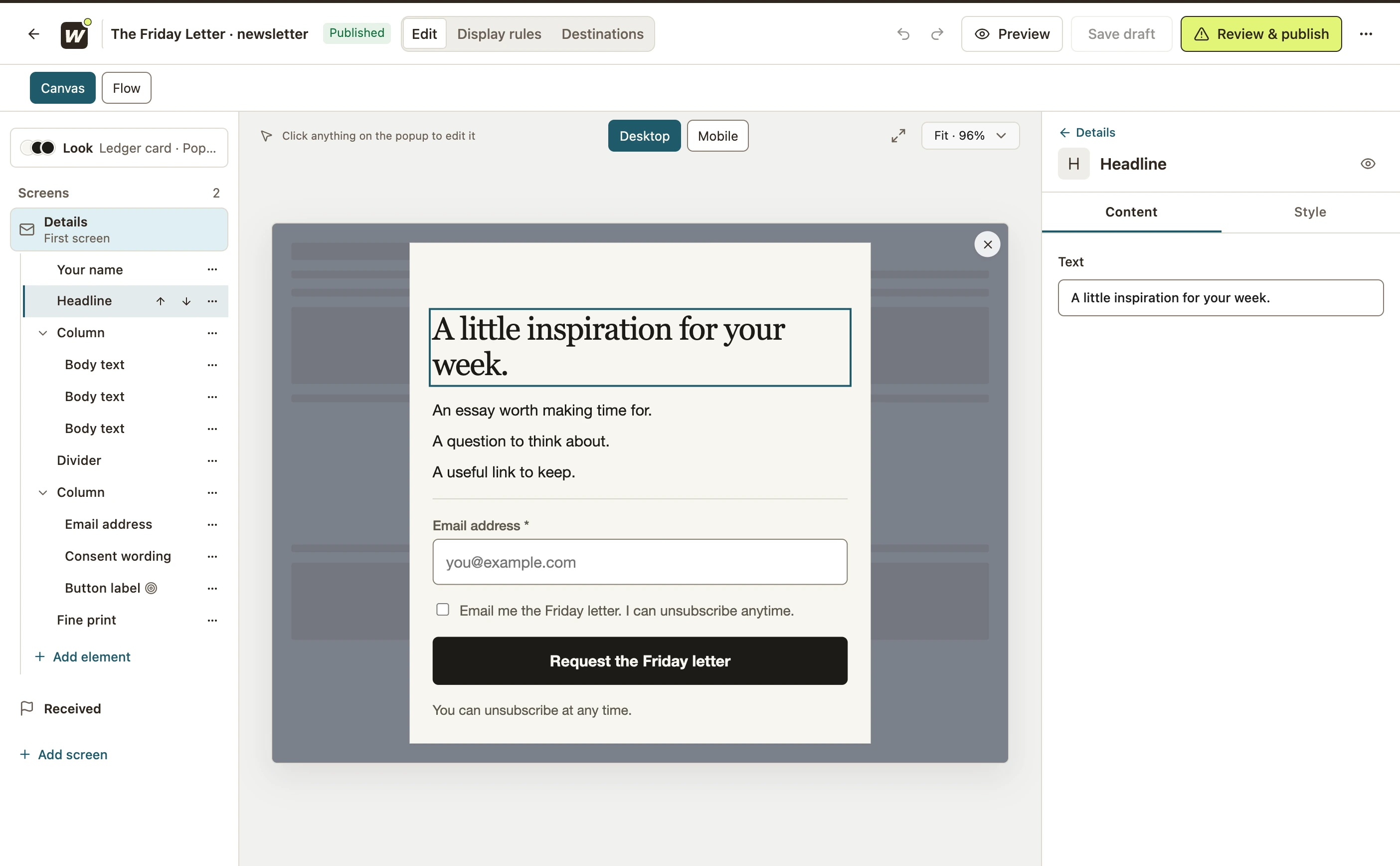 Enlarge screenshot
| Element | Example wording |
|---|---|
| Headline | A little inspiration for your week. |
| Description | An essay worth making time for. A question to think about. A useful link to keep. |
| Button | Request the Friday letter |
| Permission | Email me the Friday letter. I can unsubscribe anytime. |
| Confirmation | Thank you. We have received your request. |
Replace the sample wording with a promise you can keep. Keep the email field, review its required setting, and make the permission wording clear. Check the acknowledgement screen as well as the first screen.
Review your privacy notice and the Privacy Policy page selected in WordPress. If you use a consent checkbox, check that it behaves as you intend. The example wording above is a writing starting point, not a compliance template.
Change the colors, type and artwork to suit your site. Use the phone preview to check that the headline, field and button remain easy to read.
Choose where leads go
Open Destinations. Under What happens after submission?, select Keep in WConvert only.
- Lead capture
- A visitor submits the form on your published page. WConvert saves the lead in WordPress for review or export.
- Email delivery
- This local-only setup does not forward the submission or send a message. A sending service and its workflow need a separate setup and test.
When you’re ready to send newsletters, choose Send to a service and configure a supported destination. Read Choose where submissions go for local storage and service requirements.
Set where and when it appears
Open Display rules. Start with a controlled test rather than showing the popup across your whole site.
| Check | For this test |
|---|---|
| Where | Target the page you prepared for testing. Check any exclusions and audience or device rules inherited from the setup. |
| When | Choose a simple delay, such as five seconds. That gives you time to load the page and see the popup open. |
| How often | Review repeat-display limits and what happens after a dismissal or submission. Site-wide limits can also prevent a campaign appearing. |
| Dates | If the setup has a schedule, make sure your test falls within it, using your site’s time zone. |
To select the test page, open Where does it show? → Selected pages → Add pages → A specific page or post. Search for its title, select the result and choose Done. Under When does it open?, set the delay to five seconds. Review How often? and keep the stop-after-submission choice. See selected-page rules and visitor limits for the full steps.
Preview, then publish
- Open Preview, then use Try the form. Check the required fields and the acknowledgement screen.
- Inspect the desktop and mobile layouts.
- Select Save draft to save your work without publishing.
- Open Review & publish. Review the design, placement, lead storage and privacy information. Resolve any blocking issues.
- When ready, select Publish campaign. If you have unsaved edits, the action may read Save & publish.
Later edits can be saved as a draft while the published version stays live. Use Publish changes when you want visitors to see them. The preview and publication guide explains each test.
Check your first signup
- Open your test page as a visitor, outside the editor. A fresh private browser session can help avoid a previous dismissal or signup affecting your test.
- Wait for your configured trigger. Enter a test email address you control, accept the permission you intend to give, and submit.
- Confirm that the acknowledgement appears.
- Return to WConvert → Leads. Find the test submission and check its campaign, email and saved consent wording.
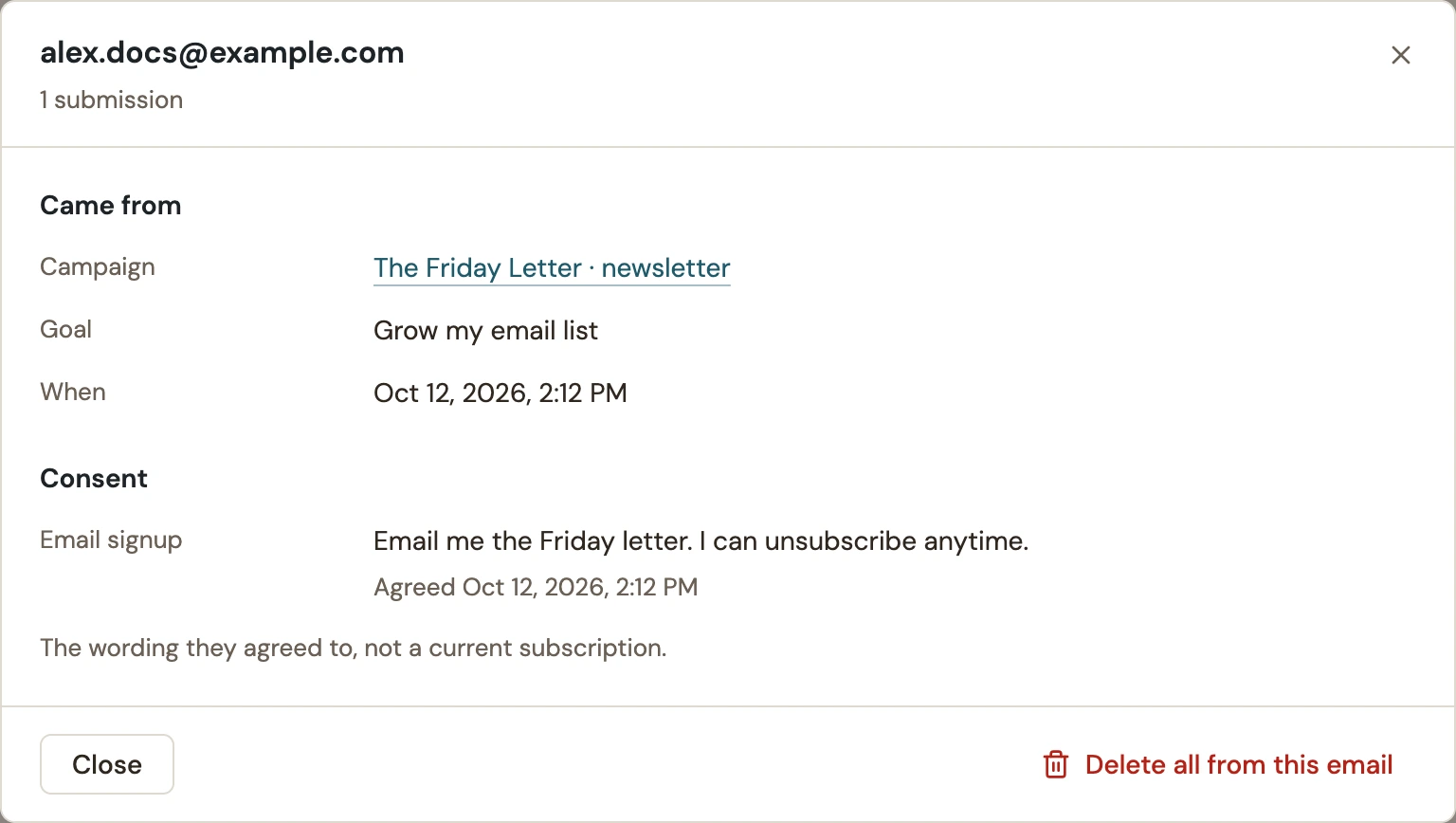 Enlarge screenshot
Before inviting real visitors, connect and test your sending service if your offer promises email delivery. Replace test content, review targeting and frequency, and remove your test lead when you no longer need it.
If something isn’t working
The popup doesn’t appear
Check that you published the campaign and opened a matching page. Review the trigger, device and audience conditions, schedule and both campaign and site-wide limits. Try a fresh browser session. If you selected an inline format instead, its block or shortcode needs to be placed in the page.
The form won’t submit
Check required fields and the error shown beside the form. If a CAPTCHA provider is enabled, check its saved configuration. Retest on the published page; if it still fails, send support the exact message and the steps you took.
I can’t find my test lead
Make sure you submitted on the published website, not only in Preview. In Leads, clear filters and check the campaign and date range. Look for an error or unsuccessful submission on the test page.
I didn’t receive an email
That is expected with Keep in WConvert only. This guide saves a lead locally. To send newsletters or confirmation messages, configure a destination and the appropriate workflow in your sending service, then test delivery separately. Use the delivery troubleshooting guide if it is missing.
Give that signup somewhere to go.
Connect your email service when the local test works. Check the requirements and available plans before you start.
Choose where submissions goInclude your WConvert version, the page you tested and any error message.