 WConvert
Show a campaign on selected pages
Choose the pages where your campaign is allowed to appear, add exclusions and test both outcomes.
On this page
Before you start
This guide is included in Free. Start with an existing campaign and a published page or post. We’ll allow the example campaign on one test page, then confirm that it stays off other pages.
Page rules control eligibility. A popup still needs its opening trigger and visitor limits to pass. An inline campaign also needs its block or shortcode.
Watch the walkthrough
Follow a prepared newsletter popup through page selection, rule checks and two real visitor tests in 2 minutes 7 seconds. The invitation appears on one journal page and stays off another. Everything shown uses Free features. To build the popup first, follow the first-campaign tutorial.
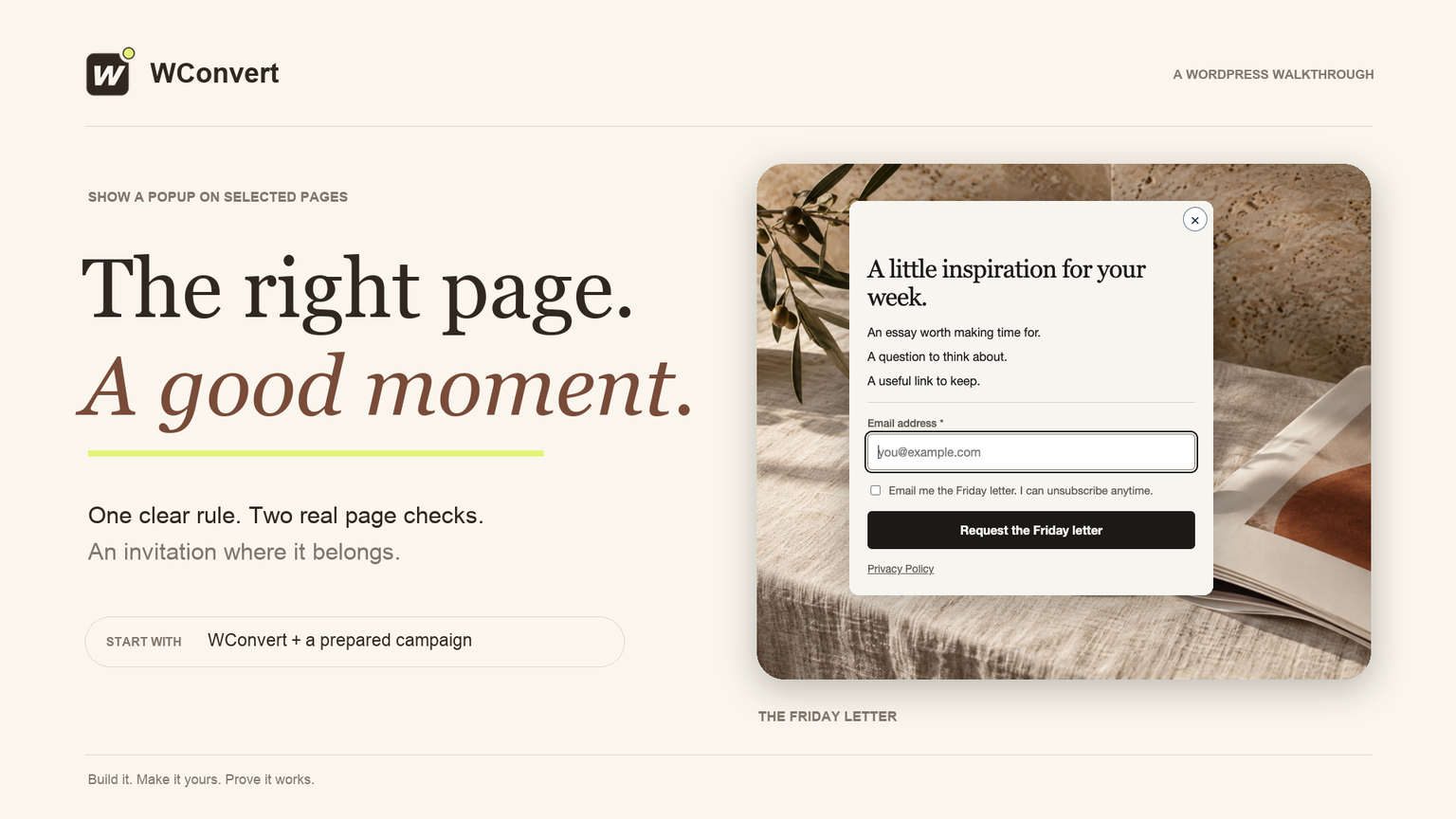
Read the transcript
Recorded October 2026. The Friday Letter is a fictional editorial site; the pages and popup use sample content.
0:00 Show it in the right place
A good popup belongs in the right place. Let’s show The Friday Letter on one journal page, keep it off our story page, and check both in the browser.
0:10 Choose selected pages
Start with a prepared draft campaign. Open Display rules and choose Selected pages. We will invite readers on our slower mornings article, while leaving the rest of the site clear.
0:21 Select the article
Under Show it on, add a specific page or post. Search for slower mornings, select the matching result, then choose Done. Typing a title alone does not select the page.
0:34 Keep the other rules in mind
The page rule decides where the campaign is eligible. Our popup still waits five seconds, appears once per visit, and stops after submission. Keep those limits in mind when testing.
0:46 Check the selected page
Open Preview, then Who sees it. With the selected page and a first-time visitor, the rule passes. The result says the popup opens after five seconds. This checks the draft without changing the live site.
1:00 Check a page outside the rule
Now choose Any other page. The result changes: it only shows on the pages you chose. That is the behavior we want. The page rule stops the popup, even though the other conditions pass.
1:13 Publish the focused rule
Save the draft, then review and publish. Confirm one selected page, the five-second delay, and once per visit. Check the other settings before publishing. The next step is to verify real pages as a visitor.
1:28 Test the journal as a visitor
In a fresh visitor session, open the journal page. Give the five-second delay time to finish. The invitation appears on the article we selected. This is the published campaign, on the real page.
1:41 Test the other page separately
Now check Our story in another fresh session. Wait beyond the same five-second delay. The page stays clear. We used a separate visit, so the once-per-visit limit cannot hide a targeting mistake.
1:54 One rule, two real checks
Your invitation appears where it belongs, and the other page stays clear. Repeat this two-page check whenever you change targeting. Use fresh visits, check the rule explanation, and keep the invitation relevant.
Choose a specific page or post
- Open the campaign’s Display rules tab.
- Select Where does it show?, then Selected pages.
- Under Show it on, select Add pages → A specific page or post.
- Open Choose…, search for the page title, select the result and choose Done.
- Add another page rule if the campaign should appear on more than one page.
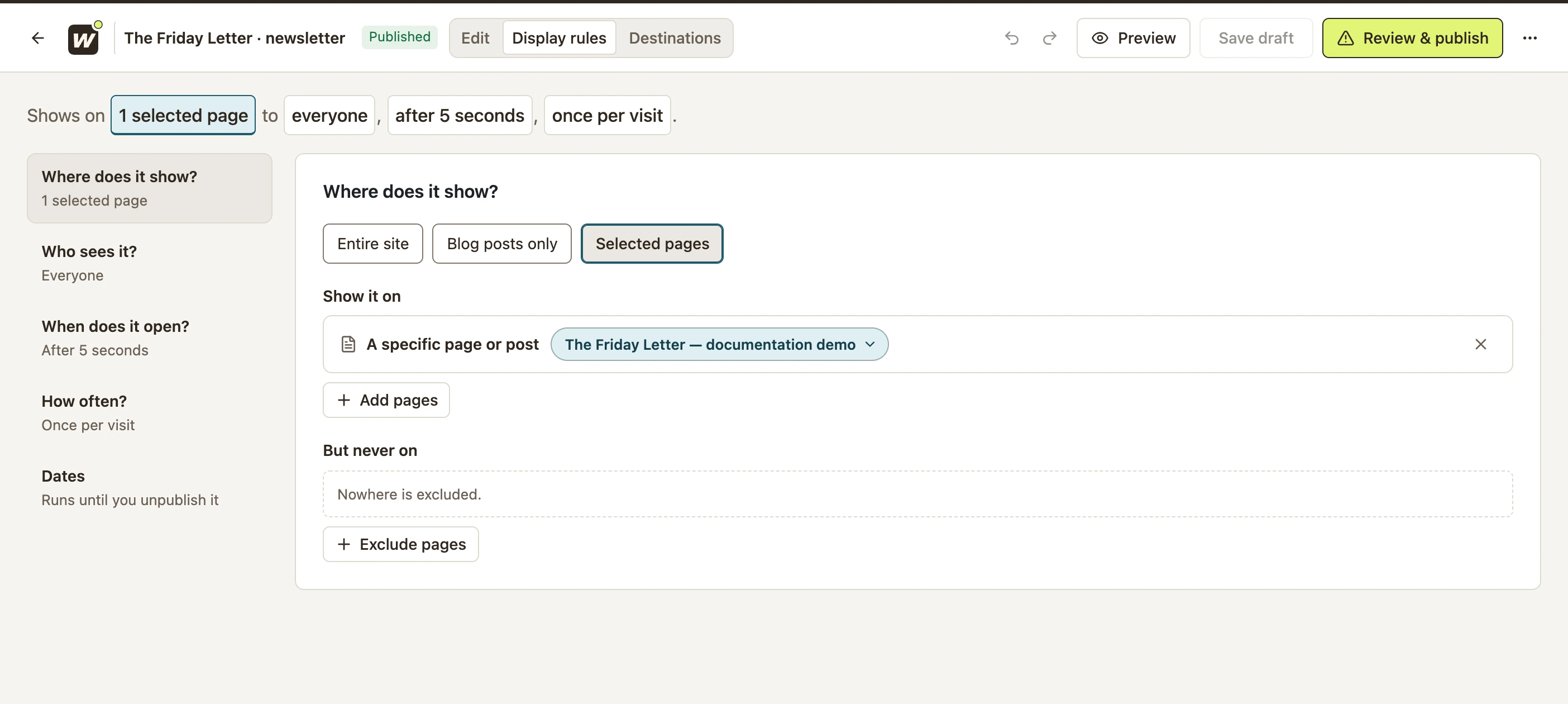 Enlarge screenshot
Use groups of pages or exclusions
| You want to include | Use |
|---|---|
| All blog posts | Blog posts only |
| One known page | A specific page or post |
| A content type or its listing | All items of a content type or Content archive |
| A category or tag | A category or tag |
| Addresses sharing a path | A URL path; use the path and its supported * wildcard |
Use But never on → Exclude pages to keep the campaign off particular pages, even when they match an inclusion. For example, include your blog but exclude an existing subscription page.
/guides/*This example targets a path pattern. Replace it with your own site’s path and test a real matching URL. Do not paste a full domain into a path rule.
Test the rules and publish
- Open Preview → Who sees it.
- Choose the selected page under Page they’re on. With a first-time visitor, the page rule should pass.
- Choose Any other page. The result should explain that the campaign only shows on the pages you chose.
- Save and publish the changes, then test both real pages.
If a matching page is blocked by a different rule, check the explanation instead of widening the page selection. Visitor limits, dates and opening triggers still apply.
Next, choose which visitors qualify, what opens the popup and when the campaign can run.
Include your WConvert version, the page you tested and any error message.