 WConvert
Open a popup when a visitor clicks a button
Connect an existing page button to a popup and test matching and non-matching clicks.
On this page
Before you start
This requires Pro, a popup campaign and an editable page with a button or link. First choose a test page under Display rules → Where does it show? The campaign must be published and eligible there.
The page button opens the popup. The button inside the popup has its own form or link action.
Watch the walkthrough
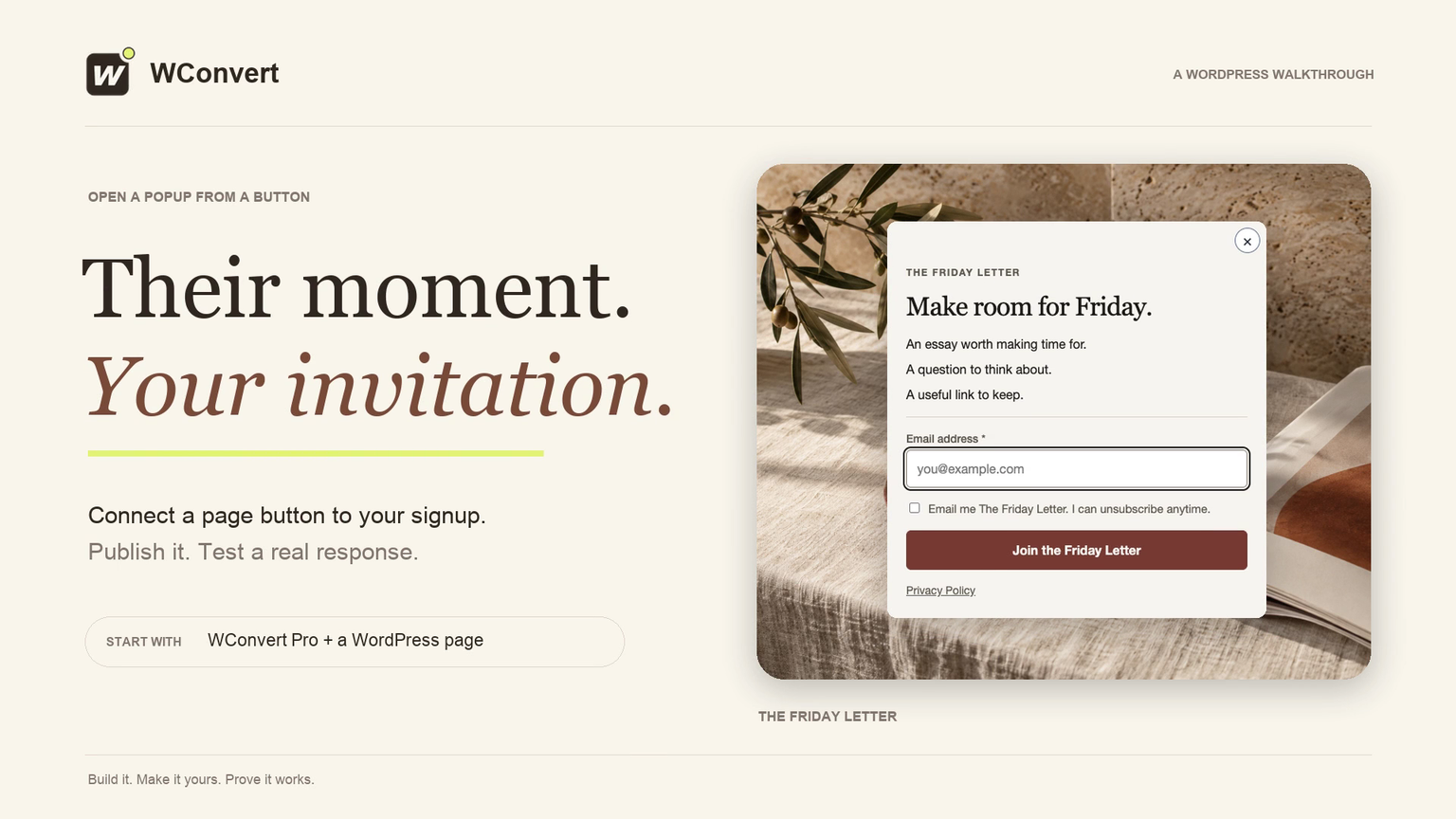
Connect The Friday Letter’s native WordPress Button to a Pro popup in 2 minutes 19 seconds. Start with a prepared page and popup design, publish both, then verify a real saved signup. This example keeps leads in WConvert only; email delivery needs a separate test.
Read the transcript
Recorded October 2026. The Friday Letter is a fictional editorial site; the page and signup use sample content. This example saves leads locally without sending email.
0:00 An invitation, on their terms
Let readers choose when to subscribe. In this walkthrough, we’ll connect a page button to a WConvert Pro popup, then check a real signup.
0:10 Give the page button an ID
Select the individual Button block and open Advanced. In HTML anchor, enter friday-letter-signup, without a hash sign. Then set HTML element to button. This keeps the control keyboard-friendly and opens the popup without navigating away. No custom HTML block is needed.
0:32 Publish the page
Publish the page so the button is available to visitors. If you use a page builder, set the same unique ID on the button itself, then save your changes.
0:42 Keep the page rules intentional
Our signup popup is already designed. In Display rules, keep it limited to the invitation page. These rules decide where the popup is allowed. The button we connect next decides when it opens.
0:55 Connect the button
Open When does it open, and choose On a button click. Enter a hash sign followed by the button’s ID. That tells WConvert to find this exact button. The selector connects your existing button; it doesn’t add one to the page.
1:10 Review and publish
For this demonstration, keep signups in WConvert only. Review the selected page and click trigger, then publish the campaign. On your own site, keep your audience and frequency rules intentional; a click is not a reason to ignore them.
1:26 Test the published button
Now open the published page as a fresh visitor. The popup stays closed while we read. Select Subscribe to the letter, and the matching form opens. This page button opens the popup; the button inside the form submits the signup.
1:42 Submit a test signup
Enter a test email, read the consent wording, and submit. The confirmation tells us the form completed. We’ll check the saved lead next, rather than treating this message as proof of email delivery.
1:54 Check the saved lead
In Leads, filter to this campaign and search for the test email. Open the submission to check the source and consent record. This proves the signup was saved. If you connect an email service, test that delivery separately.
2:08 Ready when the reader is
Your invitation is ready when the reader is. Before launch, check the button with a keyboard and on a phone, and confirm it stays inactive on pages outside your rules.
Set the click trigger
- Open Display rules → When does it open?.
- Select On a button click.
- Enter the button’s selector in CSS selector of the button or link.
- Review the other display rules, then choose Review & publish and publish the changes.
#friday-letter-signup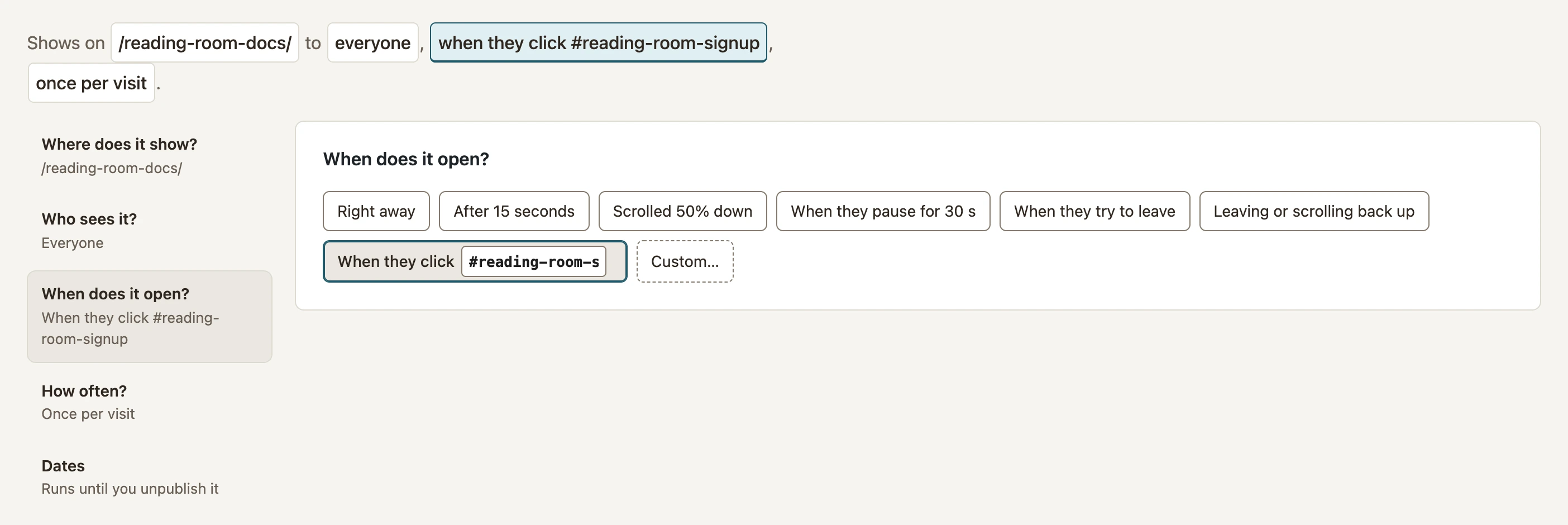 Enlarge screenshot
Use a simple ID, class or attribute selector. Do not use an interaction pseudo-class such as :hover as the click target.
Test the actual page
- Open the published page in a fresh private window. The popup should wait for the click.
- Click the target button. Confirm the correct popup opens.
- Close it and click an unrelated button; this popup should remain closed.
- Test a page or visitor excluded by your rules. The click should not bypass those restrictions.
- Repeat on a phone. With a keyboard, Tab to the button and press Enter to open it.
- Submit a test signup and check its email, campaign and consent record in Leads. Test email delivery separately if you connect a service.
If nothing opens, check the selector, publication, current page, schedule and conversion-stop state. See popup troubleshooting.
Include your WConvert version, the page you tested and any error message.