 WConvert
Create a quiz with different results
Ask a few useful questions and show a result that matches the visitor’s answers.
On this page
Before you start
You need WConvert Pro and a test page. Write down the question you want to help visitors answer. For example, a coffee shop could suggest a useful tool based on someone’s brewing experience.
A quiz can show a result without collecting contact details. Product cards also need WooCommerce; ordinary result text and links do not.
Watch the walkthrough
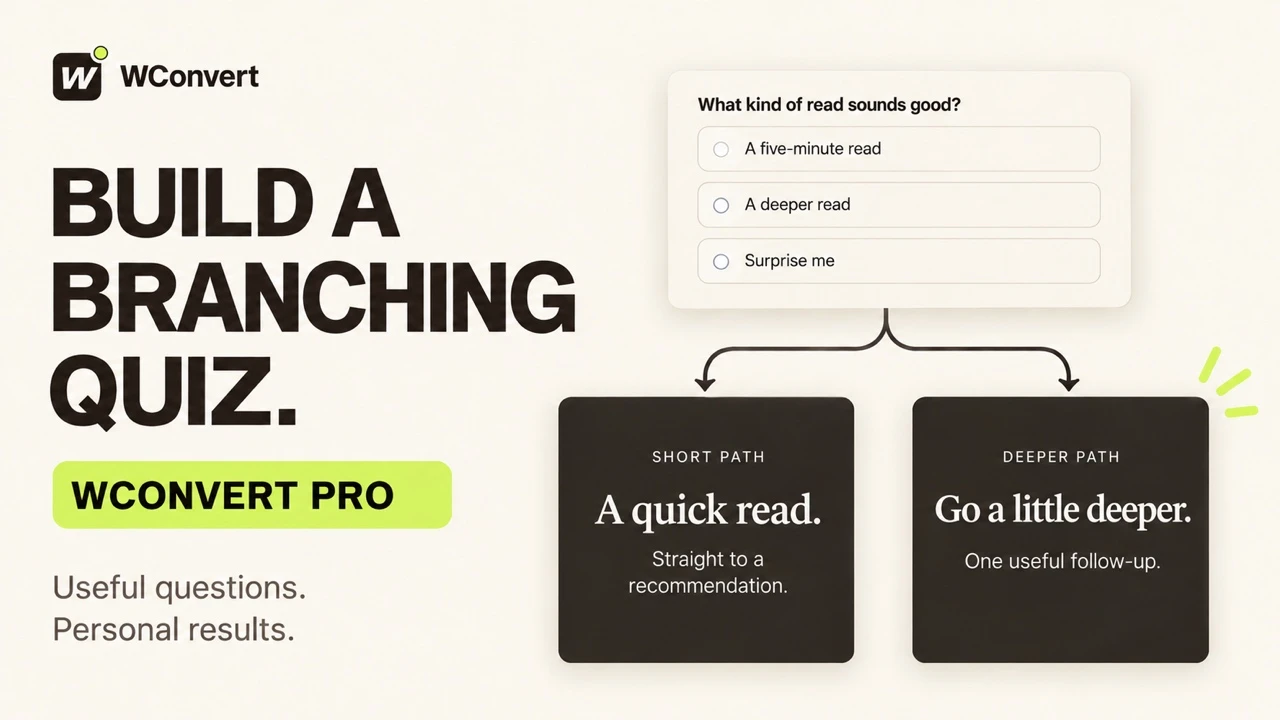
Build The Friday Letter’s reading quiz in 2 minutes 42 seconds, starting from a prepared quiz with sample copy. Use Pro to show a follow-up only when an answer matches, keep a useful fallback, and test the published paths. This example shows anonymous recommendations; contact capture and email delivery need separate tests if you add signup fields.
Read the transcript
Recorded October 2026. The Friday Letter is a fictional editorial site; the pages and quiz use sample content.
0:00 Find a useful next read
Help each reader find something worth their time. With WConvert Pro, we’ll build The Friday Letter’s reading quiz, ask a follow-up only when it helps, and test the results.
0:11 Start with one clear question
Start with Help visitors find a match and a quiz setup. I’ve prepared the Friday Letter copy. Our first question offers a short read, a deeper read, or a surprise. Keep the answer required, so every reader gives the quiz a clear starting point.
0:26 Ask a follow-up only when useful
This follow-up is only useful for someone who wants a deeper read. In its screen settings, open Only if, choose an answer match, and select A deeper read. Everyone else skips this question and continues to the result.
0:41 Give each answer a useful result
Now match the results to the answers. A five-minute read gets Five minutes of quiet, with a short explanation and a link to the story. Specific results are checked in order; the first match wins. Keep an All other answers result for anyone who doesn’t match.
0:58 Read the flow before testing
Use Flow to check the route. A deeper read goes through the extra question. All other answers go around it. Routing decides which screen comes next; result conditions decide what recommendation appears at the end.
1:12 Test the short path
Open Preview and try the short path. Choose A five-minute read and continue. The result appears immediately. What happened confirms that the follow-up was skipped. This is a rehearsal: it saves no lead and sends no message.
1:27 Test the longer path
Start over and choose A deeper read. This time, the extra question appears. Practical ideas leads to A slower Sunday. Test the other choice too, and go back to change an earlier answer. The result should follow the reader’s latest answers.
1:44 Check the fallback
One more check: Surprise me. It skips the follow-up and shows our fallback, A letter worth opening. A fallback should still help the reader find a useful next step.
1:55 Review where the quiz runs
Save the draft, then review and publish. This demo is limited to one local test page. Check your own page and opening rules carefully, especially for a fullscreen quiz, before making it available to visitors.
2:09 Verify the published quiz
Finally, open the published page as a fresh visitor. The short answer reaches Five minutes of quiet. Go back and choose a deeper read. The follow-up now appears. Choose Practical ideas to get A slower Sunday. These anonymous results do not capture an email address.
2:28 Every path should help
Ask only what changes the recommendation, and make every result useful. Before launch, check all answers, the fallback, mobile layout, and links. A thoughtful quiz helps readers take their next step.
Start with a quiz setup
- In Campaigns, select Create campaign.
- Choose Help visitors find a match.
- Open Setup details for a suitable setup, such as Choose a starter or experienced kit, then select Use this setup.
- Give the campaign a recognizable name. In Edit → Screens, select each question and replace the sample wording and choices.
- Check the question’s Answer required setting and the labels on Continue and Back buttons.
Begin with two or three clear choices. Keep the first question easy to answer and only ask a follow-up when it changes the recommendation.
Match answers to results
- Select the result screen, such as Your kit.
- Edit each result’s heading and message. Add a link and button wording only when there is a useful next destination.
- Set the answer conditions for each specific result. Check their order: the first matching result wins.
- Write a useful All other answers result for visitors who do not match a specific condition.
- Choose whether results appear immediately after the questions or after required contact details. Configure the contact screen and Destinations if you collect details.
| Answer path | Expected result |
|---|---|
| Just starting | Show the beginner result; skip the experienced follow-up. |
| Brews at home → Refine my brew | Show the brewing result. |
| Brews at home → Organize my coffee corner | Show the storage result. |
| Exploring my options | Show the fallback result. |
Check the flow before publication
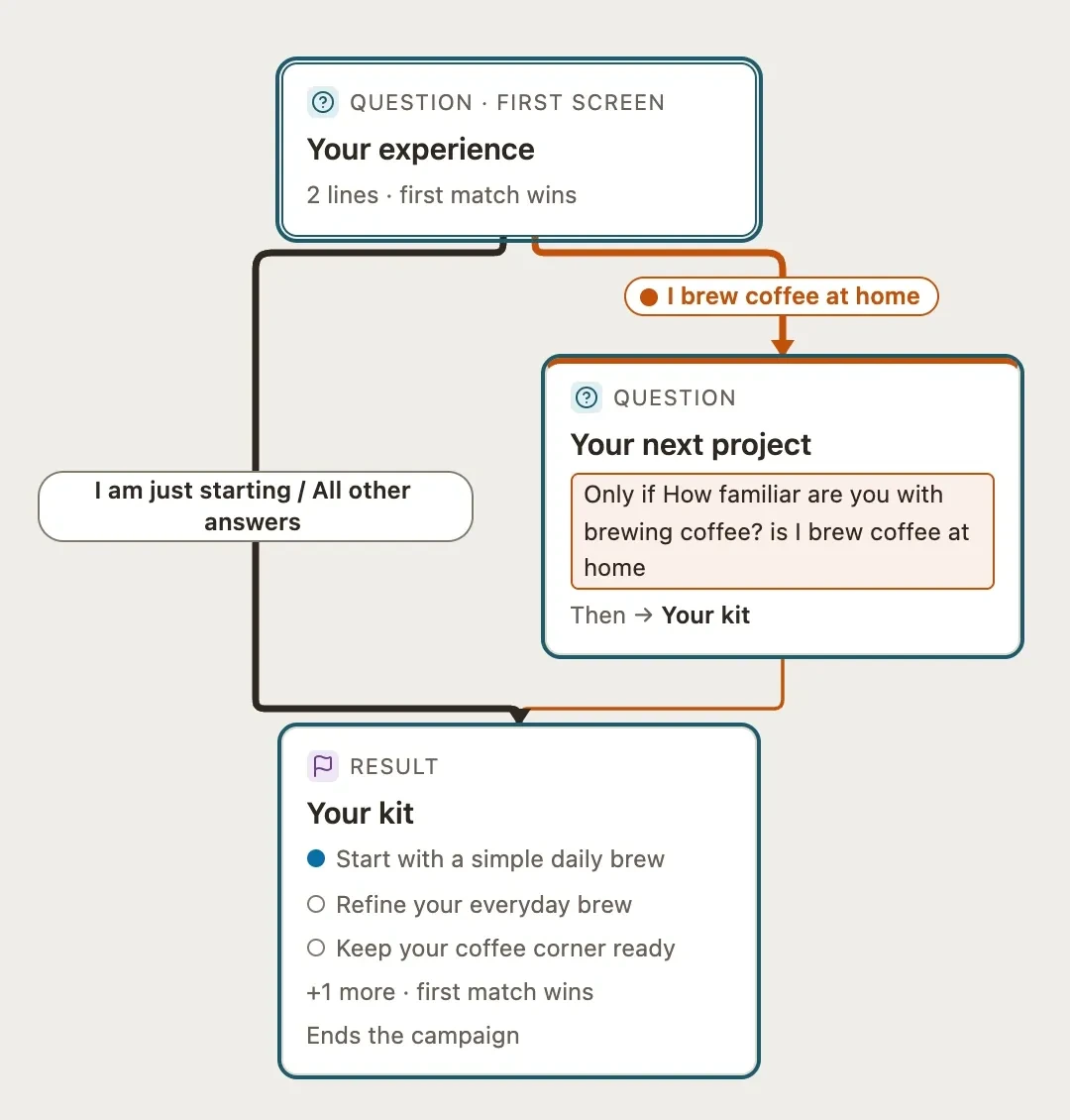
Switch from Canvas to Flow to see the screens and the lines between them. Check that every answer has a route to a result.
 Enlarge screenshot
Use Preview → Try the form for every row in your test list. Try continuing without an answer, changing an answer after going back, and reaching the fallback. See conditional paths and testing for the route controls.
Publish and check the actual page
- Limit Display rules to your test page and choose the opening behavior.
- Save, review and publish. Wait for confirmation before reloading the page.
- In a fresh signed-out browser session, complete each path and check the result text and links.
- If the quiz requests contact details, submit your own test details and check Leads and the receiving service separately.
Next: add products to quiz results, with a video showing a coffee recommendation and the actual basket.
Include your WConvert version, the page you tested and any error message.