 WConvert
Collect phone numbers for SMS signup
Set up a phone field, choose its starting country and test a saved SMS signup request.
On this page
Before you start
Phone capture is included in Free. You can save a phone number locally without an SMS provider. Sending texts needs a separate, compatible destination and its sending setup.
Use a test number you control when a sending service is connected. Decide what the visitor is requesting: for example, occasional service announcements.
Create the phone form
- Open Campaigns → Create campaign → Grow my SMS list.
- Choose a phone setup, such as Offer occasional service announcements, then Use this setup.
- Name the campaign and edit its headline, explanation and button.
- Select Phone number in the element list. In Content, review Field label, Example inside the field and Required.
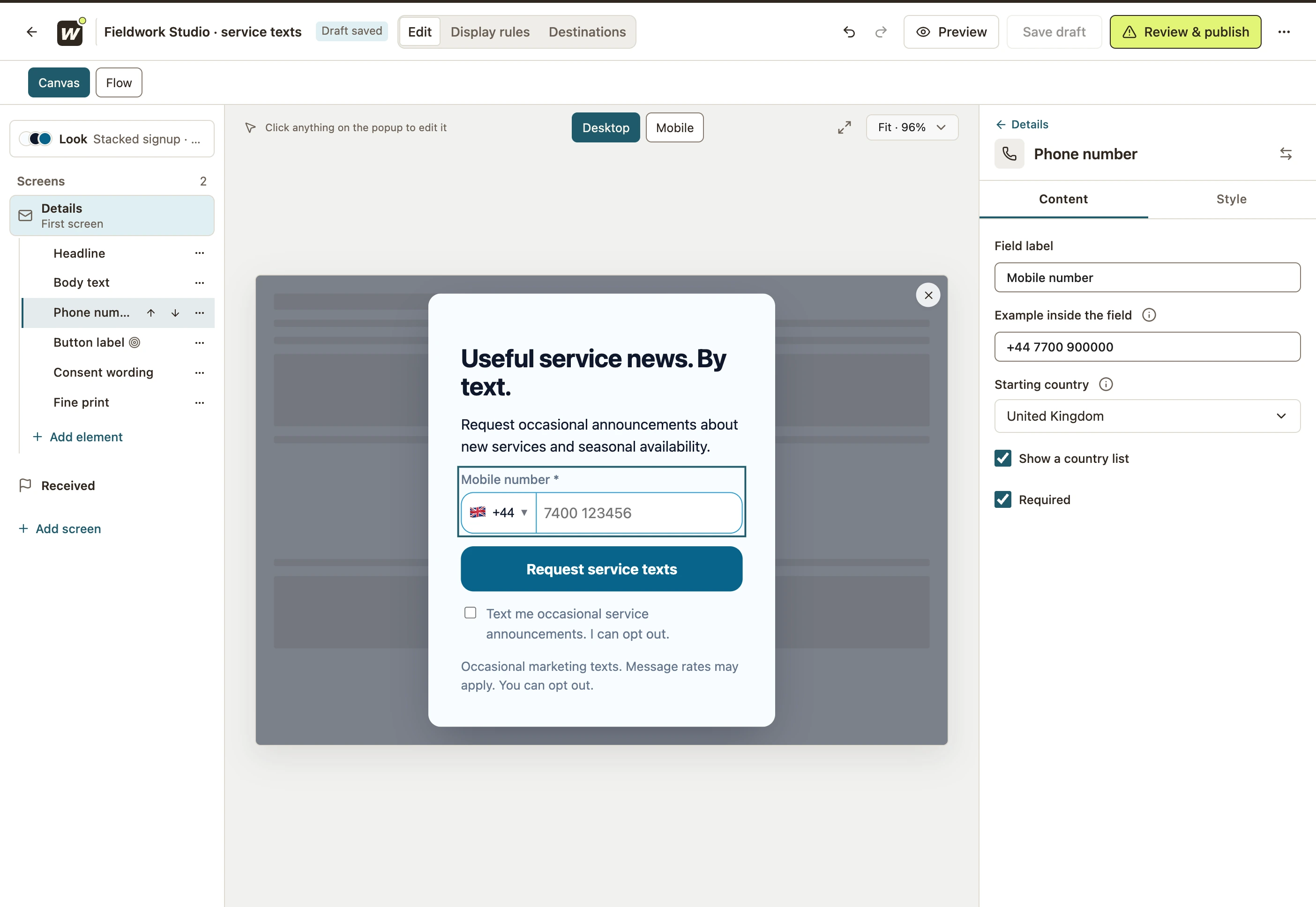 Enlarge screenshot
Choose the starting country
- In the phone field’s Content settings, open Starting country.
- Choose the country most useful for this campaign, or use the site setting.
- Keep Show a country list enabled if visitors may need another country.
- Check the preview with a realistic number, including the intended country code.
For the shared default, open Settings → Visitor experience → Phone input, choose Default country and select Save phone country. This changes a shared setting; individual fields can choose their own country.
Review the SMS promise and destination
Edit Consent wording to describe the texts requested, their purpose and how the visitor can opt out. Do not reuse email consent as permission for text messages.
In Destinations, select Keep in WConvert only for local capture or choose a supported sending destination. Collecting a number does not itself send an SMS or confirm an appointment.
Use an acknowledgement such as “We have received your request,” and make the next step match your actual follow-up process.
Test validation and a real submission
- In Preview → Try the form, try an empty required field and an incomplete number. The visitor should remain on the form until the required details are valid.
- Choose the intended country, enter a valid test number, complete the consent choice and submit. Check the acknowledgement.
- Save and publish, then repeat on the actual page.
- Open Leads and check the saved phone number, including its country code, campaign and consent. Verify actual delivery separately if sending is configured.
If the number looks wrong, check the selected country and the visitor’s input before changing the destination. Delivery troubleshooting explains why a saved record and a successful send are separate checks.
Include your WConvert version, the page you tested and any error message.