 WConvert
Split a signup into several screens
Use a simple sequence to ask about a request before collecting contact details, then test the whole path.
On this page
Before you start
Free supports a linear sequence: visitors move through screens in a set order. This guide uses Collect enquiries → Enquiry in small steps, which already separates the interest choice from the contact fields.
Use a short sequence only when each screen has a purpose. A single email field rarely needs several screens. Conditional questions, quiz results and answer-based routing are separate Pro features.
For a complete example of this setup, watch the enquiry walkthrough: edit the topic choices, collect contact details and verify the saved request.
Review the sequence in Flow
- Create the setup or open your existing campaign.
- Under Edit, switch from Canvas to Flow.
- Follow the connections from the first screen to the ending. Select a screen to see its settings.
- For our example, confirm Your request → Contact details → Acknowledgement.
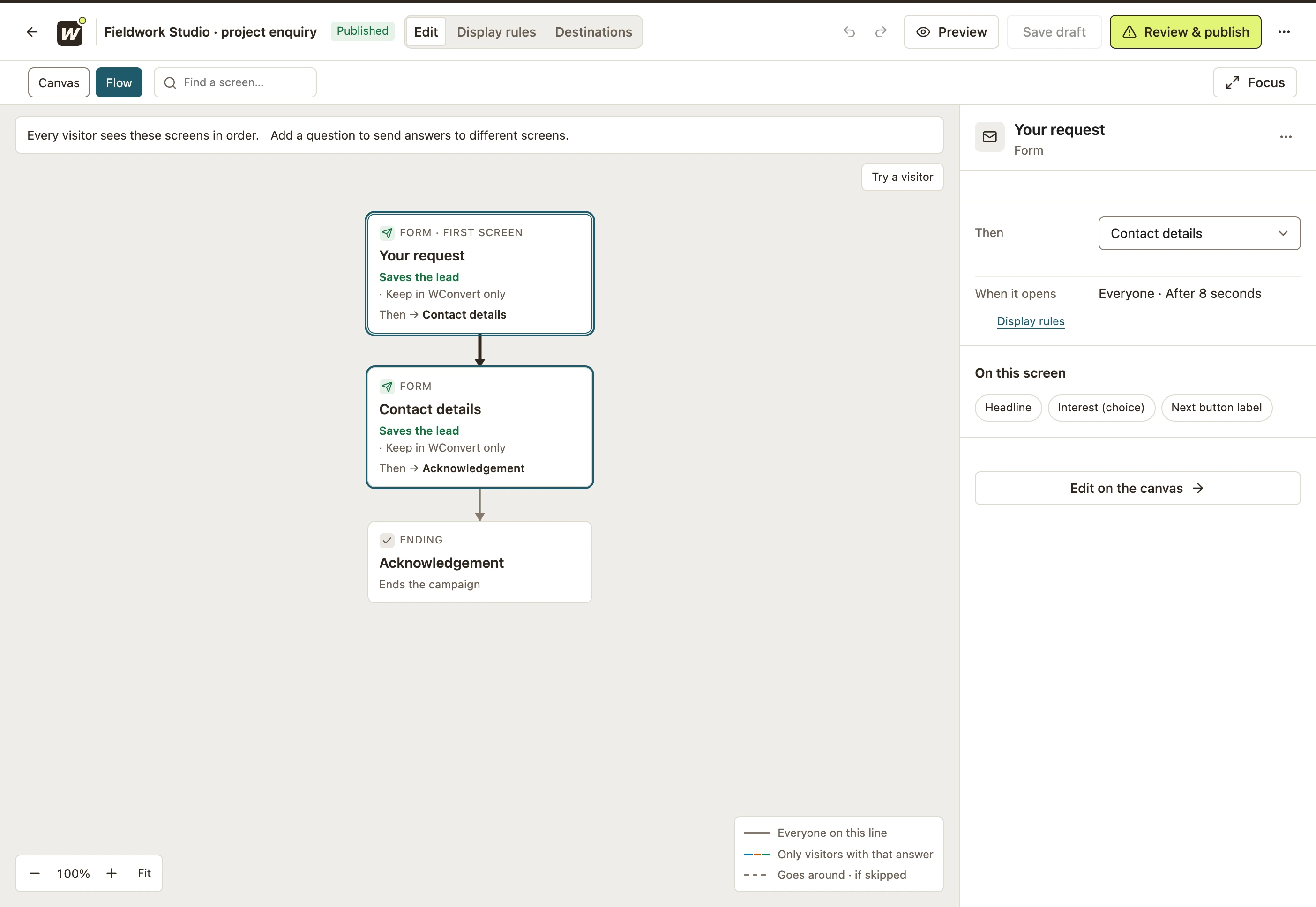 Enlarge screenshot
Check each screen and button
- Return to Canvas and select the first screen. Edit its headline, interest choices and Continue label.
- Select the contact screen and review its required fields and contact-use explanation.
- Check each screen’s Then setting. It should point to the intended next screen.
- Review the final acknowledgement. Keep it after the screen that saves the submission.
| Action | Expected behavior |
|---|---|
| Continue | Moves to the next screen after checking the current screen’s required inputs. It does not by itself save the enquiry. |
| Back | Returns to the previous screen so the visitor can review or change an answer. |
| Submit | Saves the configured submission. The following acknowledgement should describe that result. |
Test the full sequence
- Open Preview → Try the form. Try moving forward without the required interest choice.
- Choose an answer, continue, then use Back. Check that the answer is retained and can be changed.
- Complete the contact fields and submit. Check the acknowledgement and What happened panel.
- Repeat on Mobile. Save, publish and test the real frontend.
- Find the saved record in Leads and confirm that the earlier interest and later contact details belong to the same submission.
Leaving before the submit action does not produce a completed enquiry in this example. For a second, optional signup after the first save, use an optional email or SMS signup.
Include your WConvert version, the page you tested and any error message.