 WConvert
Collect enquiries and visitor interests
Ask what a visitor needs, collect contact details and find the complete enquiry in Leads.
On this page
Before you start
A basic enquiry with an interest choice is included in Free. Have someone ready to review and reply to requests. An enquiry is a request for contact, not a confirmed booking or a newsletter subscription.
Watch the walkthrough
Build The Friday Letter’s partnership enquiry in 2 minutes 43 seconds with WConvert Free. Start with a prepared page and matching form design, edit the topic choices, publish the campaign and page, then find the complete request in Leads. This example stores enquiries locally; review them and reply separately.
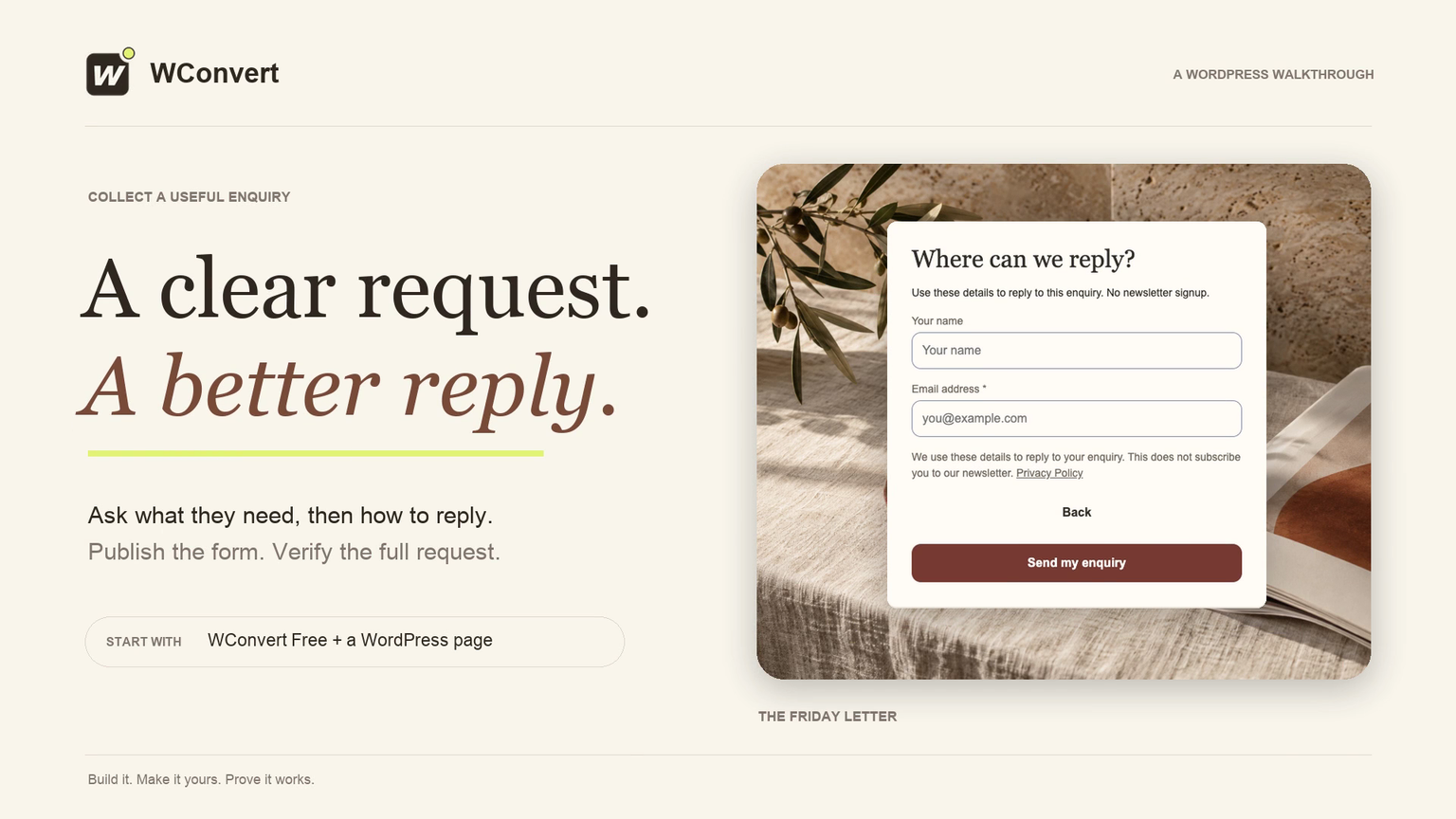
Read the transcript
Recorded October 2026. The Friday Letter is a fictional editorial site; the page and enquiry use sample content. This example saves requests locally without sending email or subscribing the visitor to a newsletter.
0:00 Turn interest into a useful request
A useful enquiry tells you what someone needs and how to reply. Let’s build a short partnership form for The Friday Letter, then check the complete request in WordPress.
0:10 Choose a simple enquiry setup
In Create campaign, choose Collect enquiries, then Enquiry in small steps. This Free setup asks what someone needs before collecting their contact details. Use it to create your draft.
0:23 Ask what they need
I’ve prepared the page and matching form style. Select Interest, then replace the choices with services you actually offer: Sponsor an issue, Commission a story, or Something else. Keep this choice required so each enquiry arrives with a useful starting point.
0:40 Make the purpose clear
On Contact details, keep email required and the name optional. Explain that these details are for replying to the enquiry, not newsletter signup. Check the acknowledgement too: it should confirm receipt without promising a booking or a reply that has already been sent.
0:57 Check the required choice
In Preview, try Continue without choosing a topic. The form should ask for an answer. Now choose Sponsor an issue and continue to contact details. This is a rehearsal, so it does not save a real enquiry. We’ll test the published page next.
1:13 Review and publish the form
Keep this example in WConvert only, so you can review requests in Leads without sending email automatically. Review the selected page, fields and privacy information, then publish the campaign. Manual inline placement still needs its WordPress block on the page.
1:31 Connect the form to your page
On our prepared Work with us page, I’ve added a WConvert campaign block. Search for the published enquiry and select its result. Then publish the page too. The page rule allows the form here; this block decides where it sits.
1:46 Send a real partnership enquiry
On the published page, imagine you’re a brand interested in sponsoring an issue. Choose that topic, then continue. Add a name and a test email address, and read how the details will be used. Send the enquiry and check the acknowledgement. This is a real submission; now we need to find the saved request.
2:05 Find the complete enquiry in Leads
In Leads, I’ve filtered to Enquiries and this campaign. Search for the test email and open the submission. Here are Alex’s contact details, the selected interest, and the source campaign. Consent says Not asked: this form collects an enquiry, not a newsletter subscription. The request is saved in WordPress; review it and follow up with the person separately.
2:29 A clear request, ready for a reply
You have a useful enquiry, with the details needed to reply. Check new requests regularly and agree the next step with the sender. Keep newsletter signup separate, and test your form on a phone before launch.
Choose a suitable enquiry setup
- Open Campaigns → Create campaign → Collect enquiries.
- Choose a setup that fits the request. Our example uses Enquiry in small steps, an inline form.
- Select Use this setup and name it clearly, such as “Fieldwork Studio · project enquiry.”
- Review every screen. This example asks about the request, collects contact details and then acknowledges receipt.
Edit the interest choices
- On the request screen, select Interest (choice) in the element list.
- Change Field label to a question the visitor can answer, such as “What can we help with?”
- Edit each Choice. Use Add choice or the remove controls when needed.
- Decide whether the choice is Required. Check the prompt shown before a selection.
- On the contact screen, review the email or phone field, optional name and explanation of how you will use the details.
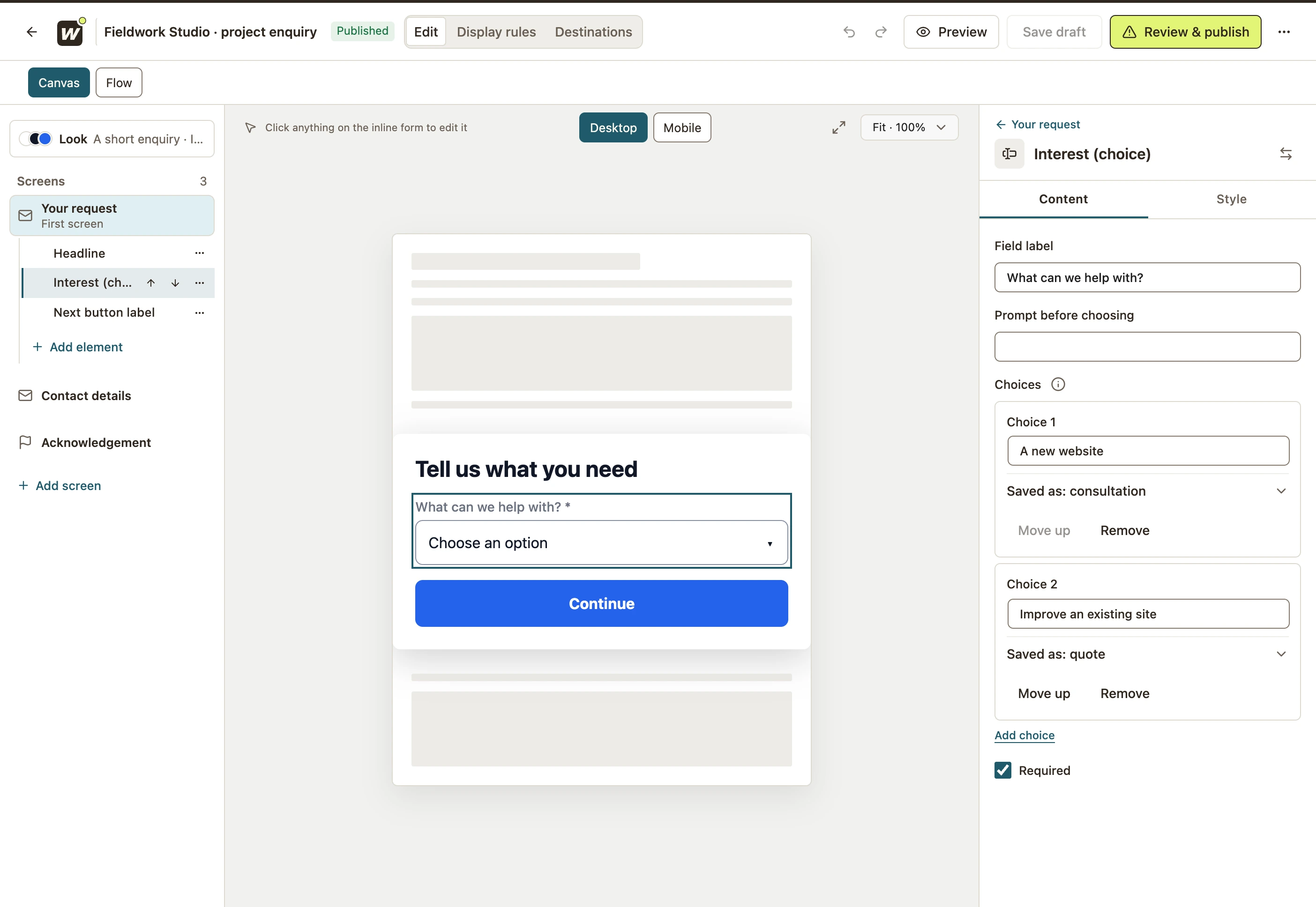 Enlarge screenshot
Choose how you will follow up
Select Destinations → Keep in WConvert only when you will review requests in Leads. If you choose a service, confirm that its action matches the visitor’s request.
A request for a quote does not automatically ask to join a newsletter. Keep the form’s wording, consent and destination aligned. Review the acknowledgement so it does not promise a booked appointment or a delivered reply.
Publish and check the enquiry
- Try the form in Preview. With a required interest choice, try Continue without a choice before completing the form.
- For an inline setup, publish it and place its block or shortcode on an eligible page.
- On the actual page, choose an interest, enter test contact details and submit.
- Find the record in Leads. Check the campaign, email or phone, name if collected, and saved interest.
The result is a complete enquiry you can act on. If you need several screens, see Split a signup into several screens.
Include your WConvert version, the page you tested and any error message.