 WConvert
Build an email signup form
Choose an email setup, review its fields and consent, and check that a real signup is saved.
On this page
Before you start
Email signup forms are included in Free. You need an active WConvert installation and a page where you can test. Start with one clear offer, such as a weekly email with useful project ideas.
This guide focuses on the form. Create your first campaign also covers page rules and publication.
Prefer to see it in action? Watch the 2:50 email popup walkthrough, with captions and a transcript.
Choose an email setup
- Open WConvert → Campaigns → Create campaign.
- Choose Grow my email list.
- Search for Email signup, open its setup details and select Use this setup.
- Give the draft a recognizable name. Under Edit, select the signup screen in Screens.
Other email setups can use a popup or an inline form. Choose the format that suits the page, then review the fields the setup actually contains.
Review fields and consent
- With the signup screen selected, review its Form settings. Keep the email address required.
- Enable Ask for their name only if you will use it. Select an individual field to edit its label, example text and Required setting.
- Select Headline and describe what the visitor will receive. Give the submit button a clear action, such as “Request the weekly notes.”
- Select Consent wording and make its promise match the emails you intend to send. Review any privacy link.
- Select the acknowledgement screen and use a message such as “We have received your request.”
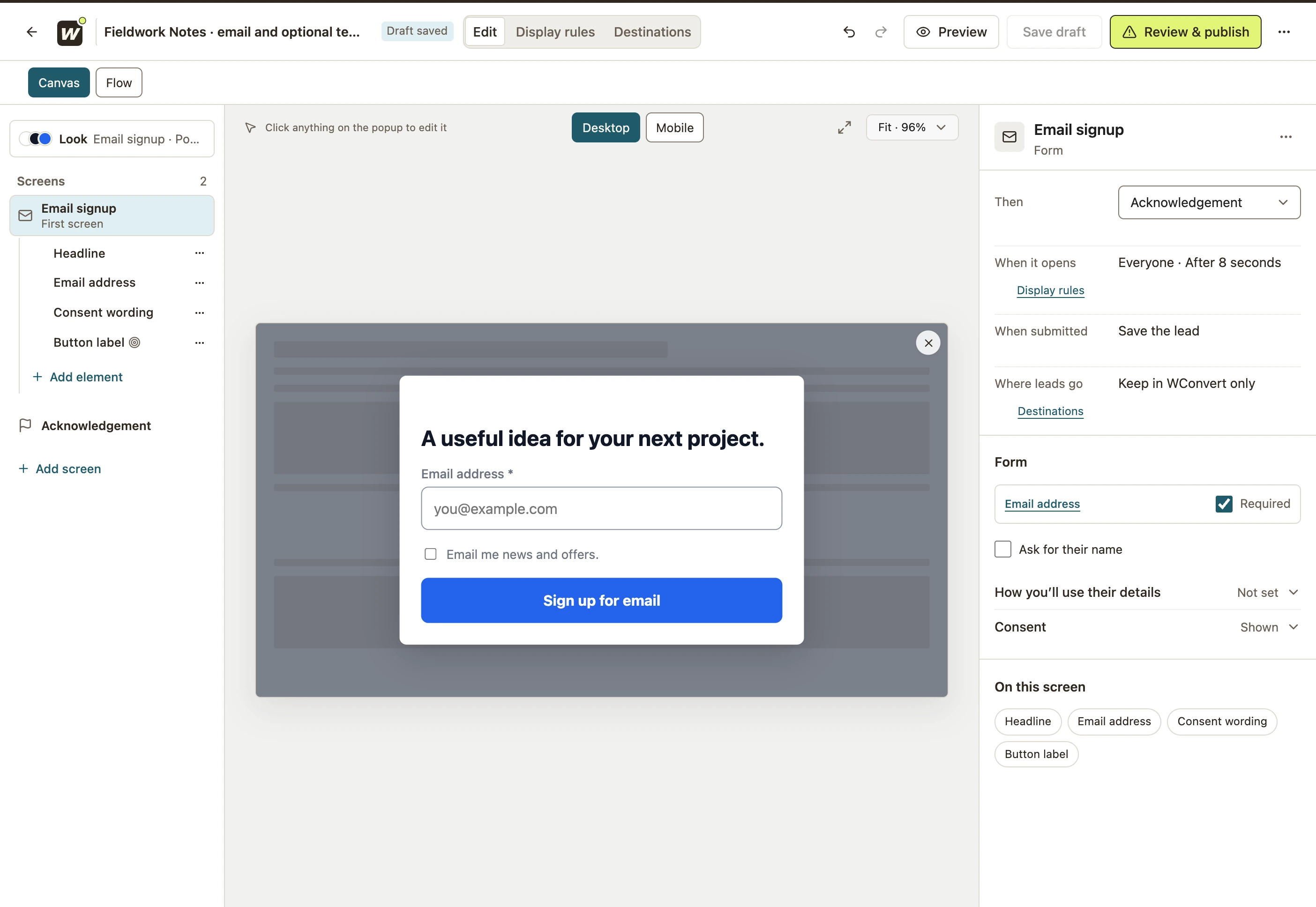 Enlarge screenshot
Choose what happens after signup
Open Destinations. Use Keep in WConvert only for a local capture test, or Send to a service and select an email destination. MailPoet setup is available in Free when MailPoet is installed.
Test the complete form
- Save the draft. In Preview → Try the form, try an empty email, an invalid email and then valid sample details. Check the acknowledgement.
- Check Mobile as well as Desktop.
- Choose the intended page rules, publish the campaign and submit a test address you control on the actual page.
- Find the matching record in Leads. If you connected a service, also check its list and confirmation status.
Your form is ready when required fields are enforced, the acknowledgement is accurate and the live submission reaches the place you chose.
Include your WConvert version, the page you tested and any error message.