 WConvert
Recommend products from quiz results
Attach different WooCommerce products to each result and verify the live product actions.
On this page
Before you start
You need Pro, WooCommerce, available products and a quiz with working results. Complete Create a quiz and test its paths first.
Write down which result should recommend which product. For example: filter brewing and a bright, fruity taste lead to a light roast; rich, chocolatey answers lead to a dark roast; other answers receive a balanced everyday blend.
Watch the walkthrough
In 2 minutes 51 seconds, connect Morning Ritual’s prepared two-question quiz to three coffees. See the journey in Flow, assign products to results, add a fallback, and test different answers and a real cart addition. Requires Pro and WooCommerce.
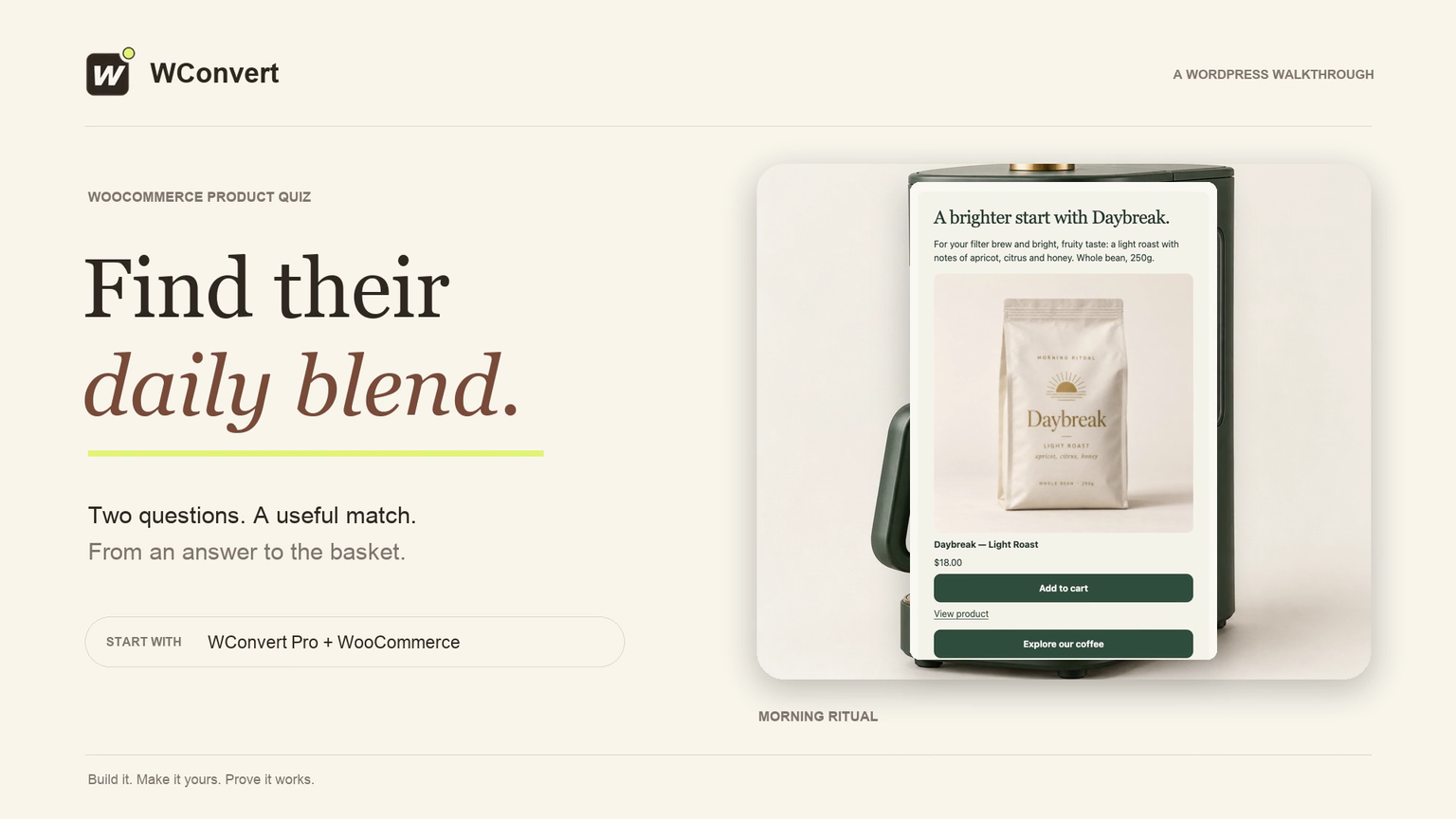
Read the transcript
Recorded October 2026. Starting with a prepared two-question quiz, use WConvert Pro and WooCommerce to match Morning Ritual’s coffees to each result, add a fallback, and verify the recommendation in the actual basket. This example does not ask for an email.
0:00 Help shoppers find their coffee
Help shoppers choose a coffee they’ll enjoy. In this walkthrough, two simple questions lead to a useful recommendation, with a product they can add straight to their basket.
0:10 See the quiz journey
You’ll need WConvert Pro, WooCommerce, and published products with prices and stock. Flow shows the journey: two questions, then a result. The result conditions choose the coffee. Back in Canvas, we’ll connect each result to its product.
0:26 Match answers to Daybreak
Our first result matches filter brewing and a bright, fruity taste. Both conditions must be true. Open Products, keep Hand-picked products, and search for Daybreak. Add the light roast from the catalog. Its name, image and price will come from WooCommerce.
0:43 Choose the product action
Set Product button to Add to cart. This is separate from the result’s main link. Our Explore our coffee link gives shoppers another route if they want to browse. Products that need options open their product page instead of being added directly.
0:59 Recommend a richer roast
For rich, chocolatey answers, we recommend Fireside. Open that result, search for the dark roast, and add it. Choose Add to cart here too. Specific results are checked in order, so keep the most precise matches first.
1:14 Give every shopper a result
Finish with All other answers. Our balanced Everyday roast is a useful starting point when neither specific result matches. Add its product and choose the same cart action. Give this fallback a helpful explanation, so no answer combination becomes a dead end.
1:31 Check availability and publish
Keep Require live products before publishing checked. We show the result immediately after the questions; this quiz doesn’t ask for an email. Save the draft, review the selected page and manual placement, then publish. Our page already contains the WConvert campaign block.
1:49 Try the published quiz
Now test the actual page as a shopper. Choose filter or pour-over, then bright and fruity. The result should explain the match and show Daybreak at its current price. Editor previews alone don’t prove the live recommendation or the cart action.
2:04 Confirm the actual basket
Add the recommended coffee and wait for the confirmation. Open View basket. Here’s one bag of Daybreak at eighteen dollars, with the same total. That confirms a cart addition. It doesn’t mean an order has been placed.
2:19 Check another answer and the fallback
Test more than one path. Going back and choosing rich and chocolatey changes the recommendation to Fireside. Smooth and balanced reaches Everyday, our fallback. Check every combination, product link and basket action, including on a phone-sized screen.
2:36 A recommendation worth following
Two useful questions. A clear recommendation. A basket you’ve checked. Start with a small product range and test every result. Then review product activity to see which recommendations shoppers explore and add.
Choose products for each result
- Open the quiz in Edit → Screens and select its result screen.
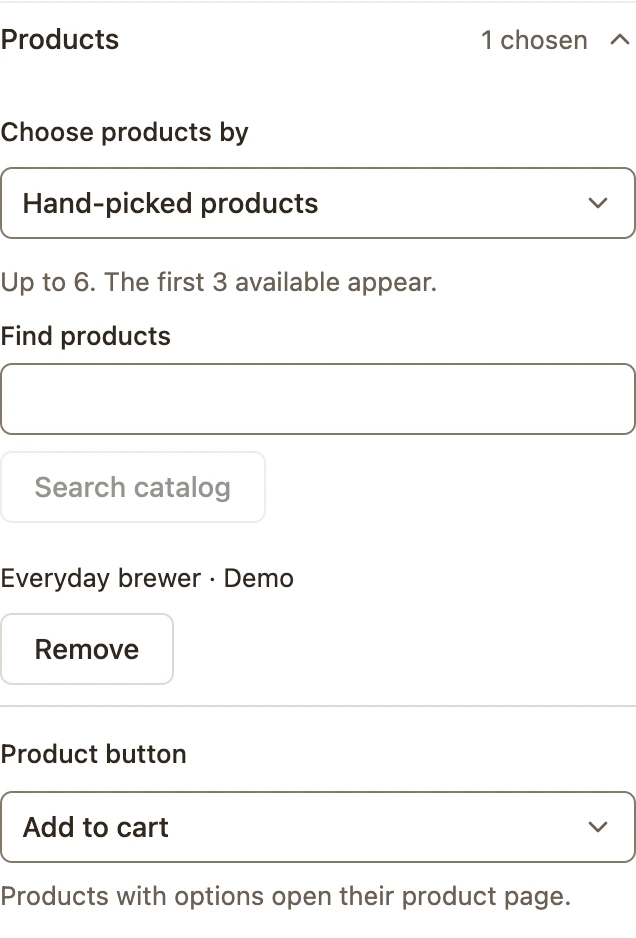
- Open a result variant and expand Products.
- Under Choose products by, use Hand-picked products for a precise shortlist, or Category and attributes for a catalog-based selection.
- For hand-picked products, search the catalog and add the intended products.
- Choose the Product button action: open the product page or add to cart.
- Repeat for every specific result and the All other answers fallback.
 Enlarge screenshot
You can select up to six products; the first three available products appear. Products requiring options open their product page.
Check availability before publishing
Review Require live products before publishing when the result relies on a real product recommendation. Check that each intended product is published and available.
Preview can explain which products would be checked, but it does not establish the final live price, availability or cart behavior. Keep the result heading and message useful even when catalog availability changes.
Test each result on the actual page
- Review and publish, then reload the test page in a fresh session.
- Answer the quiz for the first result. Check its heading, product, current price and action.
- Open a product link and confirm that it reaches the intended product.
- For Add to cart, wait for the Added confirmation, then inspect the basket.
- Repeat for every result, including the fallback. Change an earlier answer and verify the recommendation changes.
Also test how your result behaves when an intended product becomes unavailable on a staging copy. Do not change live stock merely to run a documentation test.
Include your WConvert version, the page you tested and any error message.