 WConvert
Test a destination and read recent sends
Send a controlled test, inspect delivery history and check the receiving service without confusing a test with a saved lead.
On this page
Before you start
You need a saved destination and an address you control. Free supports its available destinations; Pro and any required service plugin must be active for a Pro destination. Finish the account, list or resource setup first.
This example uses a lead magnet email. A test sends real data: it can add a contact or send an email. Choose a test list or mailbox where those effects are expected.
Send a controlled test
- Open WConvert → Settings → Connections & destinations.
- Find your destination. Save any setup changes before testing.
- Open its Actions menu and choose Send a test.
- Replace Test email address with an address you control. If offered, enter a Test interest value that matches a saved option value.
- Choose Send test once and read the result.
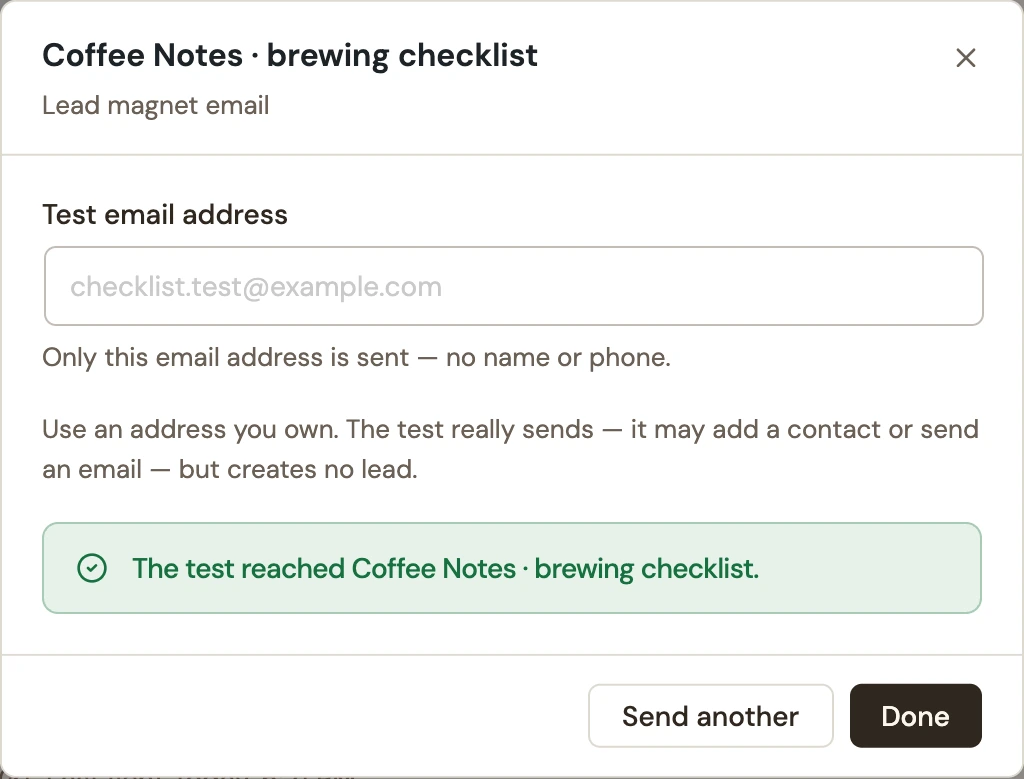 Enlarge screenshot
Read recent sends
Open the destination’s Actions → Recent sends. This is recent delivery activity for stored submissions, newest first. Use View submission to inspect the source record. A standalone destination test is not a saved submission to find here.
| State | What to do |
|---|---|
| Accepted | The destination accepted the request. Check the provider’s contact/list status or the actual mailbox for the final result. |
| Queued or Running | Delivery has not finished. Allow the background job to run and check again. |
| Will retry | A temporary failure scheduled another attempt. Review the cause before starting an additional resend. |
| Needs attention | Review the destination’s setup and error. Repair the cause before resending. |
| Skipped | The route did not send this submission. Check campaign destinations and any setup or availability warning. |
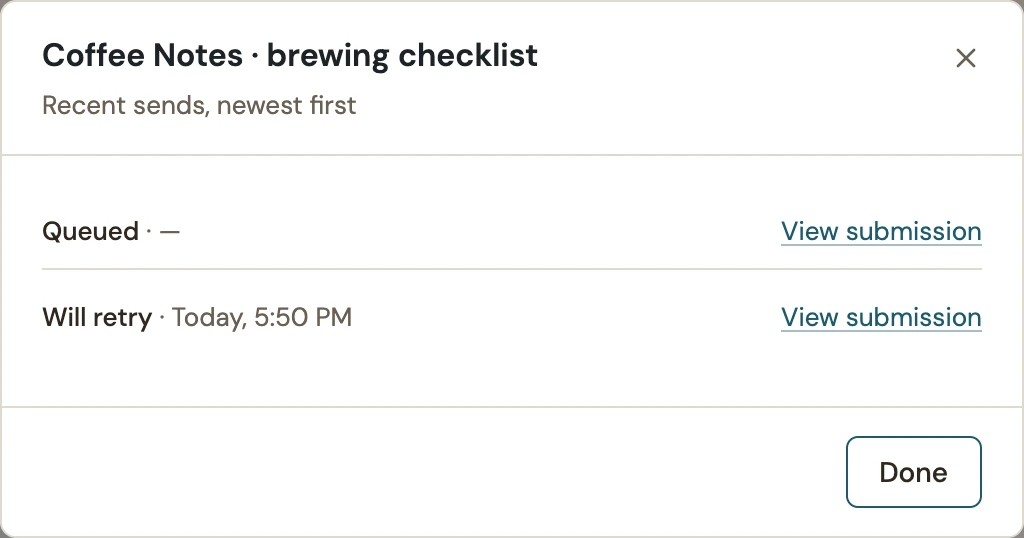 Enlarge screenshot
Finish with a real form test
- Open the published form on its actual page and submit a fresh test address with the required fields and consent.
- Find the record in Leads.
- Check Recent sends, then confirm the intended list membership, confirmation status or received message in the receiving service.
For a resource email, open its download link too. An accepted request alone does not prove inbox arrival or a completed download. See email delivery troubleshooting or resending saved submissions when needed.
Include your WConvert version, the page you tested and any error message.