 WConvert
Resend stored submissions after a delivery problem
Repair a destination, understand the resend scope and verify queued submissions without creating new leads.
On this page
Before you start
You need permission to manage WConvert, a working destination and the original saved submissions. The destination’s required edition and service plugins must be available. Keep the relevant campaign published with the destination attached while recovering delivery.
If the lead is missing, resolve missing submissions first. A resend cannot recover a record already erased or removed by retention.
Repair the cause first
- Open Settings → Connections & destinations and read the destination’s warning.
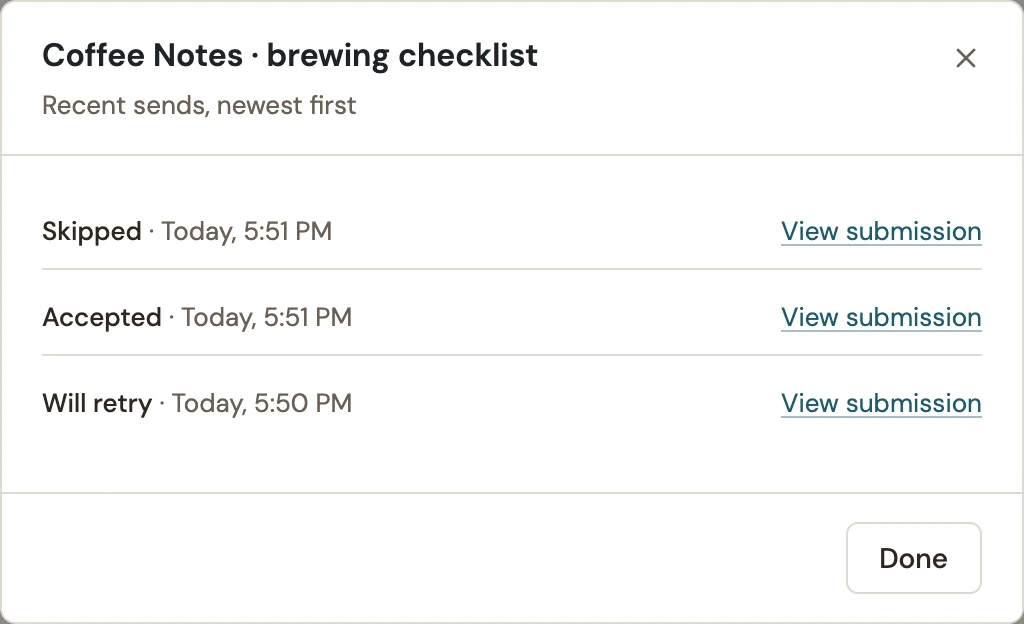
- Review Actions → Recent sends. A Will retry entry already has another attempt scheduled.
- Fix the reported problem: for example, reconnect the same account, restore its access or repair the site’s mail transport.
- Save the destination, then send a controlled test.
Restoring the original route is different from choosing another account or list. WConvert may leave older submissions out when destination settings have changed since capture.
Queue the saved submissions
- Open the destination’s Actions menu.
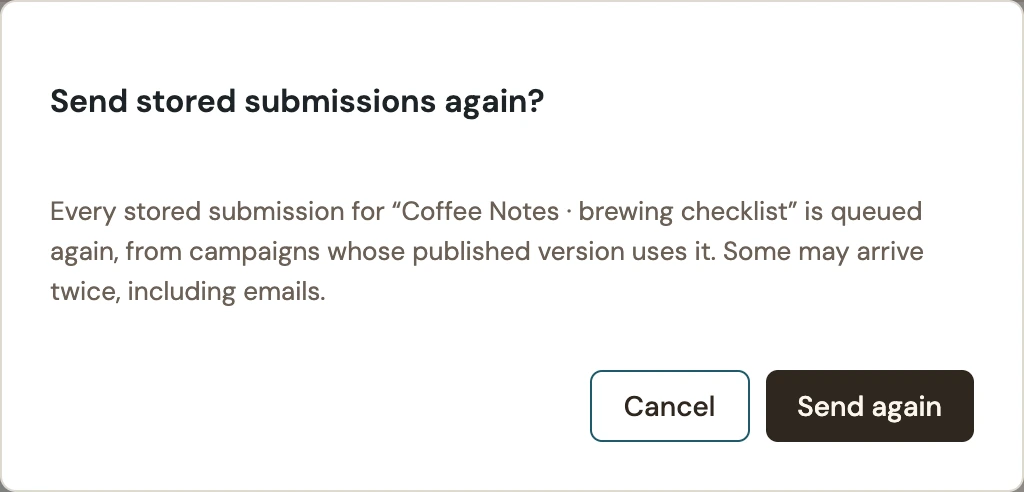
- Choose Send stored submissions again. A destination warning may also offer Send again.
- Read the confirmation. It states whether the selection starts at the last successful send or includes every eligible stored submission.
- Choose Send again once. Read the queued count and any records left out for review.
 Enlarge screenshot
Understand which records can be sent
The resend uses original submission details from campaigns whose published version uses the destination. It creates delivery jobs, not new leads. Availability, stored routing details and later account/list/settings changes can prevent an older record from being eligible.
If the result says a run reached its limit, let that batch finish before considering another. Read any “left out” explanation; repeatedly clicking the action will not repair an incompatible route.
Verify recovery
- Reopen Recent sends after background processing. Check that the new attempt is accepted rather than only queued.
- Use View submission to confirm which saved record it came from.
- Check the receiving service or mailbox. Confirm any expected list, field or download link.
- Check that the Leads list has not gained a new submission solely because of the resend.
 Enlarge screenshot
The saved lead and the new delivery attempt are separate records. Confirm the final result in the receiving service before treating recovery as complete.
Include your WConvert version, the page you tested and any error message.