 WConvert
Send a download link after signup
Use the Free lead magnet email destination to send a resource link, then verify the form, message and download.
On this page
Before you start
You need WConvert Free, a file or resource page with a URL visitors can open, working WordPress email delivery, and a test inbox you control. The resource can be a PDF, checklist or another useful file. Open its URL while signed out to check that it does not require your administrator login.
WConvert sends a link, not an email attachment. Hosting the resource and configuring your site’s mail delivery are separate from designing the popup.
Watch the walkthrough
Follow a prepared download campaign through setup, a live signup and a delivery-record check in 2 minutes 47 seconds. Everything shown uses Free features. For the popup builder from the beginning, follow the first-campaign tutorial.
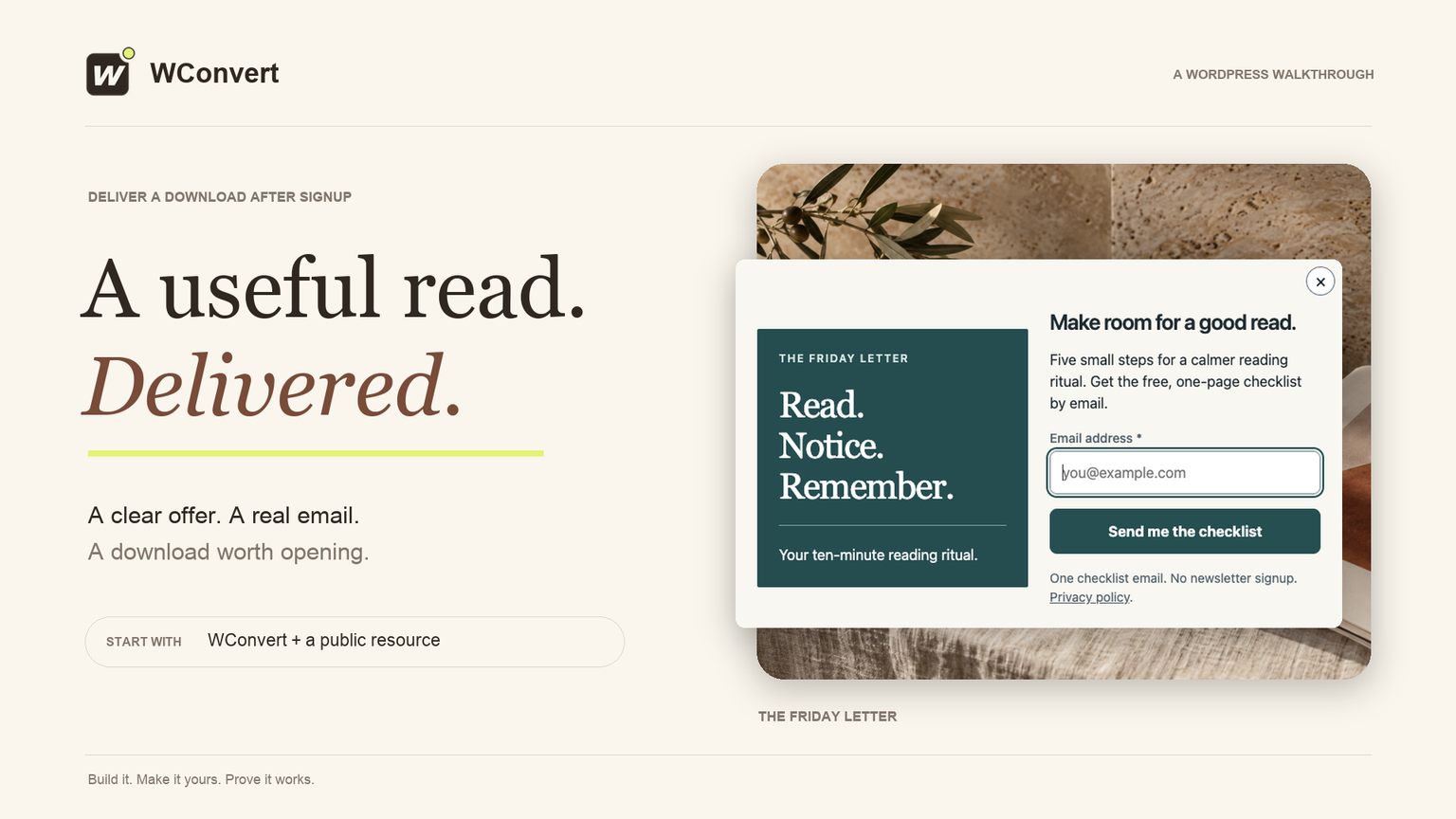
Read the transcript
Recorded October 2026. The Friday Letter is a fictional editorial site; all contact details are sample data.
0:00 Send a useful download
Turn a useful checklist into a simple email delivery with WConvert. We will use The Friday Letter to connect the download, test the signup, and check that the resource opens.
0:11 Prepare a clear offer
Start with a Deliver a lead magnet campaign. We have adapted the practical reading guide setup for our one-page checklist. Keep the offer clear, check the mobile layout, and explain that this sends one resource email, not an ongoing newsletter.
0:26 Choose lead magnet email
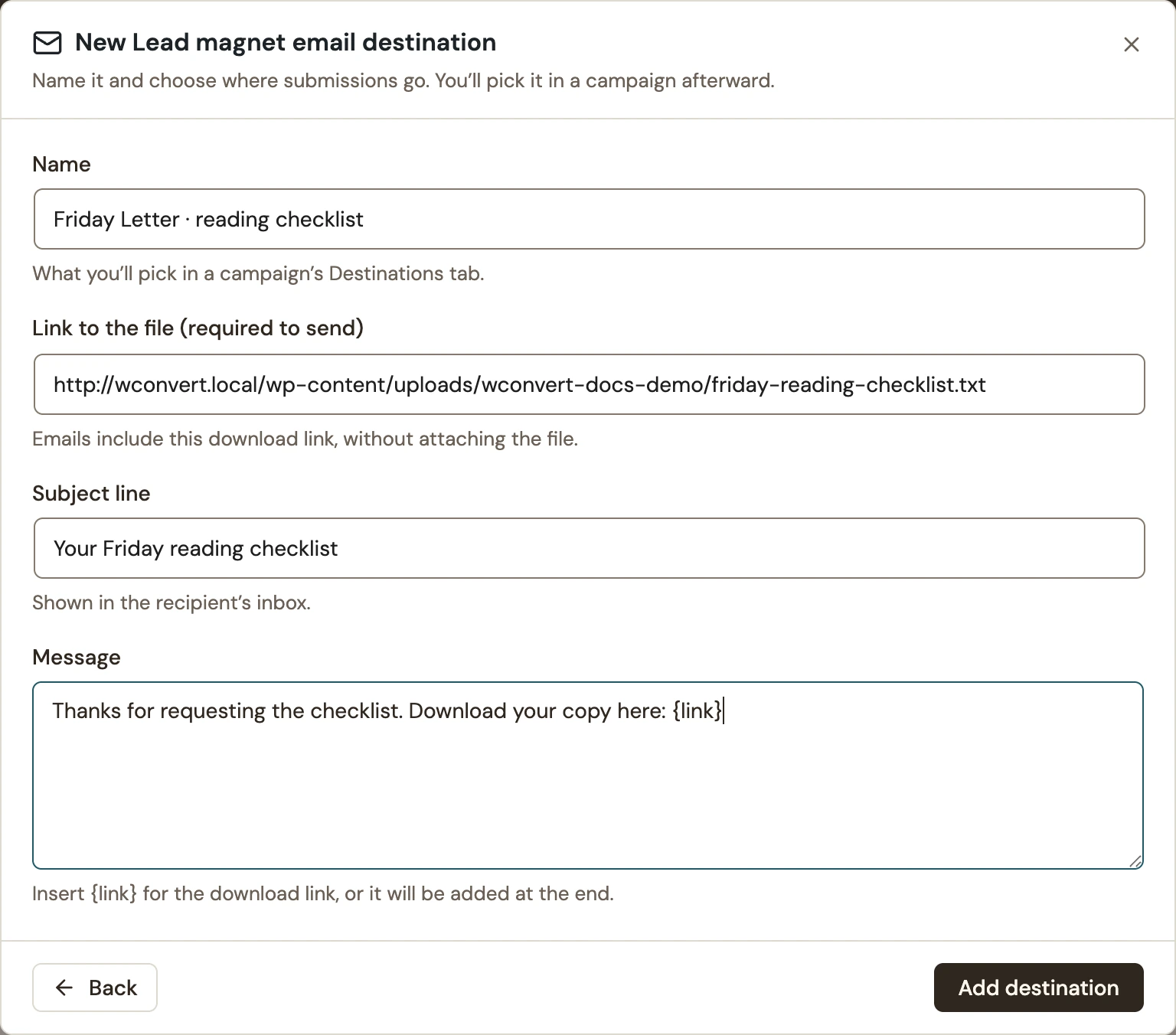
Open Destinations and choose Send to a service. Add a destination, then choose Lead magnet email. Give it a clear name and paste the public link to your file. WConvert emails this link; it does not attach the PDF.
0:42 Write the delivery email
Write a recognizable subject and a short message. The link token becomes your download address. Keep it in the message where you want readers to find it. Add the destination, and check that it is selected for this campaign.
0:55 Choose where and when it appears
Keep this first test on one prepared page. Open Display rules, choose Selected pages, and add your test page. Set a short opening delay so the popup is easy to test. Keep once per visit and stop showing it after submission.
1:12 Check the acknowledgement
Try the form in Preview. Submit a sample email and check the acknowledgement. This is only a rehearsal: preview does not save a lead or send the checklist. We still need a submission on the published page.
1:25 Review and publish
Save your draft, then review the page, delay and selected destination. Make sure your privacy information is ready and resolve any issues. Publish when the setup matches your promise. Now we can test the real visitor journey.
1:40 Submit on the published page
Open the test page as a visitor. After five seconds, the popup appears. Enter a test address you control, so you can check the delivery yourself. Send the request and check the acknowledgement. This time, it is a real submission.
1:56 Verify the saved resource request
In Leads, choose your campaign and search for the test address. Open the matching submission to verify the email and campaign. This proves the request was saved. Next, check the delivery record.
2:08 Check the delivery record
In Settings, open your destination’s Recent sends. Accepted means the email was handed to the mail system. It does not prove that it reached someone’s inbox. Your own inbox test is the final check.
2:22 Open the promised download
Open your download link without an administrator login. The checklist should load clearly, with the content you promised. Make this check part of every new resource you offer.
2:33 Your resource, ready to test
Your campaign is ready for a full delivery test. Before inviting real readers, submit with an inbox you control. Check the message and its spam folder, then open the download link. Make sure the whole journey works.
The video shows a saved request, an email accepted by the mail system and the resource opening. It does not show inbox arrival. Complete the inbox test below before inviting real readers.
Create the download campaign
- Open Campaigns → Create campaign.
- Choose Deliver a lead magnet and a suitable setup, then Use this setup.
- Edit the headline, resource description and button to match the file you will send.
- Review the acknowledgement. “Your request has been received” avoids claiming inbox delivery before it has happened.
- Keep the campaign limited to a test page while you set up sending.
Requesting a resource is not automatically permission for ongoing newsletters. If you also offer newsletter signup, make that separate promise and consent clear.
Add the lead magnet email destination
- Open Destinations and select Send to a service.
- Select Add destination, then Lead magnet email under the new-destination choices. If you already configured one in Settings, select it from Your destinations.
- Give it a recognizable Name, such as “Friday Letter · reading checklist.”
- Enter the resource URL in Link to the file.
- Write the Subject line and Message, then select Add destination.
 Enlarge screenshot
Thanks for requesting the checklist. Download your copy here: {link}The {link} token is replaced with your resource URL. If you omit it, WConvert adds the link at the end. Check that this destination is selected in the campaign, then save the draft.
Send a test and check your inbox
- Open Settings → Connections & destinations.
- Open your destination’s actions menu and select Send a test.
- Enter your test email address and select Send test.
- Check the result, then check the actual inbox and spam folder.
- Open the resource link from the message and confirm that the right file or page loads.
Publish and verify the complete signup
- Review and publish the campaign.
- Submit a new test on its actual page.
- Find that submission in Leads.
- Open the destination’s actions menu and select Recent sends.
- Check the received message and open its link again.
The lead magnet goal counts Emails accepted for sending. It does not measure inbox arrival or file downloads, and resends can count again.
Repeated tests to the same address and resource can be suppressed briefly to prevent duplicate emails. Wait before retrying. If a saved submission has no expected message, follow A signup was saved but the email never arrived.
Include your WConvert version, the page you tested and any error message.