 WConvert
Map extra answers to connected service fields
Send an interest or question answer to a compatible field and verify what the service receives.
On this page
Before you start
You need a campaign with an extra answer and a supported signup destination. Free interest fields can be mapped to compatible destinations; Pro is needed for quiz questions and Pro-only providers. This example uses MailPoet and a custom text field.
Create the receiving field in your service first. Finish the destination setup and choose a test list. See MailPoet signup setup if needed.
Choose which answer goes to which field
- Open the campaign’s Destinations and choose Send to a service.
- Add or select the compatible destination for the signup.
- Expand Field mapping on its card.
- Choose a receiving field for each answer you want to send. Use Refresh fields if you just created one in the service.
- Leave an answer at Keep in WConvert only when it should not be sent. Map each destination field once.
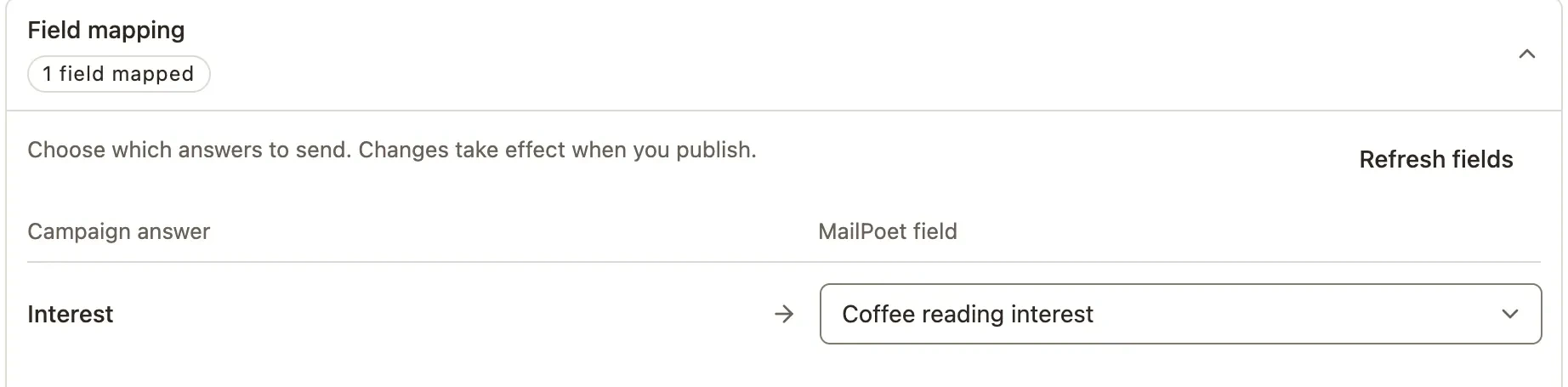 Enlarge screenshot
MailPoet supports text mappings here. Other services may also offer yes/no fields for individual choices. Only compatible choices are offered.
Preview the values before sending
- Expand Preview and test mapping.
- Enter your test email and sample answers.
- Choose Preview data. Read the receiving list, field names and values under Review this test send.
- If you want a real test contact, use Send test contact and check it in the receiving service.
Preview data does not send a contact. Send test contact does, and can add the address to a list or trigger automations. Use an address you control.
Check existing-contact behavior
| Setting | What it means |
|---|---|
| Blank answers | Omitted; they do not clear an existing provider value. |
| Unchecked interests | Omitted. A selected choice mapped to a compatible yes/no field sends Yes. |
| Existing contacts | Check the destination’s existing-contact setting. Choose Update mapped fields when new answers should update existing details. |
| Removed or changed fields | Refresh fields and resolve Needs review messages. Remove mappings for answers that no longer exist. |
Changing a label or type can affect the meaning of data already saved in the service. Review both the form and receiving field before publishing.
Publish and verify one live submission
- Save and publish the campaign. Mapping changes apply to the published version.
- Submit the actual form with a new test address and a known answer.
- Check the submission and its send status in WConvert.
- Open the same contact in the receiving service and compare the field value with the answer’s saved value.
An accepted service update is separate from subscriber confirmation or email receipt. See send statuses if the field is missing.
Include your WConvert version, the page you tested and any error message.