 WConvert
Send email signups to MailPoet
Choose a MailPoet list in WConvert, submit a real signup and check its list membership and confirmation status.
On this page
Before you start
This integration is included in WConvert Free. Install and finish setting up MailPoet on the same WordPress site, and create the mailing list you want to use. WConvert does not need a separate MailPoet API key for this local connection.
Have an email campaign and a test address you control. Use a dedicated test list while checking the setup, and review any MailPoet automations attached to that list.
Create a MailPoet destination
- Open WConvert → Settings → Connections & destinations.
- Select Add a destination → MailPoet.
- Give it a clear name, such as “Fieldwork Notes · MailPoet.”
- Under Lists to add to, select the intended list.
- Select Add destination.
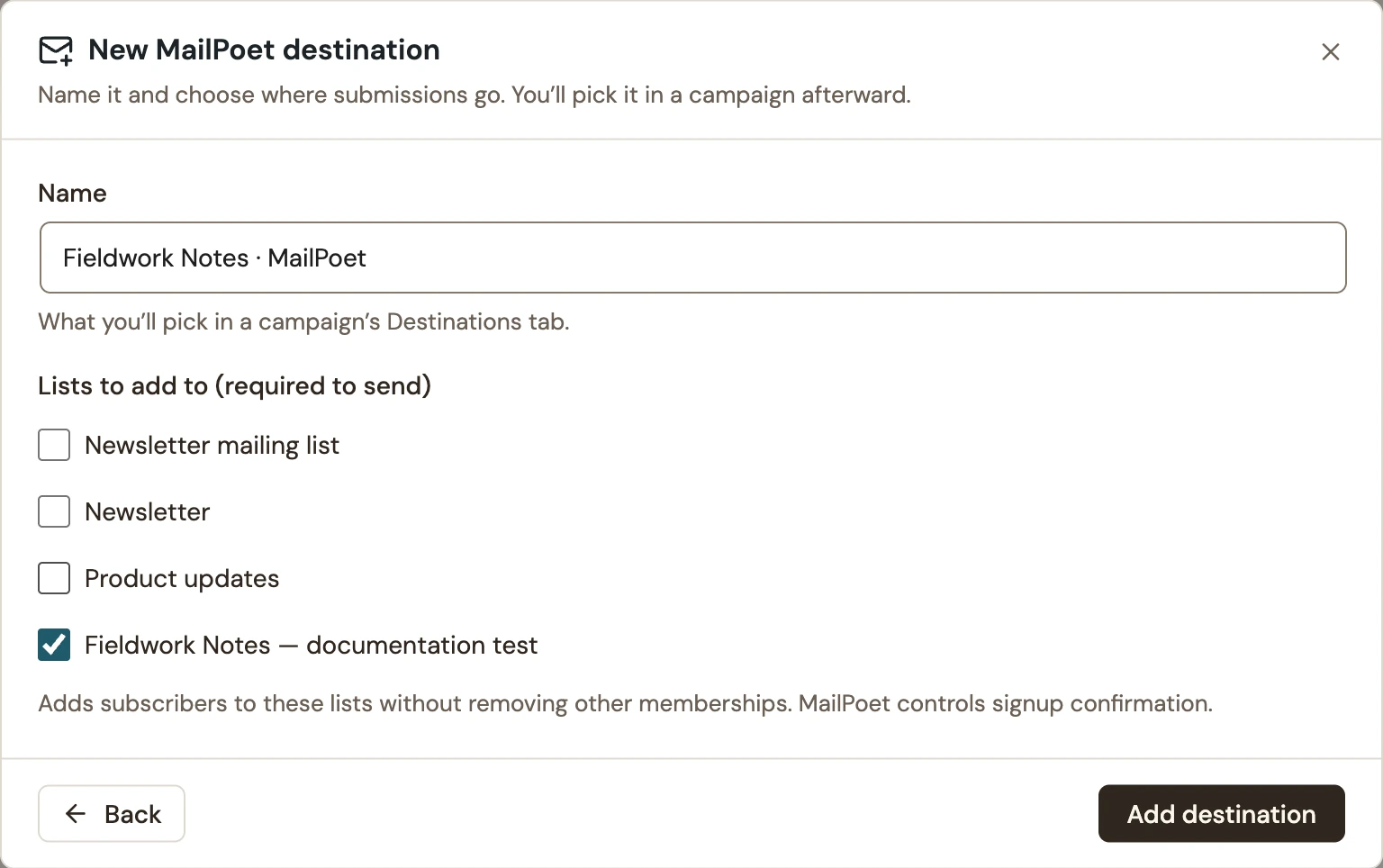 Enlarge screenshot
If MailPoet is unavailable, check that the plugin is active on this site. If a newly created list is missing, reload the WConvert settings page and open the destination form again.
Select it in the campaign
- Open the email campaign’s Destinations tab.
- Select Send to a service, then Add destination for the email signup.
- Under Your destinations, choose the MailPoet destination you created.
- Confirm that the campaign collects an email address and its consent wording matches the list’s purpose.
- Review and publish the changes.
For multiple signup screens, check each one. A phone-only submission cannot be added to MailPoet by email.
Verify a live signup
- Submit a new test email on the published frontend form.
- Find the saved submission in WConvert → Leads.
- In WConvert’s destination actions, open Recent sends and check the matching attempt.
- Open MailPoet → Subscribers, find the address and check its list membership and status.
- If confirmation is enabled, check the test inbox and complete the confirmation. Verify the resulting MailPoet status.
MailPoet distinguishes subscribed, unconfirmed and other subscriber states. Its subscriber management guide explains those states.
Check existing subscribers carefully
WConvert adds list memberships without removing other memberships. It does not deliberately reactivate someone who is already unsubscribed, or overwrite the existing MailPoet subscriber’s details just because another form was submitted.
Use a new test address to verify initial signup. For an existing address, inspect its current status and list membership in MailPoet before assuming that a repeat form will change them. Sending a newsletter or welcome message is configured in MailPoet separately.
For missing messages, follow the delivery troubleshooting guide.
Include your WConvert version, the page you tested and any error message.