 WConvert
A signup was saved but the email never arrived
Check the selected destination, its send history and the receiving service without confusing a saved lead with delivery.
On this page
Check what the campaign is meant to do
Start with the saved submission’s campaign name, email address and time. If it is not in Leads, first check whether capture succeeded.
Open the campaign’s Destinations. If Keep in WConvert only is selected, no automatic email or service update is expected. Choose and configure a destination if sending is part of the offer.
Adding a contact to an email service does not necessarily send a message. A welcome email, confirmation or newsletter automation may need its own setup in that service.
Check the campaign’s destination
- Confirm that Send to a service is selected and the intended destination is listed.
- For a campaign with several signup screens, check the destination for the screen that collected these details.
- Review the destination’s settings under Settings → Connections & destinations.
- Check the chosen list, resource URL or other required settings. If a connection needs attention, repair it.
- Publish any campaign changes before submitting another live test.
Read Recent sends
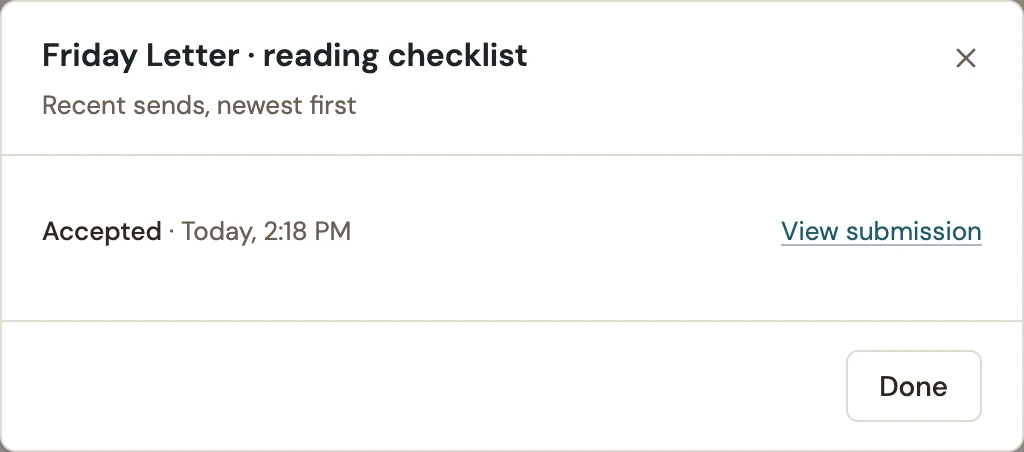
Open the destination’s actions menu and choose Recent sends. Find the send that corresponds to your test; use View submission when available.
 Enlarge screenshot
| What you find | What to do |
|---|---|
| Accepted | Check spam, quarantine, recipient spelling and the provider’s own logs or contact record. Acceptance is not proof of inbox receipt or confirmed subscription. |
| Will retry or still pending | Read the reported problem. Check the destination and your site’s background-job processing; repeated clicking does not repair the underlying issue. |
| Needs attention | Correct the specific settings or submission problem shown, then retest. |
| Skipped | Read why the request was ineligible. Check that the form collected the information required by that destination. |
| No corresponding send | Confirm this was a live submission after the destination was selected and published. Editor previews do not send. |
Send a controlled test
- From the destination’s actions menu, choose Send a test.
- Use an address you control and read the test notice before sending.
- Check the receiving service or inbox, not just WConvert’s success message.
- If this passes, submit the published form again and compare its result.
For Lead magnet email, WordPress handles mail delivery. If its test is accepted but nothing arrives, check the mail service used by your site. Also open the resource URL while signed out. A working email can still contain an inaccessible link.
Retry after fixing the cause
After correcting the problem, use the destination’s retry or Send stored submissions again controls only for the intended records. Review the offered scope and confirmation before starting.
The fix is verified when a new live submission is saved, the intended destination processes it and the expected message or contact is visible in the receiving service. If it still fails, contact support with the campaign, destination type, time and error text. Do not include passwords or API keys.
For a controlled test and recovery workflow, see destination tests and resending stored submissions.
For the full meaning of each badge and outcome, see Connections, destinations and send statuses.
Include your WConvert version, the page you tested and any error message.