 WConvert
Connections, destinations and send statuses
Distinguish account setup, destination health and individual send outcomes before deciding what to test or retry.
On this page
Before you start
The core destination screens are included in Free; particular services can require Pro, another plugin or a service account. Start with a campaign that has a destination configured, or use this reference when reviewing an existing setup.
- Connection
- The account or credentials WConvert uses to access a service. Some local integrations do not need a separate connection.
- Destination
- A configured place or action for submissions, such as a particular list or a resource email. Select it in the campaign that should use it.
- Send attempt
- One attempt to hand a saved submission to a destination. An attempt can succeed, retry, be skipped or need attention.
Changing a shared destination can affect every campaign that uses it. Read its usage information before editing.
Read the destination’s status
Open WConvert → Settings → Connections & destinations. Read the destination’s badge, explanatory text and campaign usage together.
| Status | What to check |
|---|---|
| Working | A successful send has been recorded and no higher-priority setup or health problem is shown. It does not prove that every submission arrived. |
| No sends yet | A campaign uses this destination, but no successful send has been recorded yet. |
| Not in a campaign | No campaign currently uses this destination and no successful send has been recorded. Select it in the intended campaign. |
| Needs setup | Complete the missing account or required destination setting described on the card. |
| Paused | A required plugin or platform is unavailable on this site. Read the named dependency. |
| Not available or a Pro badge | The site cannot currently run that destination type. Read the explanation; saved submissions may remain local without being sent. |
| Failing | Read the last error and failure count. A destination problem and a rejection affecting one submission are different situations. |
The badge summarizes destination health. To investigate a particular record, inspect its send history and Sending issues as well.
Read individual send outcomes
- Open the destination’s actions menu.
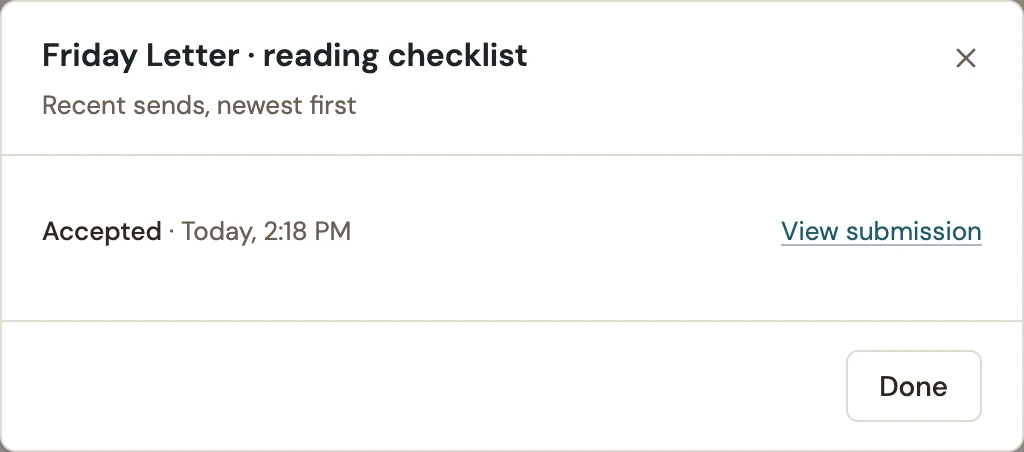
- Select Recent sends.
- Match the time to your test, then choose View submission when available.
- Check the corresponding inbox or receiving service separately.
 Enlarge screenshot
| Outcome | Meaning and next step |
|---|---|
| Accepted | The destination accepted the attempt. Verify the final inbox or service result. |
| Queued | The attempt is waiting for background processing. It has not established delivery. |
| Sending | The background job is in progress. Check again before starting another send. |
| Will retry | Another attempt was scheduled after a retryable failure. Read the destination issue first. |
| Needs attention | The attempt needs investigation. Check Sending issues and the destination’s explanation; do not assume an automatic retry will fix it. |
| Skipped | The attempt did not proceed with sending. Check eligibility, required fields and repeat-resource protection. |
| Unknown | The recent-history view cannot establish a WConvert outcome for that job. Do not treat it as success or failure without more evidence. |
This is a recent, bounded history, not a permanent audit of every message. A missing entry does not establish whether a submission reached a service.
Choose the next check
An account’s Check tests its connection. Send a test exercises destination delivery using test data. A submission on the published form tests the actual campaign route. None of these replaces the others.
In Leads, Not sent identifies a known recent failure. The absence of that label is not proof of delivery: the attempt may be queued, accepted or outside the retained diagnostic history.
- Find the saved submission and confirm the campaign selected this destination when it was published.
- Read its recent outcome and any destination issue.
- Correct the specific setup or data problem.
- Follow the delivery troubleshooting guide to test the final result.
Include your WConvert version, the page you tested and any error message.