 WConvert
Edit your campaign’s text, images and buttons
Make a campaign your own, review every screen and save the changes before publishing.
On this page
Before you start
Open WConvert → Campaigns and choose a campaign. Use Edit for a published campaign or Continue editing for a draft. If you have not created one yet, follow the first-campaign guide.
You’ll change the draft’s content. Saving the draft does not update what visitors see; publishing is a separate step.
Watch the walkthrough
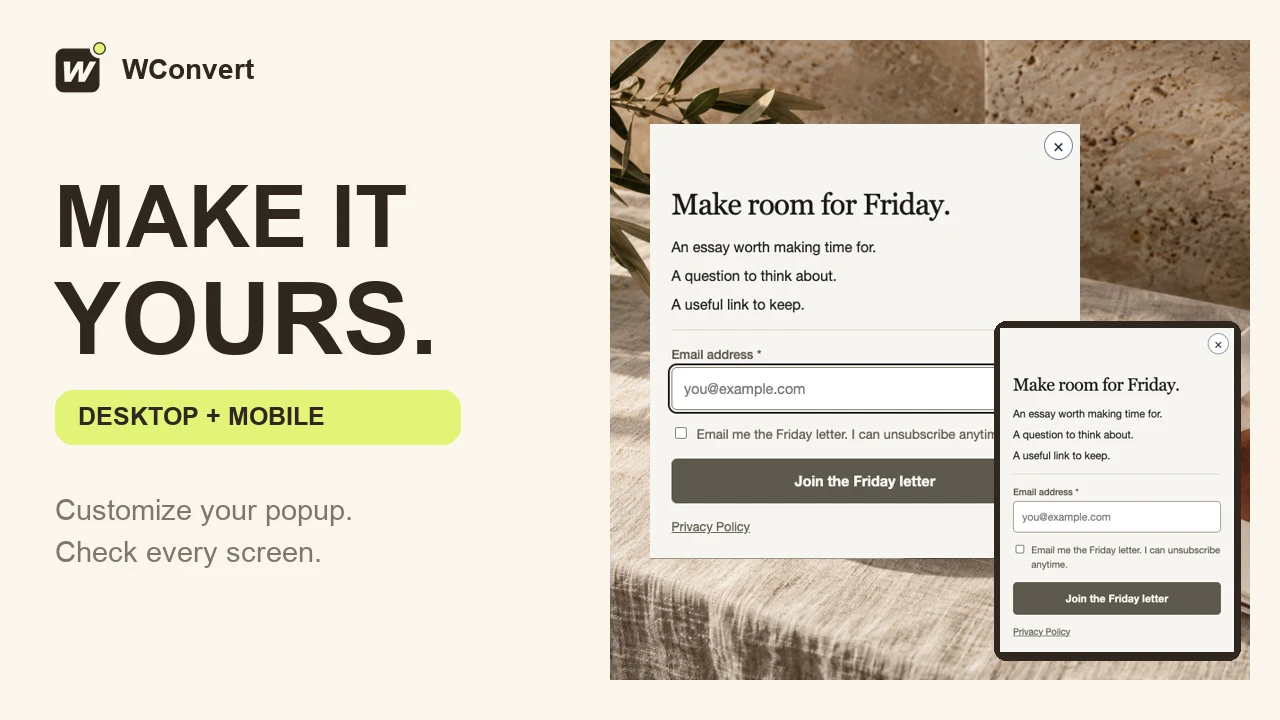
Customize an existing popup’s headline, button label and color, then check its mobile layout and published appearance in 2 minutes 23 seconds. Everything shown uses Free features. The form submission is a preview rehearsal; test a real signup and check your own phone before inviting visitors.
Read the transcript
Recorded October 2026. The Friday Letter is a fictional editorial site; the pages and popup use sample content.
0:00 Make your popup feel like your site
A good popup should feel like part of your website. Let’s personalize this Friday Letter invitation, check the mobile layout, and verify the published result at both sizes.
0:10 Write a clear invitation
Start with an existing campaign in the Edit tab. Select the headline and replace its text with a clear invitation. Our promise is a slower Friday, with the useful details just below it.
0:22 Match the button to the action
Next, select the button label. Keep the wording specific: Join the Friday letter. This changes what readers see, while the button still submits the same form. Leave the consent wording clear about the emails they are requesting.
0:37 Keep the button readable
Open Style to change this button’s appearance. Choose Slate from the design’s colors, keeping the light button text. A restrained color change can make the invitation feel more like your site. Check that the label stays easy to read.
0:51 Check the mobile layout
Switch the canvas to Mobile. Read the whole invitation: the headline should fit, the email field should be comfortable to use, and the consent text and button should remain clear. This is a design preview; switching views does not change which visitors can see the campaign.
1:08 Rehearse the form
Open Preview and stay on Try the form. Select Mobile, enter a sample email, and tick the consent box. Submit to check the received screen. This is a rehearsal: it does not save a real lead or prove that an email was delivered.
1:24 Review and publish
With the draft saved, choose Review and publish. Check the audience, page, and opening delay before publishing. Our invitation is set for everyone on this one article, after five seconds. Publishing makes the finished design available to visitors.
1:41 Check the published desktop result
Now open the article as a fresh visitor. After the five-second delay, the published popup appears. Check the headline, button color, and spacing here too. The editor preview is useful, but the real page is the final design check.
1:56 Check a phone-sized browser
Check the same page in a fresh phone-sized browser. The headline fits, and the form stays within the screen. Before launching, repeat this on your own phone, and test a real signup separately from Preview.
2:09 Make every invitation feel considered
Clear copy, a readable button, and a mobile check make a big difference. Keep your promise specific, review the received screen, and test the published page. Your popup is ready to feel like part of your site.
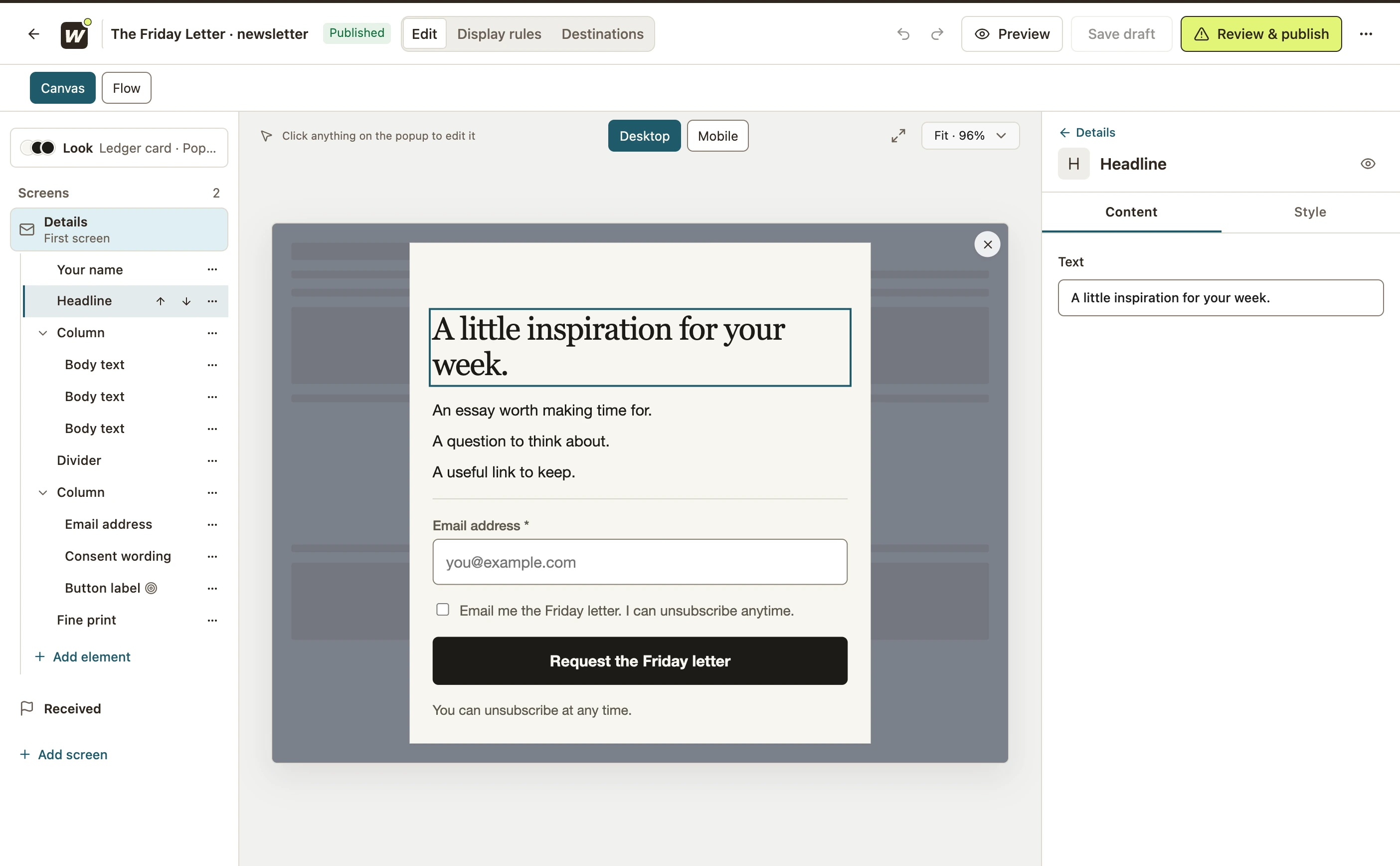
Edit the words on each screen
- Open the Edit tab.
- In Screens, select the screen you want to change. Screen names depend on the setup; our example uses Details and Received.
- Select the headline in the canvas, or select Headline in the element list.
- Under Content, replace its Text.
- Repeat for the description and other visible wording. Open the acknowledgement screen and review its message too.
 Enlarge screenshot
Choose or replace an image
If your design has an image, select it in the canvas or element list. In its content controls, choose Choose image or Replace image, select an image from the WordPress Media Library, then choose Use this image. You can also choose Use a web address to enter an image URL.
If the screen has no image element, use Add element → Imagebefore selecting the file. Keep artwork relevant to the offer, check the crop, and write useful Alt text for an image that conveys information. A background image should not carry essential instructions.
When an image is unnecessary
A short newsletter signup can work well with text alone, like the example above. Skip artwork if it crowds the email field or makes the form harder to read on a phone.
Save and test your changes
- Select Mobile in the canvas and check that the headline, fields and button fit.
- Select Save draft.
- Open Preview → Try the form. Try an empty required field, then a valid sample submission. Check the screen you reach.
- When ready, review, publish and test on your site.
Your check is complete when the correct words appear on desktop and mobile, the intended button action works, and the acknowledgement matches what the campaign does.
For control definitions, see fields, buttons and success messages. If the live page still shows old wording, check publication and visible-change troubleshooting.
For colors, fonts and mobile styling, follow Change colors, spacing and mobile appearance.
Include your WConvert version, the page you tested and any error message.