 WConvert
Unpublish, duplicate or delete a campaign
Choose the right campaign action, understand what happens to its history and change goals without mixing results.
On this page
Before you start
These campaign actions are included in Free. Open WConvert → Campaigns and find the campaign by name. Open its More actions menu.
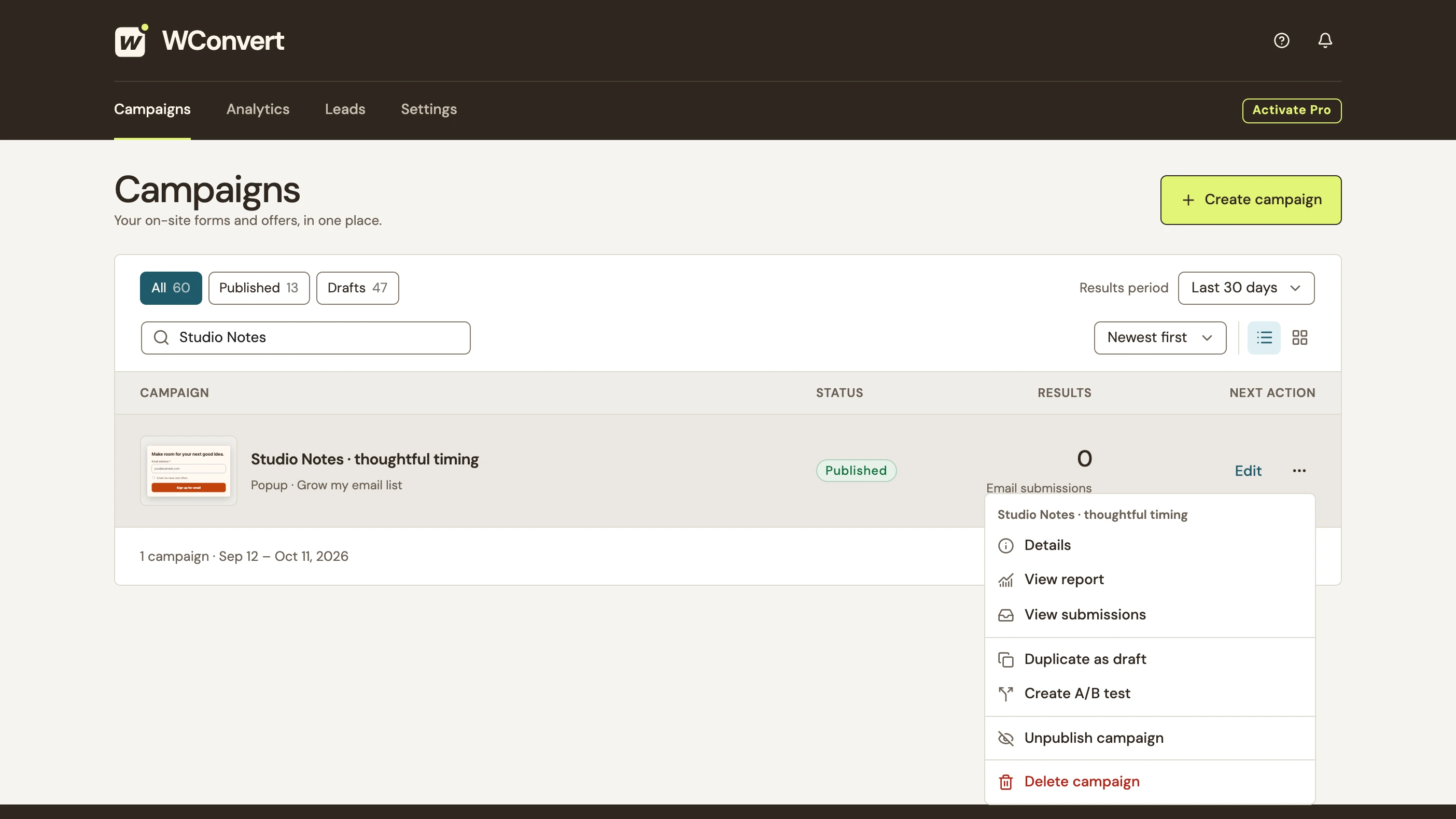 Enlarge screenshot
| Action | What happens |
|---|---|
| Unpublish campaign | Stops showing the campaign and returns it to Draft. Its saved draft, leads and results remain. |
| Publish saved draft | Publishes the latest saved draft, subject to its display rules. Review it first if edits have accumulated. |
| Duplicate as draft | Creates a separate draft. Review copied settings and destinations; its results start at zero. |
| Delete campaign | Stops showing it and removes it from the campaign list. Its leads and historical results are kept. |
Unpublish and resume later
- Open the campaign’s More actions menu and choose Unpublish campaign.
- Check the name in the confirmation and confirm. The campaign should now be a Draft.
- Reload its test page and check that it no longer opens.
- When ready to resume, open the draft and review its content, dates, rules and destinations.
- Use Review & publish. The list also offers Publish saved draft when appropriate.
Duplicate or choose another goal
- Choose Duplicate as draft from the original campaign’s menu.
- Name the copy clearly and review its design, display rules and destinations. Nothing is published automatically.
- In the editor, open Campaign actions → Campaign details to review the goal.
- Before first publication, select Change goal, choose the new goal and read the confirmation.
- Select Save draft and change goal when ready. Review the form and destinations for that goal before publishing.
Once a campaign has been published, its original goal stays with its history—even after unpublishing. Use Duplicate for another goal in the editor’s campaign details for a new draft instead.
Delete a campaign you no longer need
- Verify the campaign name in the list.
- Choose Delete campaign and read the confirmation.
- Confirm only when you intend to remove that campaign, then check that it has left the list.
See find a submission and submission retention for managing saved records separately.
Still stuck?Tell us where you got to
Include your WConvert version, the page you tested and any error message.