 WConvert
My form is blocked, rejected or cannot be published
Find whether the problem is publication, field validation, an expired form or spam protection, then verify a saved submission.
On this page
Locate the problem
These checks apply to Free. Some messages refer to optional Pro features or configured verification services. Start with the campaign name, the page URL, the exact message and the time it happened.
If the form never appears, use My popup does not appear. If the submission is already in Leads but an email is missing, use delivery troubleshooting.
Resolve a publication blocker
- Open the campaign and select Review & publish.
- Read the items that must be fixed before publishing. Separate them from items that ask for review.
- Use the repair button beside the problem, such as Choose a service or Fix in Display rules.
- Return to the review and check that the blocker is gone before publishing.
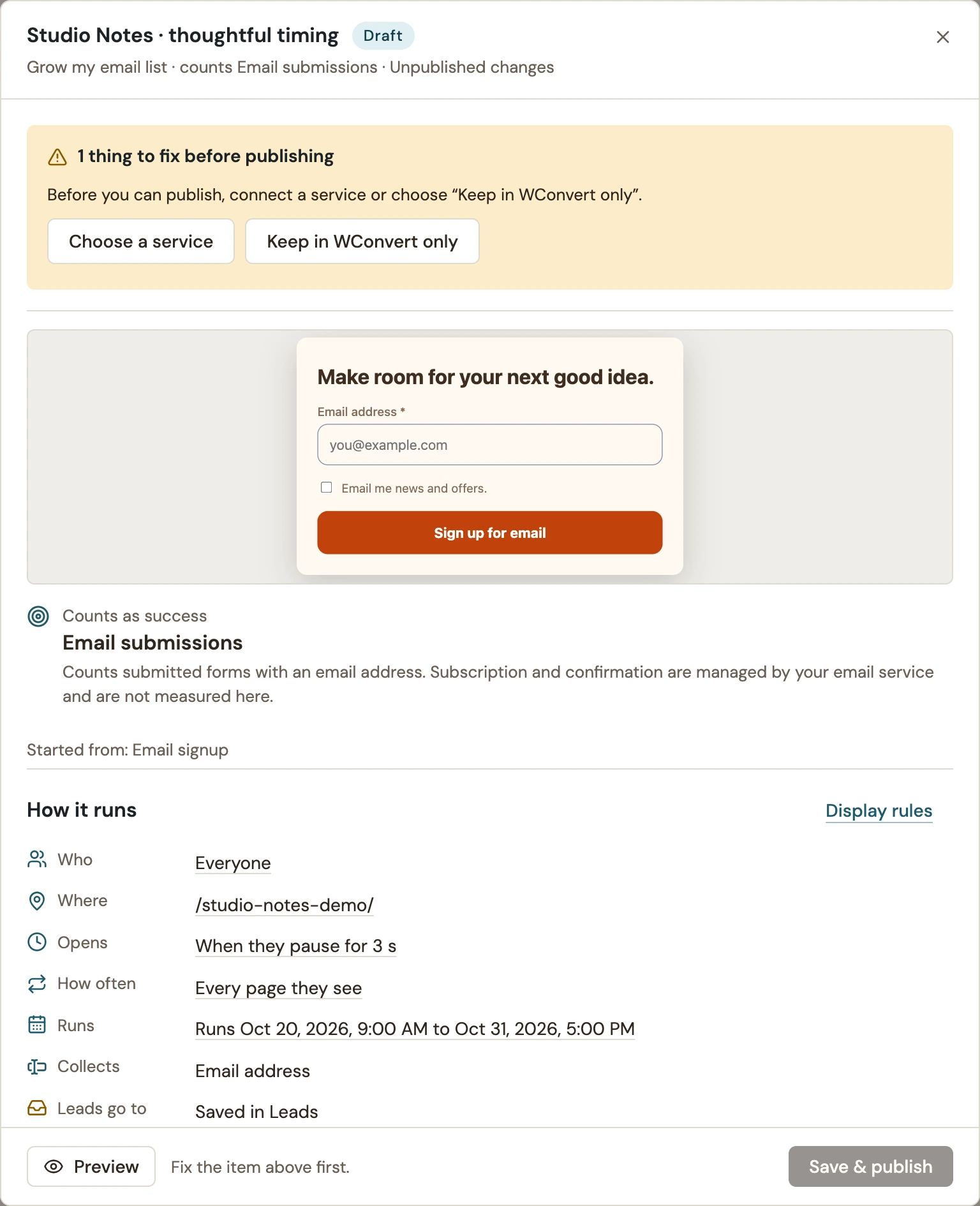 Enlarge screenshot
Respond to a live form message
| What you see | What to do |
|---|---|
| A required field or consent choice is incomplete | Complete the indicated field using a valid value. Agree to a required signup choice only if you intend to sign up. Check that the published form makes its requirements clear. |
| This form changed | Refresh the page and review the current form. Details already received remain saved; check Leads before repeating an earlier step. |
| This form session has expired | Refresh to start a new request. Previously received details remain saved. |
| This form is no longer available | Check whether the campaign is still published and whether the page is serving an old copy. |
| Too many submissions were received | Wait a few minutes before trying again. Avoid rapid repeated tests; the limit can also affect visitors sharing a network. |
| Please refresh the page and try again | Refresh once. If it repeats, check hidden-field rejections in Protection activity and try without autofill or scripts that fill every field. |
| Verification canceled, failed or unavailable | Retry the verification if canceled. For repeated failures, check the saved provider setup, hostname and reported error before another live test. |
Do not remove required consent or disable site-wide protection just to make a test pass. First identify which check failed and whether the form’s intended requirements are correct.
Verify the repair
- Save and publish any intended campaign corrections.
- Open the actual page in a fresh private window and complete one normal submission.
- Check the acknowledgement and find the matching saved record.
- If sending is expected, verify the destination separately.
Preview → Try the form is useful for the form flow, but it does not save a lead, send a message or establish that the live request passed protection.
If the failure persists, include the exact message, page, campaign, time and whether it occurs in preview or on the published page when contacting support. Use a fictional test record and omit keys and other visitors’ data.
For the activity labels, see built-in spam checks and protection activity.
Include your WConvert version, the page you tested and any error message.