 WConvert
Change colors, spacing and mobile appearance
Adjust the campaign’s overall look, refine individual elements and check both desktop and mobile before publishing.
On this page
Before you start
These styling controls are included in Free. Open an existing campaign and select Edit. Start with one screen and a small number of changes, then inspect the rest of the campaign.
A saved draft can differ from what visitors currently see. Publish the reviewed changes when you want to update the live campaign.
Watch the walkthrough
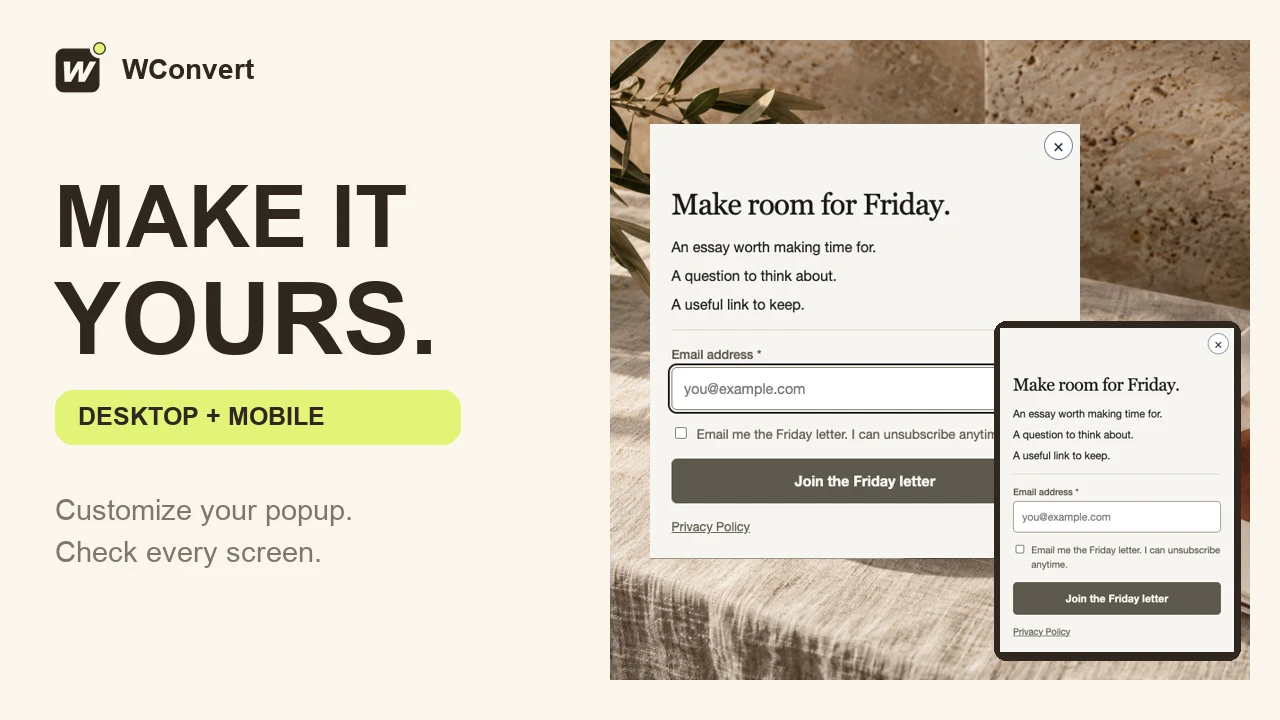
Customize an existing popup’s headline, button label and color, then check its mobile layout and published appearance in 2 minutes 23 seconds. Everything shown uses Free features. The form submission is a preview rehearsal; test a real signup and check your own phone before inviting visitors.
Read the transcript
Recorded October 2026. The Friday Letter is a fictional editorial site; the pages and popup use sample content.
0:00 Make your popup feel like your site
A good popup should feel like part of your website. Let’s personalize this Friday Letter invitation, check the mobile layout, and verify the published result at both sizes.
0:10 Write a clear invitation
Start with an existing campaign in the Edit tab. Select the headline and replace its text with a clear invitation. Our promise is a slower Friday, with the useful details just below it.
0:22 Match the button to the action
Next, select the button label. Keep the wording specific: Join the Friday letter. This changes what readers see, while the button still submits the same form. Leave the consent wording clear about the emails they are requesting.
0:37 Keep the button readable
Open Style to change this button’s appearance. Choose Slate from the design’s colors, keeping the light button text. A restrained color change can make the invitation feel more like your site. Check that the label stays easy to read.
0:51 Check the mobile layout
Switch the canvas to Mobile. Read the whole invitation: the headline should fit, the email field should be comfortable to use, and the consent text and button should remain clear. This is a design preview; switching views does not change which visitors can see the campaign.
1:08 Rehearse the form
Open Preview and stay on Try the form. Select Mobile, enter a sample email, and tick the consent box. Submit to check the received screen. This is a rehearsal: it does not save a real lead or prove that an email was delivered.
1:24 Review and publish
With the draft saved, choose Review and publish. Check the audience, page, and opening delay before publishing. Our invitation is set for everyone on this one article, after five seconds. Publishing makes the finished design available to visitors.
1:41 Check the published desktop result
Now open the article as a fresh visitor. After the five-second delay, the published popup appears. Check the headline, button color, and spacing here too. The editor preview is useful, but the real page is the final design check.
1:56 Check a phone-sized browser
Check the same page in a fresh phone-sized browser. The headline fits, and the form stays within the screen. Before launching, repeat this on your own phone, and test a real signup separately from Preview.
2:09 Make every invitation feel considered
Clear copy, a readable button, and a mobile check make a big difference. Keep your promise specific, review the received screen, and test the published page. Your popup is ready to feel like part of your site.
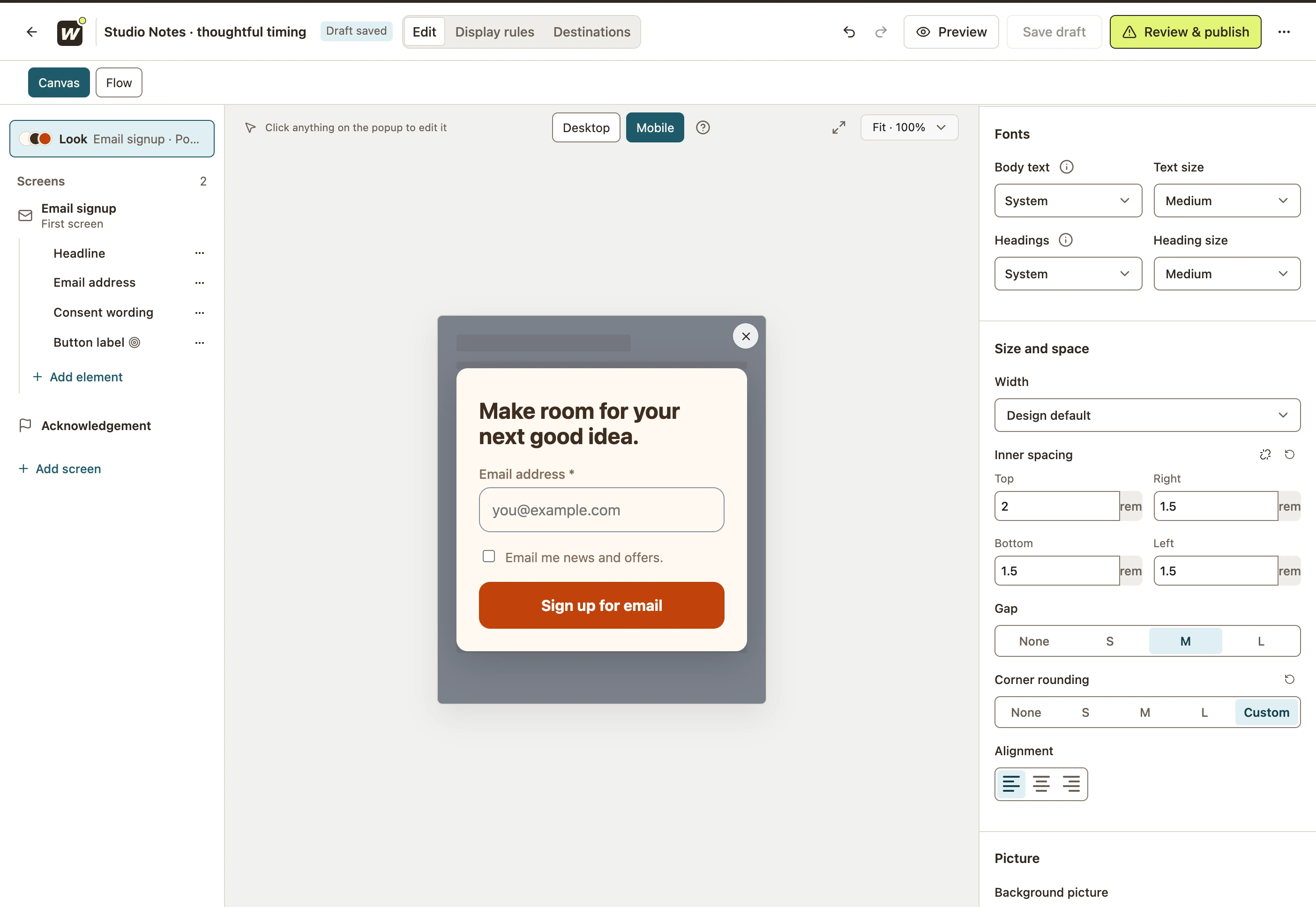
Change the overall look
- Select Look above the screen list.
- Choose a ready-made look, such as Warm, or adjust individual controls under Colors.
- Review Fonts, including the text and heading sizes.
- Under Size and space, adjust width and inner spacing. Keep enough space around the fields and submit button.
- Inspect the acknowledgement and any other screens as well.
 Enlarge screenshot
Refine an element and check mobile styles
- Select an element, such as the headline, and open Style.
- Use Desktop or Mobile in the canvas, or the panel’s Edit mobile / Edit desktop control.
- Read the device indicator before changing a style. Mobile follows desktop unless changed.
- Make the smallest adjustment needed, then compare both views. For example, a mobile heading-weight override can differ from desktop.
- Use the individual inheritance reset or Reset on mobile when you want that element’s mobile styles to follow the inherited values again.
Save and test the appearance
- Check line wrapping, readable colors, labels, consent and the close control on both canvas sizes.
- Save the draft and use Preview → Try the form. Complete every screen on Desktop and Mobile.
- Review and publish the changes.
- Open the real page on a phone and a computer, or resize your browser for an initial layout check. Confirm that controls remain visible and usable.
The Mobile canvas is a design preview. It does not change which visitors are allowed to see the campaign. If the live campaign still shows old styling, first confirm you published the edited draft, then check any page cache.
Include your WConvert version, the page you tested and any error message.