 WConvert
Pro features or license updates are unavailable
Separate a missing Pro feature from a license update problem, check plugin dependencies and collect useful support details.
On this page
Identify what is unavailable
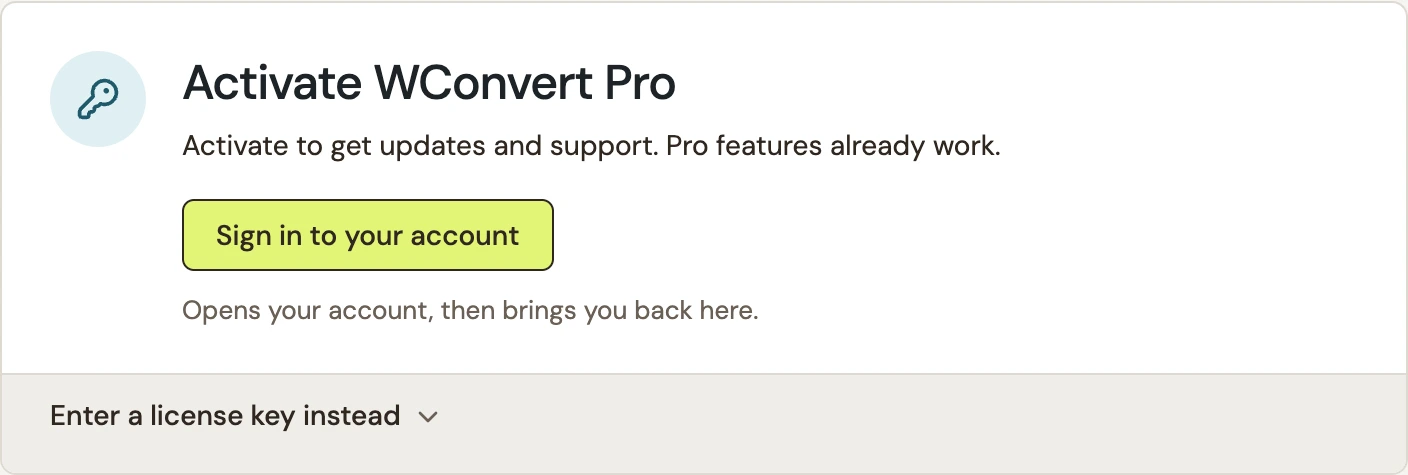
Start by separating a missing feature from an unavailable update. The current Pro plugin can run its installed features before license activation. The License page manages updates and support.
 Enlarge screenshot
| Symptom | Start here |
|---|---|
| A Pro control or report is missing | Check that both plugins are active, compatible and that the feature’s other dependencies are available. |
| Pro works, but updates are unavailable | Read the License page and check activation or update eligibility for this site. |
| A campaign works in the editor but not live | Use popup troubleshooting or the inline placement checks before changing the license. |
This guide verifies the current plugin and unactivated license screens. A purchase, remote activation, renewal or site transfer needs your account and has not been demonstrated by the local example.
Check the plugins and dependencies
- Open WordPress → Plugins → Installed Plugins.
- Confirm that both WConvert and WConvert Pro are installed and active. Pro extends WConvert; it does not replace it.
- Read any WConvert Pro notice on this screen. If it names a required WConvert version, update the Free plugin to a compatible version using the update guide.
- Check the feature’s own dependency. For example, campaign sales reporting needs WooCommerce and a consent integration; a connected destination needs its provider setup.
- Reopen the relevant campaign or report after resolving the dependency.
If Pro reports that it cannot read the versions it compares, keep a backup and reinstall clean plugin packages from the proper source. Do not uninstall WConvert as a troubleshooting shortcut: uninstallation removes plugin data.
Read the License page
- Open WConvert → License from the WordPress menu, or use the license status link in WConvert’s header.
- Read the page’s update status and any explanation. On a fresh installation, Activate WConvert Pro offers Sign in to your account and Enter a license key instead.
- Use the account that owns the license. Follow the action offered for this site’s actual status, rather than replacing a working key blindly.
| Situation | Useful next check |
|---|---|
| Not activated | Check that you have access to the owning account or license key, then complete activation for this site. |
| Expired or update access stopped | Review the account’s license status and the action shown on the page. Losing update eligibility is different from deactivating the installed Pro plugin. |
| Site moved or copied | Check that the licensed site address matches the intended site. Review the page’s site-change options before transferring or replacing anything. |
| The service cannot be reached | Check the page’s error and retry guidance. Ask your host about outbound request failures; repeatedly entering a key will not fix a network problem. |
| An agency manages the license | Ask the agency to check its license and site assignment. Client-facing details may be limited when the agency manages the key. |
Verify the result or get help
For a missing feature, confirm that its control is available and repeat the feature’s documented test on a published campaign. For an update issue, confirm that the License page reports update access for this site, then check the WordPress plugin update screen.
If the problem remains, contact support with:
- The exact notice and the action that triggered it.
- Your WConvert, Pro, WordPress and PHP versions.
- The feature you expected and any required plugin, such as WooCommerce.
- Whether the site recently moved, was cloned, or changed its address.
- A cropped screenshot with keys and account details hidden.
Include your WConvert version, the page you tested and any error message.