 WConvert
Read campaign results and compare dates
Choose a report period, understand each goal’s result and compare complete periods without confusing counts with unique people.
On this page
Before you start
Basic campaign reporting is included in Free. Start after you have published and tested a campaign. The report counts activity; it does not replace checking the saved submission or checking the receiving service.
Pro can add other reports. This guide covers the core date controls, goal results and campaign contributions.
Watch the walkthrough
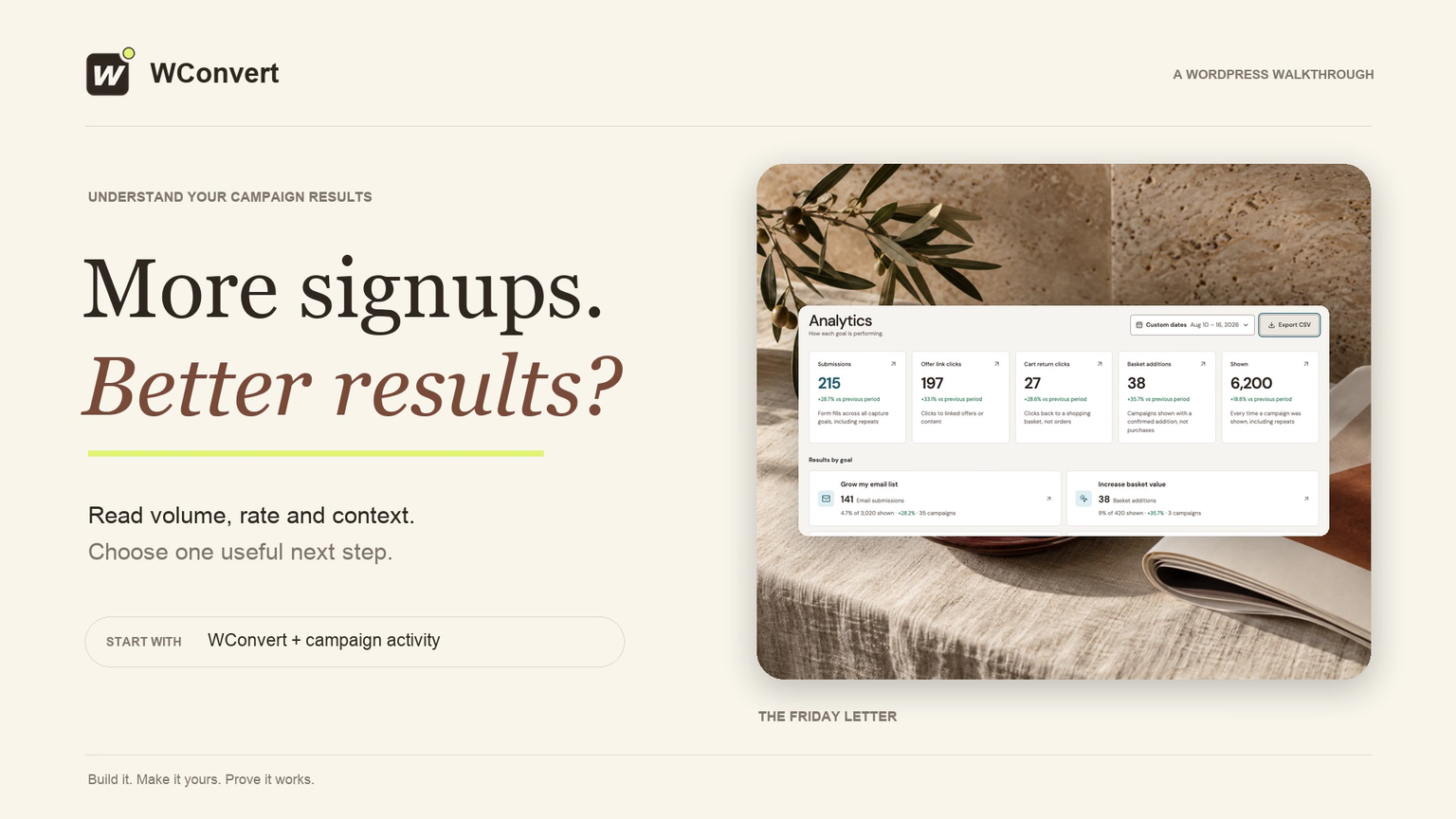
Explore The Friday Letter’s reports in 3 minutes 42 seconds. Compare two complete weeks, read results and rates together, inspect daily numbers and screen activity, then open saved submissions and export the campaign report. Basic reporting is included in Free; the overview also shows goals available in Pro.
Read the transcript
Recorded October 2026. Follow The Friday Letter’s campaign reports from the overview to saved submissions and a CSV export. Core reporting is included in Free; some campaign goals shown in the overview require Pro.
0:00 Understand your campaign results
Your campaigns are getting signups, clicks, and enquiries. What should you improve next? Let’s use The Friday Letter’s reports to understand what happened, compare results fairly, and choose a useful next step.
0:13 Start with the whole picture
Start in Analytics. The overview brings together submissions, offer activity, cart returns, basket additions, and campaign appearances. Here, two hundred and fifteen submissions include newsletter signups, checklist requests, and enquiries. Each goal counts a different action. A cart return or basket addition is not a completed purchase.
0:36 Choose the dates first
Before comparing results, check the report period. Use a completed week so both periods contain the same number of full days. Here, August tenth through sixteenth is compared with the seven days before it. Keep the comparison enabled, apply the dates, and open Grow my email list.
0:54 Read results, appearances and rate
This goal has one hundred and forty-one email submissions from three thousand and twenty appearances: a four point seven percent rate. Shown counts appearances, including repeats. The rate is submissions divided by shown. These are form submissions; confirmed subscriptions and inbox delivery are checked separately in your email service.
1:16 Compare campaigns with the same goal
Campaign contributions shows where those results came from. I’ve narrowed the list to our published Friday Letter campaigns. The welcome popup brings more submissions; the article signup has a higher rate. Different placements reach different readers, so neither number tells the whole story. The new invitation is at fifteen percent, but only three submissions from twenty appearances. Give it more time.
1:41 Did performance improve?
Open the welcome popup to compare it with itself. Its ninety-six submissions are up twenty percent. It was also shown twenty percent more often. The previous week had eighty submissions from two thousand appearances. Both weeks have a four percent rate. The campaign gained more results, while the share of appearances producing a submission stayed the same.
2:03 Check the trend and exact numbers
Use Performance over time to see how the week developed. Switch to Shown, then Rate. The solid line is this period; the dashed line is the previous one, aligned by day. For a precise check, return to Email submissions and open View exact daily numbers. Friday had twenty-one submissions, compared with seventeen the previous Friday.
2:26 Understand screen activity
For a form with several screens, open Screen activity. Here, the details screen was shown twenty-four hundred times, completed ninety-six times, and followed by ninety-six acknowledgement screens. Dismissed counts deliberate closes. These are activity counts, not a unique-person funnel, so don’t subtract them to calculate abandonment.
2:47 Open the saved submissions
To inspect what was actually submitted, choose View submissions. The campaign and date range carry across, giving us the same ninety-six submissions. Open one to check its email, source campaign, date, and recorded consent. This connects the report’s total to the information you can follow up on.
3:07 Keep a report for the next comparison
Back in Analytics, Export CSV saves the report for the selected dates and scope. Keep this week’s report, note the change you make, and compare again after another complete week. If you’re checking a submission you just tested, use Today instead; a completed-day report won’t include it yet.
3:25 Choose one useful change
You now have the full path: overview, goal, campaign, and saved submissions. Choose one meaningful change, like a clearer headline. Keep the audience and comparison periods similar, then read the next results in context.
Choose the report period
- Open WConvert → Analytics.
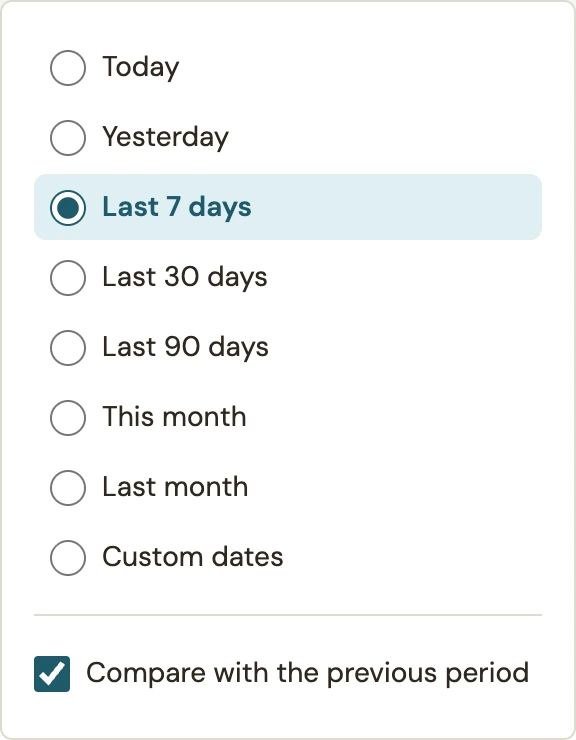
- Open Report period and choose the dates you want to inspect.
- Use Today for a test you just completed. The default Last 30 days reads complete days and excludes today.
- For a comparison, choose a completed period and review Compare with the previous period.
- Use Custom dates for a specific range and apply the dates. Check the date labels after the report updates.
 Enlarge screenshot
Read the result for the campaign’s goal
| Metric | How to interpret it |
|---|---|
| Shown | Campaign appearances, including repeated appearances. It is not a unique-visitor count. |
| Submissions | Completed form submissions. Repeat submissions count again; these are not confirmed subscribers. |
| Link clicks | Clicks on offer or content links. A click does not establish a purchase. |
| Rates | The relevant result divided by shown. A dash means there are no recorded shows for that calculation. |
| Email handoffs | Emails accepted for sending, counted on the send day. They are not inbox arrivals or file downloads. |
Read the metric label beside the number. An email-list campaign, an enquiry and a content offer do not have the same success action. Use How these numbers work in the report for its explanations.
Compare campaigns with the same purpose
- Under Results by goal, open the goal you want to inspect.
- Review Performance over time and Campaign contributions.
- Use Find a campaign to locate a particular example.
- Compare the result count, shown count and rate for the same dates. Consider how little data a new campaign has before changing it.
- Use a campaign link to review its setup when a result needs investigation.
Deleted or unpublished campaigns can still contribute historical totals. Their presence in a past report does not mean they are currently appearing.
Verify a new test without overreading it
- Note the campaign and time of a controlled frontend test.
- Confirm the saved lead for a form submission, or the actual link action for a click campaign.
- Return to Analytics, select Today and allow the report to update.
- If the number differs, check the date window, goal, repeated tests and whether appearance tracking was recorded.
- Use display diagnostics if the campaign itself did not appear.
A high percentage based on a few events is weak evidence. Repeated submissions or missing appearance events can also make a test report look unusual. Diagnose those differences before treating the rate as campaign performance.
Deleting old submissions does not remove their aggregate historical totals. See submission retention for that distinction.
To compare two signup headlines with Pro, follow the A/B testing video walkthrough.
Next, set monthly targets or export a report. For screen and answer definitions, see the metrics reference.
Include your WConvert version, the page you tested and any error message.