 WConvert
Set monthly targets and export a report
Set a calendar-month target and download campaign metrics for a chosen reporting period.
On this page
Before you start
Monthly targets and the campaign CSV export are included in Free. Open WConvert → Analytics after creating a campaign. Targets are planning aids; they do not change campaign delivery or stop a campaign when a target is reached.
Use Export submissions when you need contact records. This guide exports campaign results.
Set a target for this month
- From the Analytics overview, find Monthly targets.
- Choose Set a monthly target, or Edit targets if targets already exist.
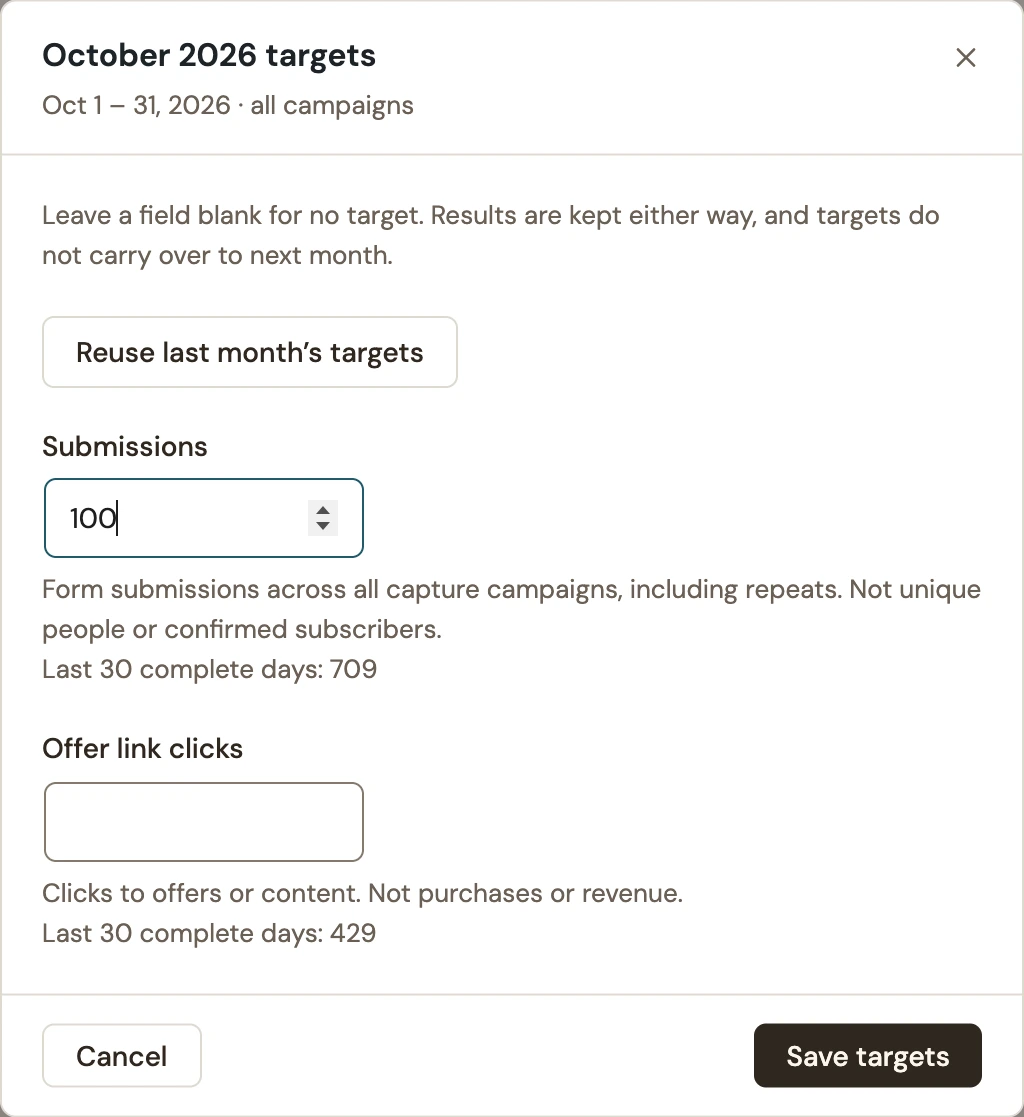
- Check the month and the all-campaigns scope at the top of the dialog.
- Enter a positive whole-number target for Submissions or Offer link clicks. Leave a field blank for no target.
- Select Save targets and check the saved progress card.
 Enlarge screenshot
Targets use the calendar month shown in the card, independently of the report’s date selector. They do not carry over automatically. When available, Reuse last month’s targets fills the editor; review and save to apply them.
Export the chosen report
Watch the campaign-results walkthrough to see date comparisons and a campaign CSV export. Monthly target setup is covered above.
- Choose the intended Report period. Use Today for a test made today; rolling Last 30 days uses complete days.
- Choose the relevant overview, goal or campaign scope, and review the comparison setting.
- Select Export CSV.
- Open the file in your spreadsheet application and verify its From and To columns.
- Compare one campaign row with the on-screen report for the same dates.
| Setting | What it means |
|---|---|
| Campaign, ID, goal and status | Identify which campaign and type of result each row describes. |
| Metric, Results, Shown and Rate | Read the Metric column before comparing results. An empty rate can mean no recorded shows; numeric rates are fractions, such as 0.1 for 10%. |
| From / To and previous-period columns | Identify the reporting window and comparison, when included. |
| Sending and basket columns | Additional relevant measures. An accepted email send is not proof of receipt; basket additions are not purchases. |
Check the target without changing results
Reopen Edit targets to confirm the saved number. To remove a target, clear its field and save. Recorded results remain available either way.
A submissions target counts form submissions, including repeats; it is not a target for unique people or confirmed subscribers. Offer-link clicks do not establish purchases or revenue. For definitions and date differences, see the reporting reference.
Include your WConvert version, the page you tested and any error message.