 WConvert
External analytics, consent and exclusions
Set up GTM or Plausible, understand WConvert’s external events and consent choices, and test the connection without submitting a real lead.
On this page
Before you start
Pro can pass published campaign events to an existing Google tag, Google Tag Manager container or Plausible script. WConvert does not install that provider’s tag for you. This reference explains WConvert’s controls; verify provider setup and receipt in your own analytics account.
Open Settings → Analytics integrations. The site-wide switch starts off. Turning it off stops these external campaign events; WConvert’s own aggregate reports have separate behavior.
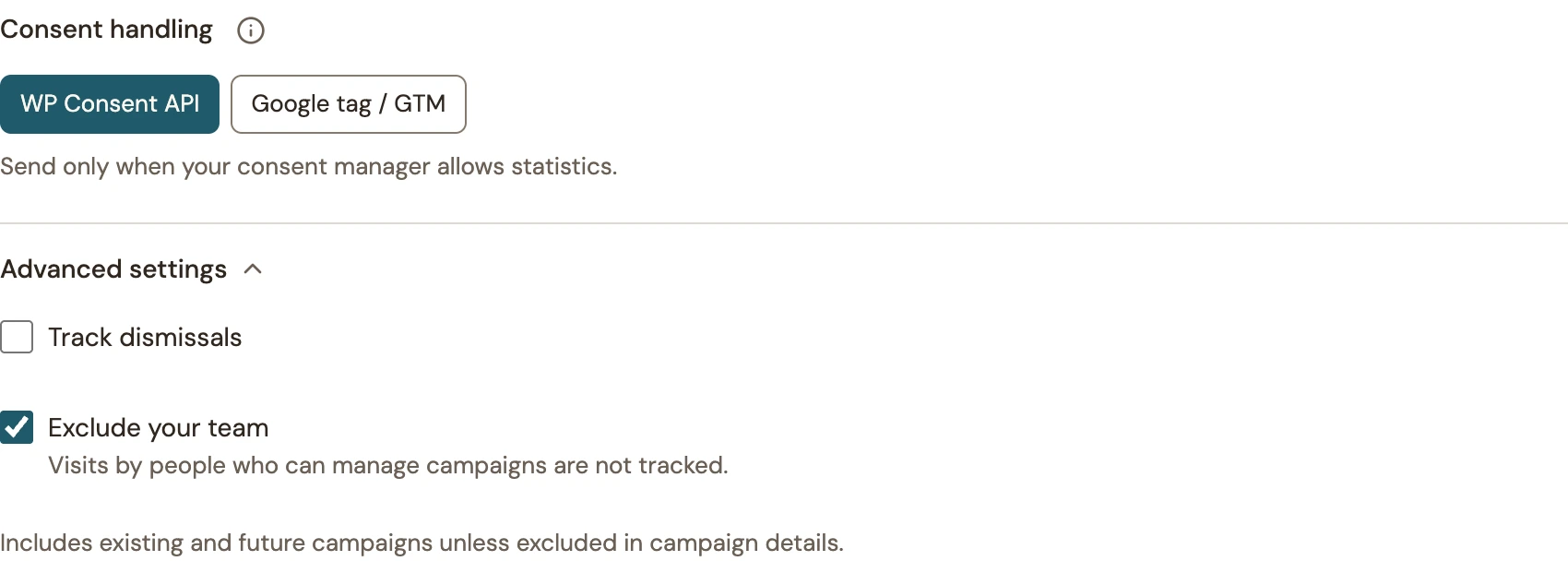
Choose the consent handling deliberately
| Choice | WConvert behavior |
|---|---|
| WP Consent API | Requires an initialized integration that permits statistics, with no explicit denial for the selected service. Missing or denied permission withholds events. Earlier events are not replayed when consent changes. |
| Google tag / GTM | Delegates consent to your existing tag or container. WConvert does not verify or grant permission in this mode. Advanced Google Consent Mode may send cookieless requests. |
| Existing tracker (Plausible) | Passes events to the installed Plausible setup without a WConvert consent check. Use only when that setup matches your site’s collection policy. |
 Enlarge screenshot
A checkbox on a signup form is not the site’s analytics-consent integration. Choose the mode that matches the consent system actually installed on the site.
Understand the external events
| Activity | Google tag | GTM data-layer event | Plausible |
|---|---|---|---|
| Campaign shown | wconvert_impression | wconvert.impression | WConvert Impression |
| Accepted capture | generate_lead | wconvert.lead_accepted | WConvert Lead |
| Campaign action | wconvert_conversion | wconvert.campaign_converted | WConvert Conversion |
| Dismissal, when enabled | wconvert_dismiss | wconvert.dismissed | WConvert Dismiss |
| Explicit diagnostic test | wconvert_test | wconvert.test | WConvert Test |
An accepted capture does not prove service delivery. A campaign action follows its goal, such as a link click or cart addition; it is not automatically a purchase. Capture goals avoid emitting a second conversion event for the same capture. Dismissals are optional.
WConvert supplies campaign identifiers, goal, format, outcome and a public label rather than submitted email, phone or answer values. Keep the public label free of personal information. Your installed analytics script may collect other page information independently.
Set up Google Tag Manager
Requires WConvert Pro, an installed GTM container and an existing Google tag/web stream. Start with a test workspace and property. WConvert pushes data-layer events; you create the tag that forwards them to GA4.
- In Settings → Analytics integrations, turn onEnable analytics integration and selectGoogle Tag Manager under Connection method. Under Advanced settings → Data-layer name, keep
dataLayerunless your installed container uses another name. ReviewConsent handling, then chooseSave analytics integration and clear page/CDN caches. - In GTM, create a Custom Event trigger. Enable regular-expression matching and use this event-name pattern:
WConvert custom-event trigger regex ^wconvert\.(impression|lead_accepted|campaign_converted|dismissed|test)$ - Create Data Layer Variables using Version 2 for
wconvert.ga_event,wconvert.debug_modeand each data-layer field in the table below. Use the variable picker when assigning them to the tag. - Create a Google Analytics: GA4 Event tag for your existing Google tag/web stream. Set Event Name to the variable for
wconvert.ga_event. Add the event parameters below, includingdebug_mode, and attach your WConvert custom-event trigger. Review the tag’s consent settings with your consent manager. - Use GTM Preview with thesynthetic test. In Tag Assistant, select
wconvert.testand check that the event tag fires once, sendswconvert_testto the intended stream and setsdebug_modeto true. Confirm receipt in GA DebugView. - When verified, submit and publish the container. Reconnect GTM Preview and repeat the check on the published page. Saving WConvert settings alone does not publish your GTM changes.
| GA4 parameter | Data Layer Variable Name |
|---|---|
wcv_campaign_id | wconvert.campaign_id |
wcv_optin_id | wconvert.optin_id |
wcv_campaign_label | wconvert.campaign_label |
wcv_display_type | wconvert.display_type |
wcv_goal | wconvert.goal |
wcv_outcome | wconvert.outcome |
wcv_capture_role | wconvert.capture_role |
wcv_schema_version | wconvert.schema_version |
debug_mode | wconvert.debug_mode |
Synthetic tests have no campaign identity, so their campaign fields are null. WConvert resets optional fields on each push to prevent stale values carrying into the next event. To inspect real campaign parameters, use a separate test campaign/site with routine export enabled and the exclusions accounted for. Expect one tag firing per eligible event; avoid a second generic form tag counting the same accepted lead.
See Google’s data-layer guidefor container setup and variable behavior.
Set up Plausible
Requires WConvert Pro and your site’s existing Plausible script with custom-event support and the standard window.plausible function. WConvert does not install the tracker or change its configured site or endpoint.
- Open Settings → Analytics integrations, turn onEnable analytics integration and choose Plausible underConnection method. No Google Measurement ID or API key is needed.
- Review Consent handling, then chooseSave analytics integration and clear page caches. Switching between Google and Plausible resets the consent choice to WP Consent API for review.
- In your Plausible website settings, open Goals → + Add goal and selectCustom event. Add the exact names you want to report:
WConvert Impression,WConvert Lead,WConvert Conversionand, if dismissals are enabled,WConvert Dismiss. Match capitalization and spaces. See event meanings above. - On a dedicated test site, add a
WConvert Testgoal and use thesynthetic test after creating it. Check the browser’s event request and the goal in Plausible’s dashboard. The installed script determines where the test goes; WConvert cannot choose another Plausible site for this test.
Create a matching goal before checking the dashboard; events sent before goal creation are not backfilled. See Plausible’s custom-event guidefor goal setup and usage details. A browser handoff alone does not confirm receipt.
Control exclusions and public labels
- Exclude your team omits ordinary visits by people who can manage campaigns.
- In the campaign editor, open Campaign actions → Campaign details → Optional analytics. Choose Off for this campaign to exclude that campaign from external analytics and sales attribution. Its own results still count.
- Set Public analytics label (optional) only when useful. Leaving it blank uses a neutral label. Save and publish campaign changes.
- A/B variants use their parent campaign family’s analytics preferences.
- External tracking pauses on non-production environments and after a site-address change until the connection is reviewed and saved.
Editor previews are not a substitute for published-page analytics tests. Check the saved site settings and the published campaign preferences together.
Test without counting a real lead
With WConvert Pro, log in as someone who can manage campaigns. Save your analytics settings, then open Settings → Analytics integrations → Test setup. Enter a page on this website containing a published campaign and choose Open diagnostics. This adds ?wconvert-analytics=1 to the page URL. You can also add it manually; use &wconvert-analytics=1 if the URL already has a query string.
https://example.com/campaign-page/?wconvert-analytics=1- Confirm the Analytics check panel is visible. The query parameter only enables diagnostics for campaign managers; it is not a visitor test mode.
- Show the campaign and inspect the local messages. Routine campaign events are withheld from external analytics on this diagnostic page. Consent checks still apply.
- To check the provider connection without submitting a form, chooseSend synthetic test event. This sends
wconvert_testthrough the Google tag,wconvert.testthrough GTM, orWConvert Testthrough Plausible. It contains no campaign identity and does not create a lead. Use a test Google stream, GTM workspace/property or Plausible site, and verify receipt there.
Keep Advanced settings → Exclude your team enabled to exclude ordinary visits by people who can manage campaigns. This setting (exclude_managers) is on by default; ordinary logged-in customers remain eligible. Manager diagnostics still work while it is enabled. Turning it off permits routine manager exports when the other conditions allow them, so use the diagnostic URL for this test.
The panel closes after ten minutes; reopen the diagnostic URL to test again. For consent or handoff messages, continue to diagnostics.
Use diagnostics to check the boundary
- Save the intended integration settings, then choose Test setup.
- Enter a page URL on this website that contains a campaign and choose Open diagnostics.
- Trigger the campaign and read the Analytics check messages. Ordinary campaign activity stays local on this diagnostic page.
- If consent is uninitialized or withheld, inspect the consent integration before testing a provider handoff.
- Only use Send synthetic test event with the intended test property or site. It can send a real test event. Verify receipt in the provider separately.
For WConvert’s own reports, see metric definitions.
Include your WConvert version, the page you tested and any error message.