 WConvert
Enable and understand campaign sales reporting
Link eligible campaign interactions to paid WooCommerce orders with statistics consent, then read net product revenue.
On this page
Before you start
You need WConvert and Pro active, WooCommerce with a working checkout, and a consent setup that supports WP Consent API. Your consent manager must communicate the consent type and the visitor’s statistics choice to the API.
A signup checkbox for email marketing is separate from statistics consent. Installing the API alone is not a complete visitor consent setup. Check that your consent manager actually shares the choice.
Use a staging store and a test campaign first. This guide’s example uses a local signup and a manually marked paid test order; no real bank transfer or payment processor was tested.
Turn on campaign sales tracking
- Open WConvert → Analytics.
- Choose Sales in the report navigation, or scroll to Campaign sales.
- Check the consent setup message. Consent integration detected means the integration is available; visitors still need to grant statistics consent.
- Choose Turn on tracking.
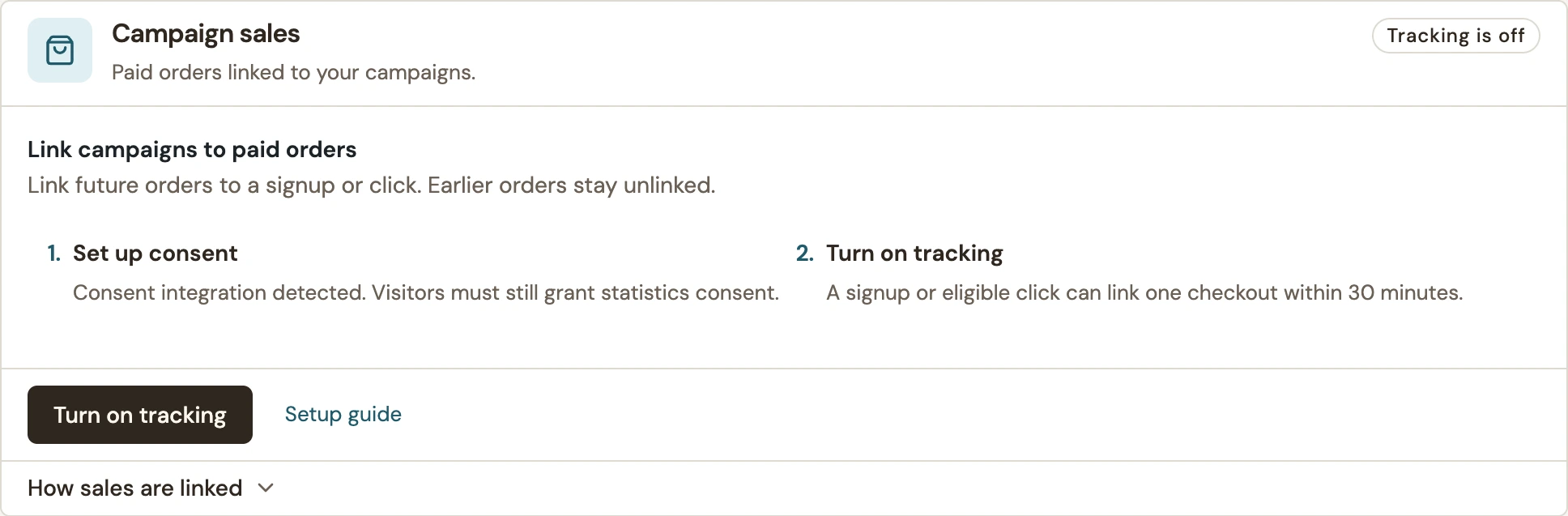 Enlarge screenshot
The panel should say Tracking is on. If it says Needs consent setup, finish the consent integration before testing. Tracking starts with future interactions and orders.
Test a linked order
- Open a fresh logged-out session on the staging store. Grant statistics consent through the site’s consent controls.
- Use a published campaign: submit a valid signup or follow an eligible offer, cart-return or quiz result link.
- Complete one checkout in the same WooCommerce session within 30 minutes of that interaction.
- Confirm in WooCommerce that the order has a paid date and an eligible paid status. An order awaiting payment is not yet a reported sale.
- Return to WConvert → Analytics → Sales. Choose Today for a test performed today.
- Open View linked orders. Confirm the order number, campaign and net product amount. Open the order link to compare with WooCommerce.
Also test with statistics consent denied: the signup can still be saved, but it must not establish campaign sales attribution. Do not treat the presence of a lead as proof that a sale was linked.
Read the sales report
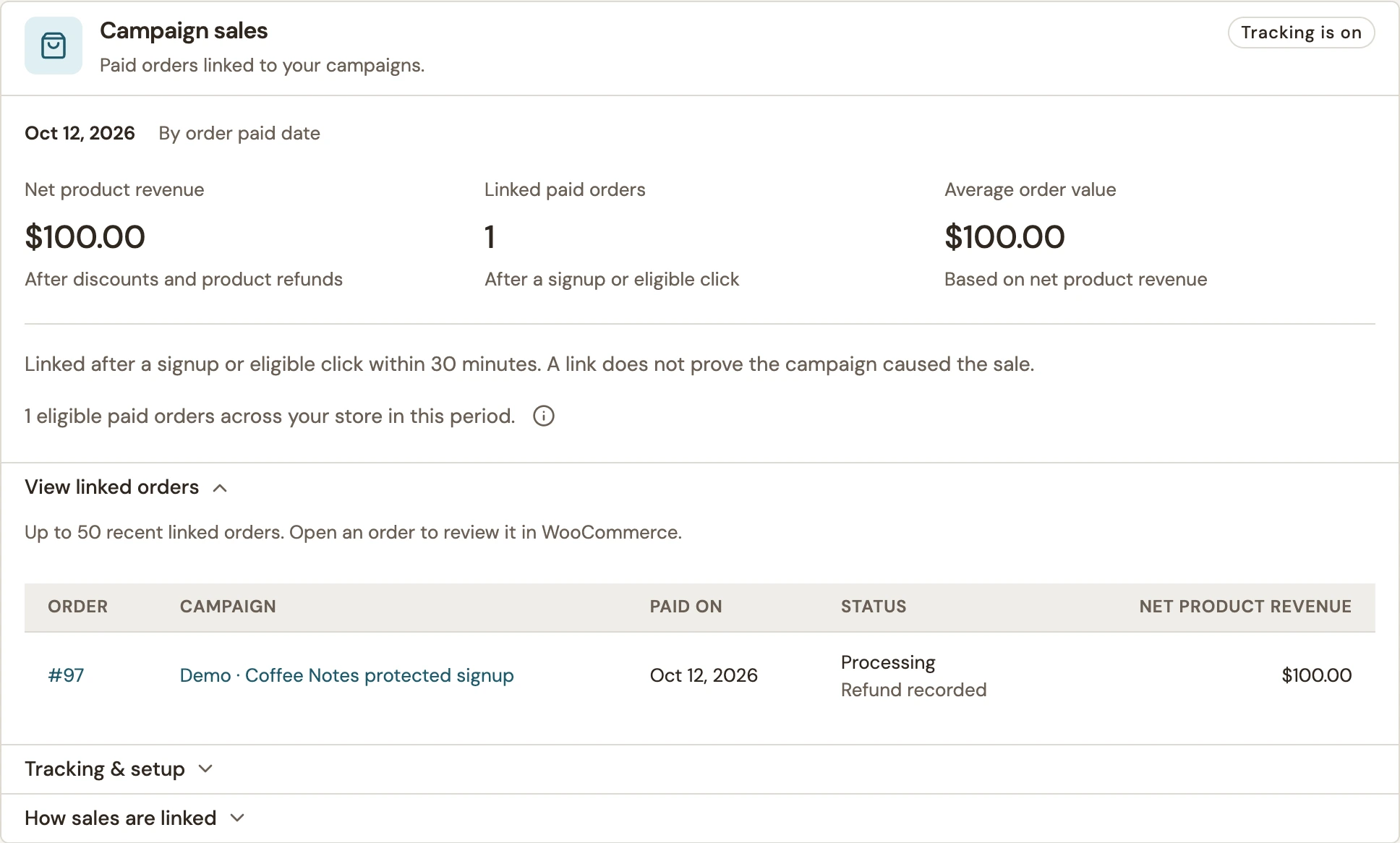 Enlarge screenshot
| Metric | Meaning |
|---|---|
| Net product revenue | Linked orders’ product totals after discounts and product refunds. Tax, shipping and fees are excluded. |
| Linked paid orders | Eligible paid orders linked to a qualifying campaign interaction. A view, dismissal or coupon copy alone does not create this link. |
| Average order value | Net product revenue divided by linked paid orders for that currency. |
| Eligible paid orders across your store | The store-wide context for the selected dates, including orders without a campaign link. |
| Paid on / report dates | Orders belong to their paid-date period. A later refund changes that original period’s amount. |
| Unavailable amount | A refund not allocated to products, shipping or fees prevents a reliable product total. Unavailable is not zero. |
Currencies stay separate. View linked orders shows up to 50 recent linked orders; use the order links to inspect the underlying records. Select a shorter period if the report is too large to total safely.
If a sale is missing
| Check | What to do |
|---|---|
| Dates | Use Today for a new test. Complete-day ranges can exclude today. Compare the order’s paid date, not its creation date. |
| Consent | Check the visitor’s statistics choice and the consent manager’s WP Consent API integration. |
| Interaction and session | Confirm a qualifying interaction preceded checkout by less than 30 minutes in the same WooCommerce session. Campaign views alone do not qualify. |
| Order state | Review the paid date and status in WooCommerce. Unpaid, failed and canceled orders are excluded. |
| Tracking and site address | Confirm tracking is on. After a site-address change, follow the panel’s prompt to turn it on again under Tracking & setup. |
| Test context | Use a logged-out visitor and a published page. Editor previews and site managers are excluded from sales tracking. |
For campaign product clicks and cart additions without a paid order, use the separate product activity report.
Turn tracking off
- In the site-wide Campaign sales panel, expand Tracking & setup.
- Choose Turn off tracking and confirm.
- Check that the badge says Tracking is off.
Turning tracking off stops new links and keeps existing order links. Those links live with WooCommerce orders and follow WooCommerce’s retention and erasure rules.
Include your WConvert version, the page you tested and any error message.