 WConvert
Offer useful product extras
Choose complementary products, place the offer, and verify a real add-to-cart action.
On this page
Before you start
You need Pro and WooCommerce with published, available products. Choose a main product and a few genuinely useful extras. This example pairs a coffee brewer with a reusable filter and cleaning brush.
This guide covers an on-site product offer. No order needs to be placed to test the cart action.
Watch the walkthrough
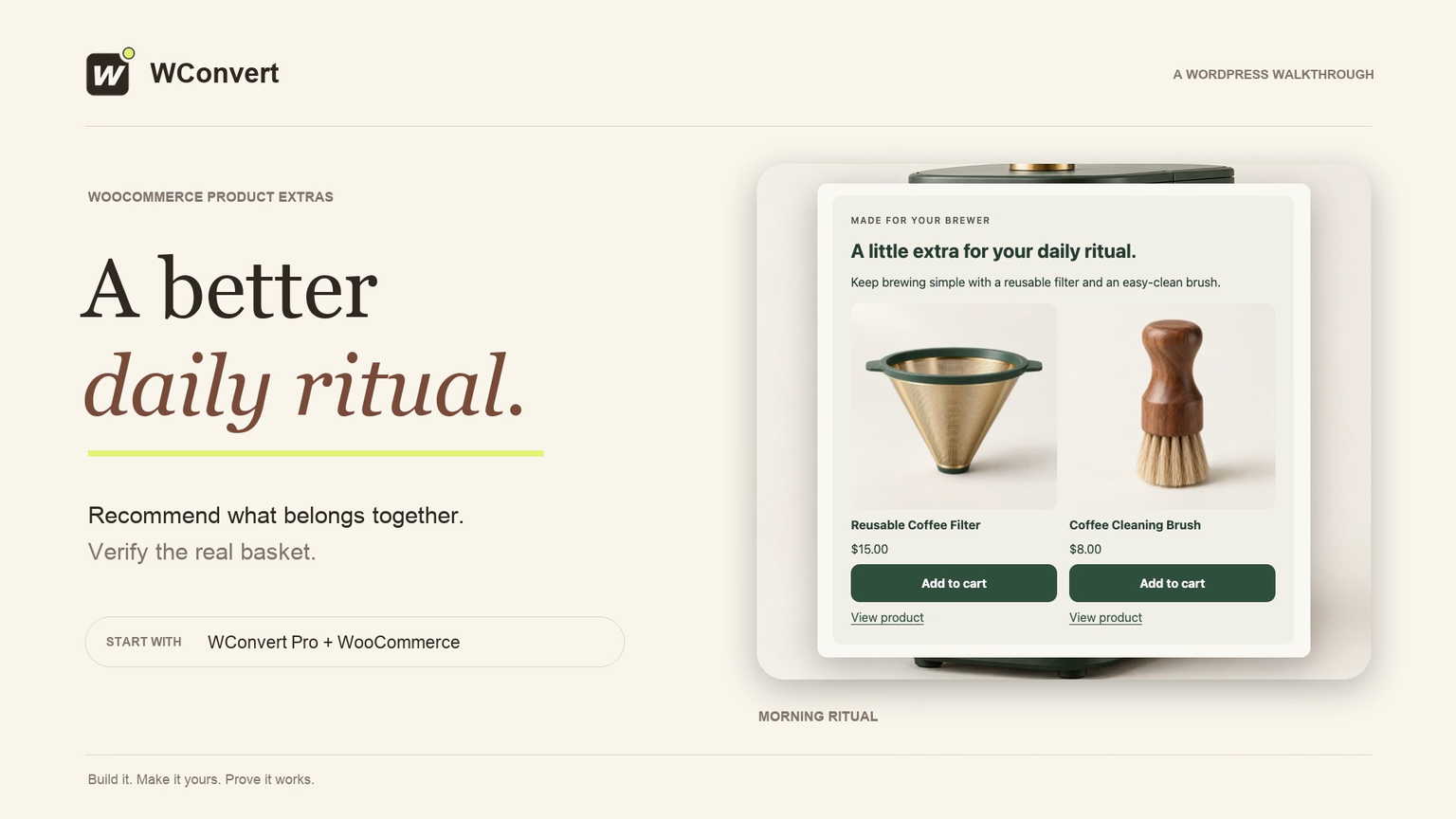
In 3 minutes 10 seconds, pair Morning Ritual’s coffee brewer with a reusable filter and cleaning brush. Show the offer when the brewer is in the basket, place it with the native WordPress block, and verify a real addition and the cart total. Requires Pro and WooCommerce.
Read the transcript
Recorded October 2026. Use WConvert Pro and WooCommerce to recommend Morning Ritual’s coffee accessories when the brewer is in the basket. Verify the actual addition, cart total and exclusion of an item already in the basket.
0:00 Offer an extra that makes sense
A useful extra should fit what someone is buying. Let’s offer a reusable filter and cleaning brush with Morning Ritual’s coffee brewer, using WConvert Pro and WooCommerce.
0:11 Choose the product extras setup
In Create campaign, choose Increase basket value. Open Add useful extras. This inline offer starts with product recommendations. You’ll need WConvert Pro, WooCommerce, and published products with prices and stock available. Choose Use this setup to create the draft.
0:30 Choose the main product
We’ve matched the headline and colors to our coffee shop. Select Product recommendations, then find the Everyday Brewer. Choose the actual product from the results. This is the item our accessories belong with; typing a name alone doesn’t select it.
0:45 Pick two useful accessories
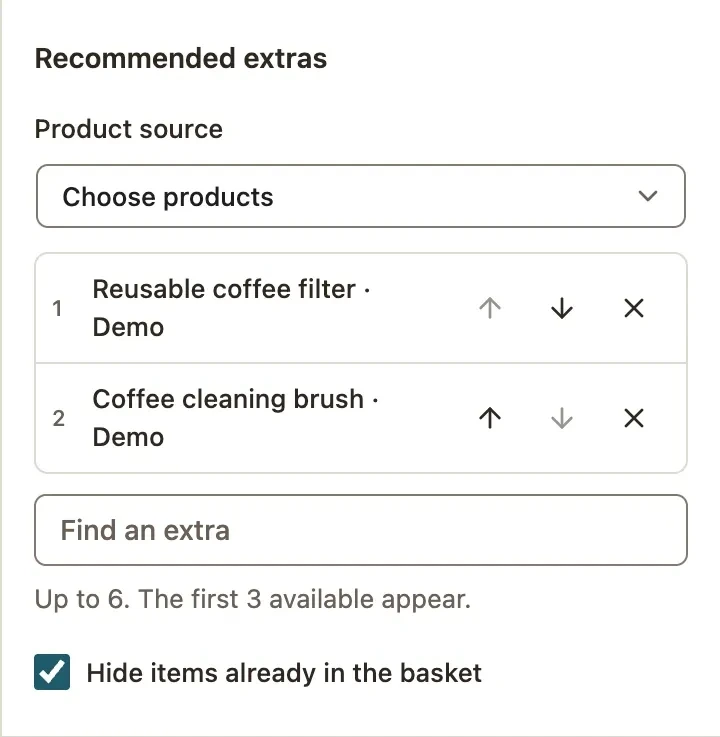
Keep Product source on Choose products. Add the reusable filter, then the cleaning brush. These are two useful companions, not a long catalog. Leave Hide items already in the basket checked, so shoppers aren’t offered an accessory they’ve already added.
1:02 Set when the offer appears
Under Show when, choose Main product is in the basket. The offer will wait until the brewer is there. Set Product action to Add to cart. That adds one available simple product; an item needing options opens its product page instead. The editor uses placeholders, so we’ll check the real products on the shop.
1:22 Check page and repeat-display rules
In Display rules, our offer is limited to the coffee essentials page, with manual inline placement. Page rules decide whether it can appear; the block decides where. For this inline offer, allow repeat views and keep it available after an addition, so the remaining accessory can still appear.
1:42 Publish the offer
With the draft saved, review and publish. Check the page and placement summary, then publish the campaign. Publishing makes it available to the page’s WConvert block; it doesn’t insert that block for you.
1:55 Select the campaign on the shop page
On our shop page, a WConvert campaign block sits below the brewer. Select the published Morning Ritual offer in that block, then save the page. You can use the campaign’s shortcode instead if your page builder doesn’t support WordPress blocks.
2:10 Test a shopper’s visit
Start with an empty basket. The brewer is visible, but the extras are hidden. Add the brewer, then reload the page to check the basket-based offer. Now both accessories appear with their store prices. Add the fifteen-dollar filter and wait for the confirmation.
2:26 Verify the real cart
Open View basket and check the result. There’s one brewer at a hundred and twenty dollars, and one filter at fifteen. The total is a hundred and thirty-five dollars. This confirms an addition to the cart; it isn’t a completed sale.
2:41 Check the remaining recommendation
Return to the coffee essentials page. The filter is already in the basket, so it disappears from the recommendations. The brush remains available. Also check the layout on a phone-sized screen before using the offer on your own store.
2:56 One relevant offer, verified
That’s a helpful offer, shown in context and checked in the real basket. Start with one main product and a couple of useful extras. Then watch confirmed additions to see which recommendations shoppers use.
Create the product offer
- In Campaigns, choose Create campaign → Increase basket value.
- Open Setup details for Add useful extras and select Use this setup.
- Name the campaign and edit its headline and body.
- Select the Product recommendations element.
- Under Main product, find and choose the product the offer relates to.
- Under Recommended extras, choose products or use WooCommerce cross-sells configured on the main product.
You can choose up to six extras; the first three available products appear. Keep Hide items already in the basket enabled when repeating an item would not help.
 Enlarge screenshot
Choose context, action and placement
- For Show when, choose Viewing the main product or Main product is in the basket.
- For Product action, choose Open the product page or Add to cart.
- Open Display rules. Check page rules, audience conditions and placement together.
- For manual inline placement, publish and add its block or shortcode to the intended page.
- For automatic placement, choose a supported location and verify your theme actually displays it.
The product-summary automatic location depends on classic WooCommerce theme hooks. For a layout that does not use that hook, place the campaign explicitly in a suitable page or template.
Add to cart adds one item when supported. Products that require options open their product page so the shopper can choose them.
Verify the offer with a real basket
- In a fresh session, visit the placed offer without the required main product. For a basket-based offer, it should stay hidden.
- Add the main product and revisit the page. Confirm that the intended extras appear.
- Choose one extra’s Add to cart action. Wait for confirmation, then open View basket and verify the item and quantity.
- Reload in an eligible session and confirm that an extra already in the basket is excluded when that option is enabled.
- Test any product-page links and a narrow mobile viewport.
Do not navigate away before the cart request finishes. Other frequency or completed-goal rules can also hide the whole campaign on a repeat visit.
Read product activity to distinguish product views, clicks and confirmed additions.
To help shoppers return to items already in their basket, see on-site cart reminders.
Include your WConvert version, the page you tested and any error message.