 WConvert
Understand built-in spam checks and protection activity
Find the built-in checks, interpret protection activity and test a form without confusing rejected requests with lost leads.
On this page
Before you start
Built-in spam checks are included in Free and run even when no verification service is configured. You need access to WConvert → Settings and a published form for a practical test.
These checks reduce unwanted requests. A blocked request is not proof that the visitor was a bot, and a successful verification is not a saved submission.
Understand the built-in checks
| Check | What it does |
|---|---|
| Hidden field | Rejects requests that fill a field real visitors do not normally see. Autofill or custom scripts can also fill it accidentally. |
| Rapid submissions | Limits repeated form requests to a campaign from the same network address over a short window. Shared networks can include several real visitors. |
| Repeated resource emails | Prevents the same resource email being accepted repeatedly for the same recipient within ten minutes. This does not merge or delete the saved submissions. |
Open Settings → Spam protection. Built-in checks only means no external bot-verification provider is selected. It does not switch off the checks above.
Free also supports an optional verification provider. Provider setup requires suitable keys and a live test. Email filters, when available with Pro, are a separate set of address and domain rules.
Read Protection activity
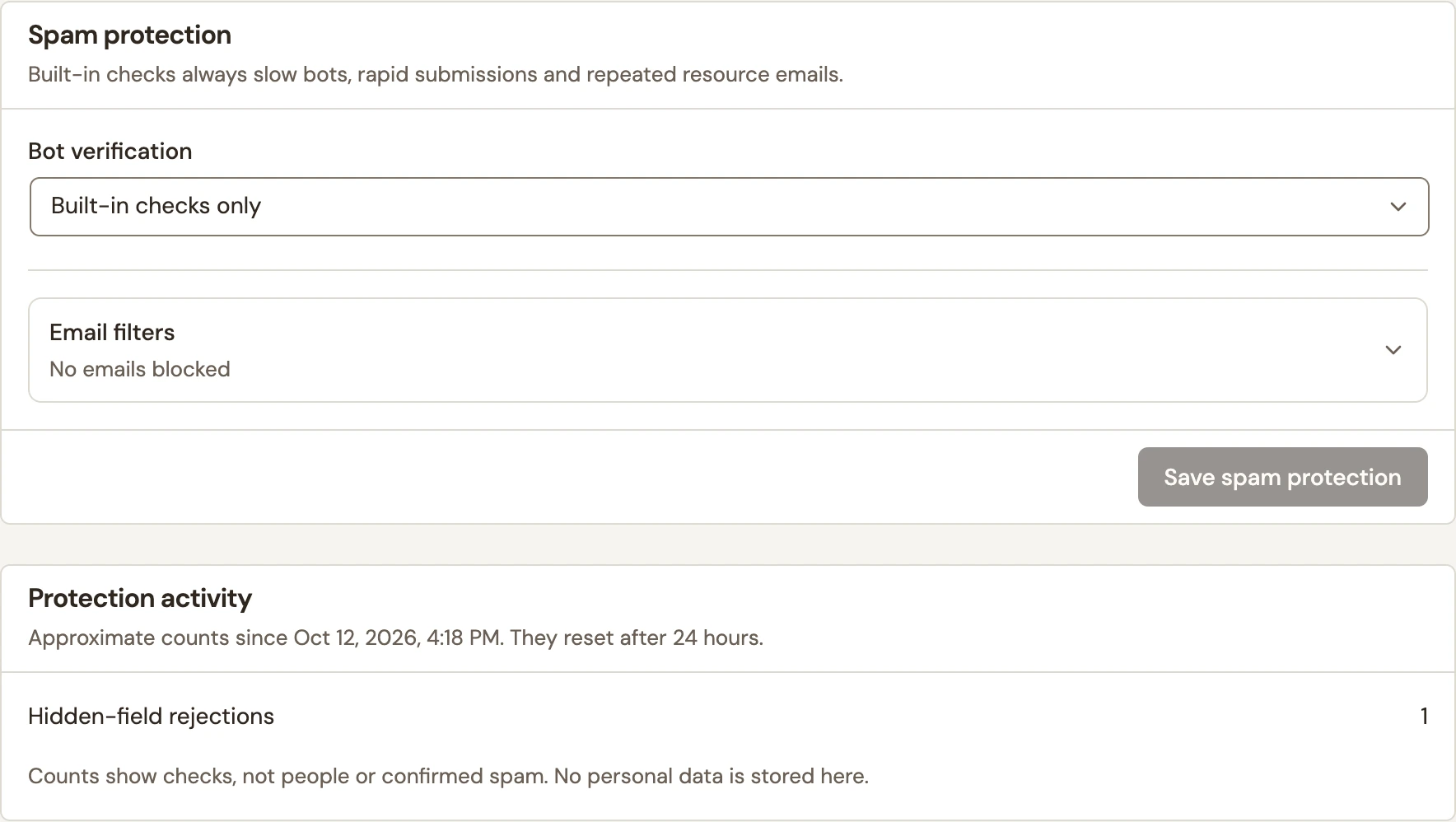 Enlarge screenshot
- Open WConvert → Settings → Spam protection.
- Find Protection activity beneath the settings.
- Read the starting time as well as each count. These are approximate totals that reset after 24 hours.
- Compare a new report with the time and message from the form that had trouble.
| Label | Meaning |
|---|---|
| Hidden-field rejections | The hidden field contained a value. |
| Requests limited | Too many capture requests reached a campaign in its short rate-limit window. |
| Incomplete verifications | A verification attempt failed validation. This is not a count of every visitor who abandoned a form. |
| Verification service errors | The configured verification service could not complete the check. |
| Successful verifications | The verification check passed; the rest of the form still has to succeed. |
| Email filter rejections | A submitted email matched an active Pro filter. |
| Repeat resource emails prevented | A recent accepted send prevented another copy of the same resource email. |
The activity panel stores no personal data and is not a list of blocked visitors. An empty panel does not prove that every form submission succeeded.
Test a form and follow up
- Open your published test page in a fresh private window.
- Complete the required fields and consent choices once. If verification appears, finish it before submitting.
- Check the acknowledgement, then find the saved submission using its email or phone and time.
- If it fails, record the visible message and revisit Protection activity. Refresh the settings screen to read updated counts.
For the next checks, see a form that is blocked or cannot be published. If the lead exists but a message is missing, follow delivery troubleshooting.
Include your WConvert version, the page you tested and any error message.