 WConvert
Add hCaptcha to your forms
Save hCaptcha keys, test verification and check a published form before using the setup with visitors.
On this page
Before you start
You need WConvert Free or Pro, a published signup form and your own hCaptcha account with standard site and secret keys. Register the hostname shown by WConvert with the provider. Have a test email address you control ready.
This is a site-wide setting: it changes verification for every WConvert form. Choose a quiet time to save and test it. Existing built-in spam checks continue to apply.
Save your hCaptcha keys
- Open WConvert → Settings → Spam protection.
- Under Bot verification, choose hCaptcha.
- Check the displayed hostname. Use Get keys to open the provider if you still need keys.
- Enter the matching Site key and Secret key. Keep the secret private.
- Choose Save spam protection.
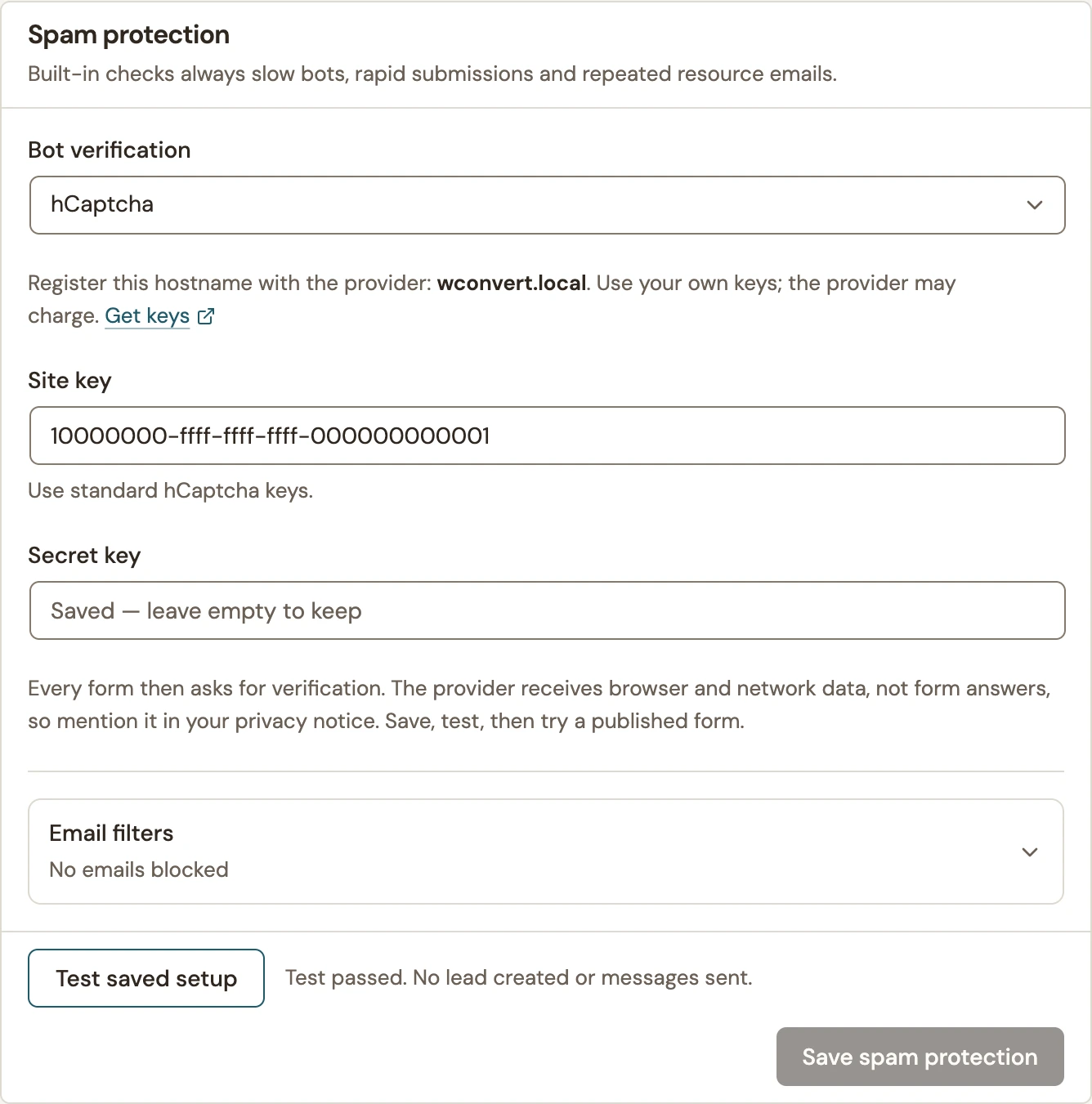
Once saved, the secret field shows Saved — leave empty to keep. You can leave it empty when saving other settings for the same provider. Switching providers clears the key inputs; supply the new provider’s matching pair.
Explain the use of hCaptcha in your site’s privacy information. The verification provider receives browser and network data, not the form answers. See WConvert’s privacy guidance for the settings to review.
Test the saved setup
- Choose Test saved setup. If you have unsaved changes, save or cancel them first.
- Complete the check in Verify your submission.
- Look for Test passed. No lead created or messages sent.
 Enlarge screenshot
This test checks the saved provider setup. It does not create a lead, send an email or prove that a campaign’s live form and destination work.
Test a published form
- Open the campaign’s published page in a fresh, logged-out browser session.
- Enter your test details, select any required consent and submit.
- Complete verification. Confirm that the form reaches its success message.
- Open WConvert → Leads and find the new submission. If the form uses a destination, check that service or mailbox separately.
- Repeat with a different test address and choose Cancel verification. The form should stay open with a cancellation message and no new lead for that address. Submit again to retry.
If verification does not work
| Symptom | What to check |
|---|---|
| The test cannot start | Save your changes first. Both keys are required to enable hCaptcha. |
| Verification is unavailable | Check the matching keys and provider availability. Check whether a firewall, content security policy or browser extension blocks hCaptcha scripts or the server’s verification request. |
| Verification fails or expires | Retry the check. Confirm the hostname and use standard hCaptcha keys for the intended site. |
| The form is still rejected after verification | Review required fields, consent and email filters. Passing hCaptcha does not bypass the other form checks. |
To remove the external check, choose Built-in checks only and save. Built-in checks and any configured email filters remain. Retest a published form after changing providers or disabling verification.
Include your WConvert version, the page you tested and any error message.