 WConvert
Content element reference
A shared set of building blocks for clear, consistent WConvert documentation. Use these examples when writing a new guide.
On this page
Use native headings and lists for everyday content, and the shared components below for richer elements. Each example includes guidance and markup you can copy into an Astro guide.
Text & links
Write short paragraphs with one main idea. Use the page title as the only H1, H2 for sections and H3 for subsections. Use H4 only inside an H3 subsection; keep the heading order intact.
A subsection heading
Use bold for exact interface labels, italics for light emphasis and inline code for literal values, filenames or shortcodes. Keep normal instructions in plain text.
A supporting detail
Make links descriptive: Create your first campaign. Apply the same link style inside lists and tables. For keyboard instructions, use Escape or Ctrl + C.
Use a quotation only for words taken from an identified source. This sentence is an illustrative quote, not a customer testimonial.
Illustrative example
<h2 id="section-name">Section heading</h2>
<p>Select <strong>Exact UI label</strong>.</p>
<p>Use <code>literal-value</code> and press <kbd>Escape</kbd>.</p>
<p><a href="/docs/create-your-first-campaign/">Create your first campaign</a></p>
Lists & steps
Use bullets for requirements or choices. Use numbered lists when the order matters. Keep required instructions visible, with one main action per step.
- State the edition and prerequisites before the procedure.
- Use a test site and sample data you control.
- Link to a practical verification step.
- Describe the action using its exact interface label.
- Explain the choice the reader needs to make.
- Include a short condition here when it affects that choice.
- State what the reader should see afterwards.
Definitions and settings
Use a definition list for a term and its explanation. Use a table when readers need to compare several attributes.
- Prerequisite
- Something the reader needs before following the steps.
- Expected result
- The observable outcome that confirms the procedure worked.
<dl class="docs-definitions">
  <div>
    <dt>Setting name</dt>
    <dd>What it controls and when to change it.</dd>
  </div>
</dl>
Tables
Use tables for structured reference data. Give each table a caption and column headers with scope="col"; use scope="row" for row headings. Keep cells concise. On small screens, scroll inside the table; keyboard users can focus it and use the arrow keys.
| Element | Use it for | Include |
|---|---|---|
| Numbered list | A procedure with a required order | Actions and an expected result |
| Table | Comparing settings or options | A caption and meaningful headers |
| Callout | A condition readers might miss | A visible type label and a useful next action |
| Screenshot | Locating a control in the interface | Alternative text, a caption and zoom |
<DocsTable caption="Available settings">
  <thead>
    <tr><th scope="col">Setting</th><th scope="col">Purpose</th></tr>
  </thead>
  <tbody>
    <tr><th scope="row">Setting name</th><td>Explanation</td></tr>
  </tbody>
</DocsTable>
Callouts
Choose the type by its meaning. Each type has a visible label, so color is never the only signal. These are article notes, not live system alerts. Use them sparingly and keep instructions in the main flow.
<DocsCallout kind="warning" title="Check before continuing">
  <p>Describe the consequence and the action to take.</p>
</DocsCallout>
Supported kinds: note (default), tip, warning, error and success. The existing docs-outcome panel can introduce a guide’s end result.
Code & examples
Use inline code for short values. Use DocsCode for multiline snippets, with a descriptive label and language. The Copy button copies the exact text; long lines scroll within the block.
<!-- Markup example only; this form does not submit to WConvert. -->
<label for="example-email">Email address</label>
<input id="example-email" type="email" name="email" autocomplete="email" /><DocsCode
label="Example configuration"
language="JSON"
code={JSON.stringify({ example: true }, null, 2)}
/>Snippets render as text and do not execute. Without clipboard access, readers can still select and copy the text manually.
Screenshots
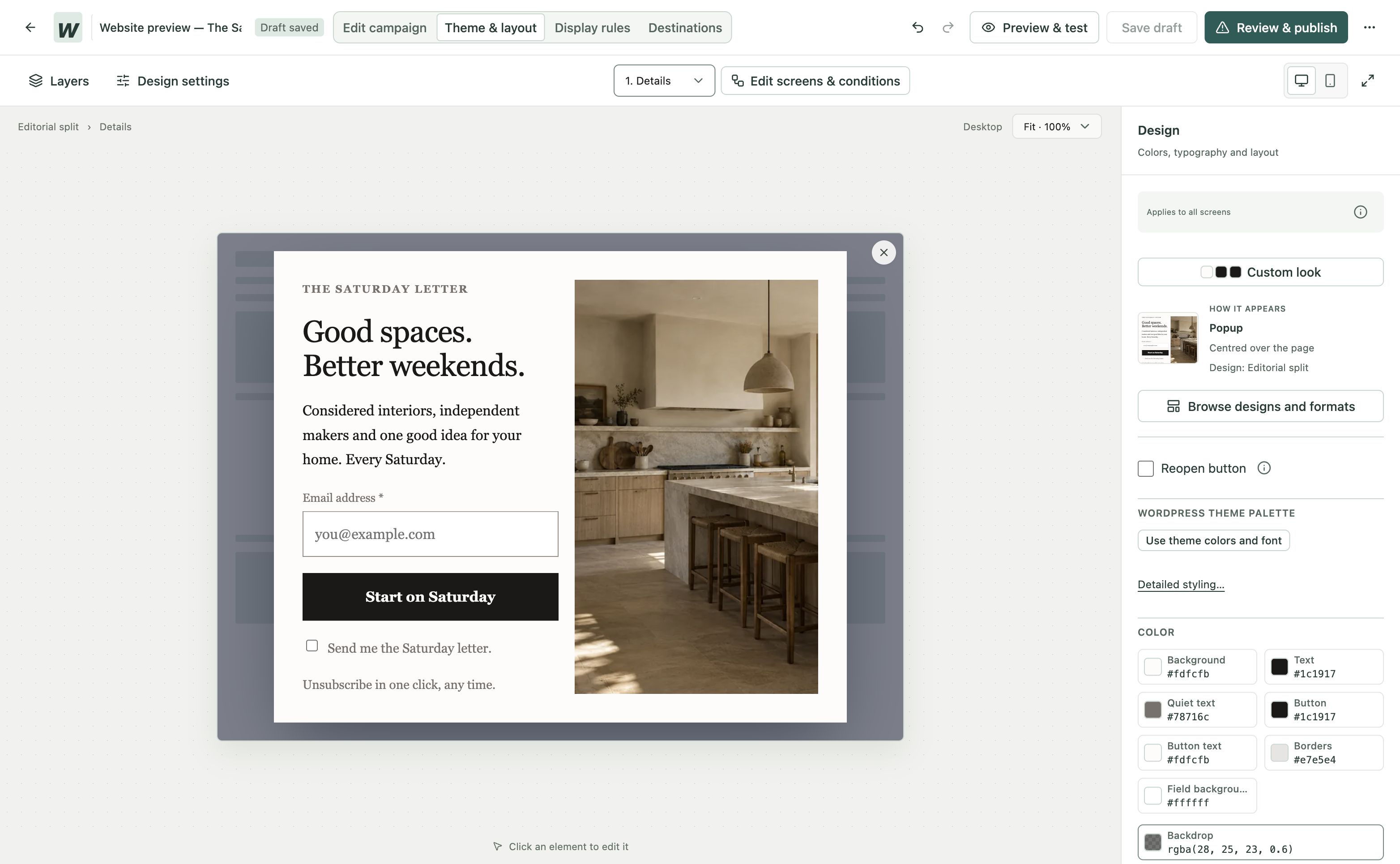
Use real interface captures when they help locate a control. Include useful alternative text, an explanatory caption and the image’s actual dimensions. Give every image a unique id. Select a screenshot to enlarge it; press Escape to return.
 Enlarge screenshot
A second screenshot instance
This repeated capture demonstrates that multiple image dialogs work independently on one page.
Enlarge screenshot<DocsImage
id="editor-overview"
{...getMediaImage('docs/editor-reference')}
alt="Campaign editor with a newsletter popup preview."
title="Inside the campaign editor"
caption="Actual editor. Your chosen setup may look different."
/>Optionally pass fullSrc, fullWidth and fullHeight when the enlarged image differs from the inline image. The full-resolution image loads when its dialog opens. Keep important instructions in text alongside the screenshot.
Responsive images from the media library
For an uploaded screenshot, spread the verified media entry into the same component. It supplies the actual dimensions, responsive sizes and full-resolution image. The page still supplies a unique ID and caption. Optional srcset andsizes props are also supported for manually prepared images.
---
import { getMediaImage } from '../../lib/media';
// This example ID must be uploaded before use.
const screenshot = getMediaImage('docs/campaign-editor');
---
<DocsImage
  id="campaign-editor-overview"
  {...screenshot}
  caption="The campaign editor with content settings open."
/>
Expandable details
Use disclosures for optional explanations and troubleshooting. Keep prerequisites, warnings and required steps outside them. Each disclosure opens independently and works with a keyboard.
When should I use an expandable section?
Use one when the information is useful to only some readers, such as an alternative workflow or a specific troubleshooting symptom.
- Give the summary a descriptive title.
- Put the likely cause and recovery steps inside.
Can a disclosure start open?
Yes. Add the open prop. Readers can still collapse it.
<DocsDisclosure title="Describe the symptom">
  <p>Explain the cause and the next thing to check.</p>
</DocsDisclosure>
Video
Video marks a guide that includes a published walkthrough. Use this compact label in guide lists and search results; keep duration on tutorial cards and players.
{guideHasVideo(article.href) && <DocsVideoBadge />}Use a recording for motion or a sequence that is difficult to show in a screenshot. Keep the written steps available. Published videos need captions and a transcript; playback is user-initiated, with no autoplay or initial video preload.
Read the transcript
Recorded October 2026. The Friday Letter is a fictional newsletter; all contact details are sample data.
0:00 Your first email signup
Build a newsletter popup with WConvert, then verify your first signup in WordPress. We will use The Friday Letter, a fictional editorial newsletter.
0:10 Choose a newsletter setup
With WConvert installed, open Create campaign. Choose Grow my email list. Search for weekly editorial. Open the setup details to see the form and its confirmation screen. Choose Use this setup to create your draft.
0:26 Make it your newsletter
Give the campaign a recognizable name. Click the headline on the canvas and replace its text. The setup already includes supporting copy, a clear request button, and permission to send the newsletter.
0:39 Add your privacy link
Select the fine print to add a privacy link. Enter Privacy Policy. Select those words, then choose Link. Leave the address empty to use the privacy page selected in WordPress, and apply the link. Use your own published policy on a real site.
0:56 Check the confirmation
Open the Received screen to check what happens after submission. This message confirms that the request was received. It does not promise an email has been sent.
1:06 Keep the first test local
In Destinations, keep this first test in WConvert only. It saves the lead in WordPress. No newsletter or confirmation email is sent.
1:16 Choose where and when it appears
Open Display rules and choose Selected pages. Add a specific page or post. Search for your prepared test page, select it, and choose Done. Now open When does it open and set a five-second delay. Under How often, keep once per visit and stop showing it after submission.
1:37 Preview the visitor journey
Open Preview to try the form. Check the mobile layout. Return to desktop. Enter a sample email address, accept the permission, and submit. Check the Received screen. Preview does not save a lead or send a message, so we still need a live test.
1:55 Review and publish
Save the draft. Open Review and publish to check the page, delay, lead storage, and privacy information. Resolve any issues first. When everything is ready, publish the campaign.
2:08 Test on the published page
Open the test page as a visitor in a fresh browser session. After five seconds, the popup appears. Enter a test email address and accept the newsletter permission. Send the request and check for the acknowledgement. This is a live submission, ready to verify in WordPress.
2:26 Verify the saved signup
In Leads, filter by your campaign and search for the test address. Open its submission to check the email, campaign, and consent wording. This confirms capture in WordPress. Email delivery is a separate test.
2:40 Your first signup, confirmed
Your first signup is saved. Before inviting real readers, connect your email service and test delivery. Follow the written guide whenever you need the steps.
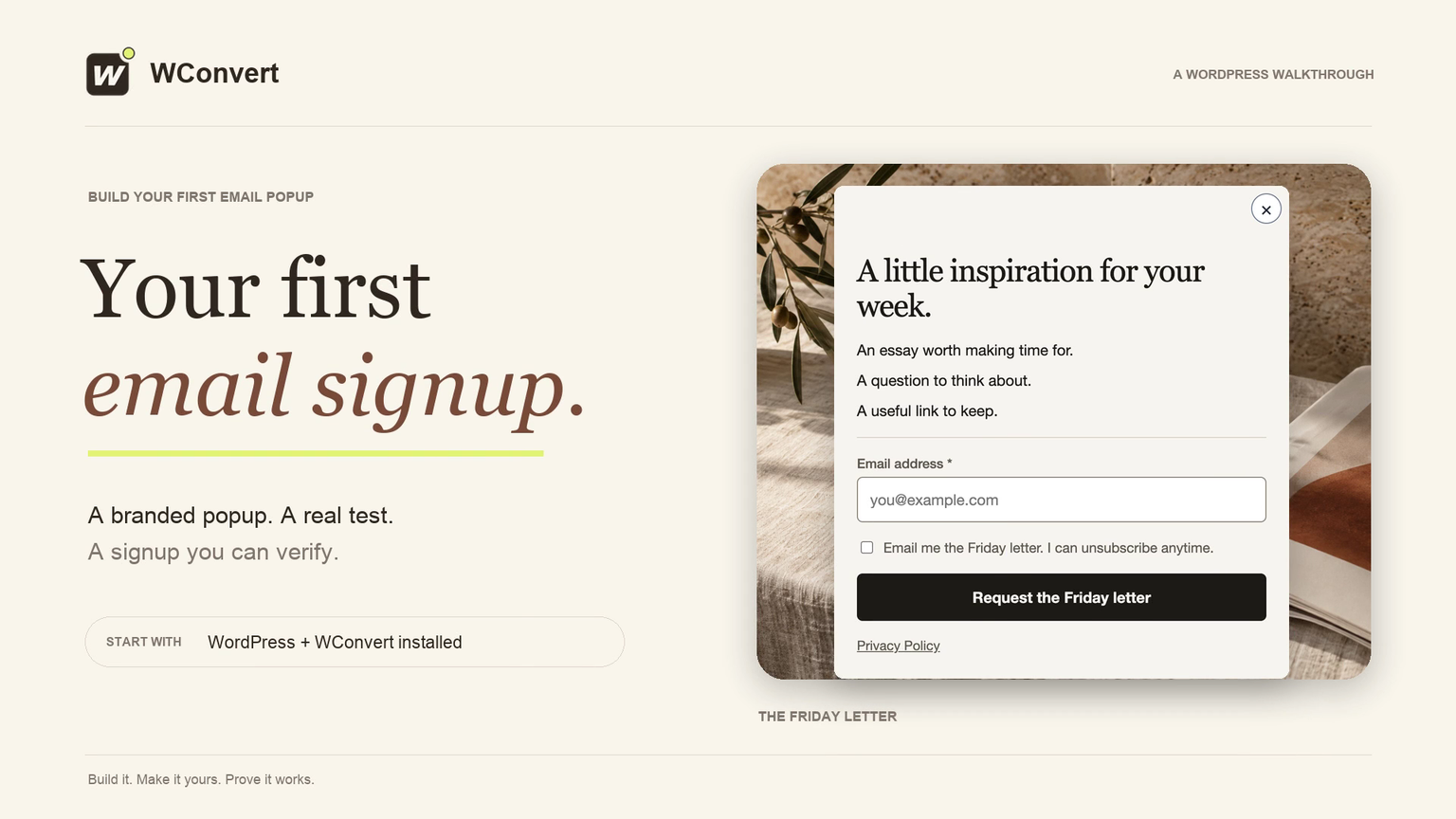
YouTube recordings show a poster from our verified image library. The player loads only after the reader chooses to watch. A direct YouTube link remains available, including when JavaScript is disabled or the embedded player cannot load. Upload captions to YouTube and provide the matching WebVTT download and full transcript here.
<DocsVideo
  title="Create, publish and test your first email popup"
  youtubeId="vVSNwrk1VrM"
  duration="2:50"
  poster={poster.src}
  posterSrcset={poster.srcset}
  posterWidth={poster.width}
  posterHeight={poster.height}
  captions="/captions/first-campaign.en.vtt"
>
  <div slot="transcript">
    <p>Include the complete spoken explanation, grouped by step.</p>
  </div>
</DocsVideo>
Resolve poster with getMediaImage('docs/first-campaign-video'). Use src instead of youtubeId for a directly hosted video. The component requires captions and a transcript for either provider.
<DocsVideo
  title="A descriptive recording title"
  src="/videos/your-recording.mp4"
  poster="/images/your-video-poster.jpg"
  captions="/videos/your-recording.en.vtt"
>
  <div slot="transcript">
    <p>Describe the actions shown and include the spoken explanation.</p>
  </div>
</DocsVideo>
English captions are the default. For another language, set captionLanguage and captionLabel. For YouTube, these settings request the uploaded caption track; the local file is a download fallback, not a substitute for uploading captions to YouTube. Use descriptive links for other external providers until a shared embed is added.
Authoring checklist
Import the components you use from src/components/docs/. Pages live in src/pages/docs/; shared element styles live in src/styles/docs.css.
---
import DocsLayout from '../../layouts/DocsLayout.astro';
import DocsCallout from '../../components/docs/DocsCallout.astro';
const sections = [{ id: 'before-you-start', title: 'Before you start' }];
---
<DocsLayout
  title="Describe the reader’s task"
  description="Explain the outcome in one sentence."
  category="Getting started"
  sections={sections}
>
  <section id="before-you-start">
    <h2>Before you start</h2>
    <p>State the edition, prerequisites and expected result.</p>
    <DocsCallout kind="tip"><p>Add useful optional advice.</p></DocsCallout>
  </section>
</DocsLayout>- Verify product labels and behavior against the current plugin source. State the edition, prerequisites, expected result and a practical test.
- Pass the article’s own
sectionsandcategorytoDocsLayout. Optionalbadge,readingTimeandreviewedvalues must be accurate for that article. - Add the article and its searchable sections to
docsArticlesinsrc/config/docs.ts. This supplies the shared navigation and local search. - Register published routes in
publicRoutes,scripts/check-site.mjsand both page lists inscripts/check-page-weight.mjs. - Check mobile layout, keyboard navigation, table scrolling, code copying and every image dialog. Confirm that examples contain no private information.
- Run
npm run buildandnpm run checkbefore merging.
Reuse these shared elements. When a new element is needed, add its component or scoped style and an example here before using it across guides.
Include your WConvert version, the page you tested and any error message.